



The first device that’s available for provisioning via Add-on Mart is Yealink W80B – an IP multi-cell base station. To read about other IP phones provisioning, refer to the Customer Premises Equipment (CPE) provisioning and inventory chapter in the PortaBilling Administrator Guide.
This is how CPE provisioning via Add-on Mart works:
Let’s say the service provider, Easy Call, wants to provision Yealink W80B to their customers. Since this device model is available via Add-on Mart, Easy Call subscribes to the CPE provisioning service and enables it on their installation.
The rest of the configuration process for creating a new CPE profile and managing the IP phone inventory in PortaBilling remains the same as before. Refer to the Auto-provisioning of IP Phones handbook for the detailed configuration.
When an administrator creates a CPE profile for Yealink W80B, PortaBilling queries the CPE provisioning container via the API to generate a CPE profile. The CPE provisioning container returns the generated CPE profile and it is stored in the PortaBilling database along with the internal CPE profiles.
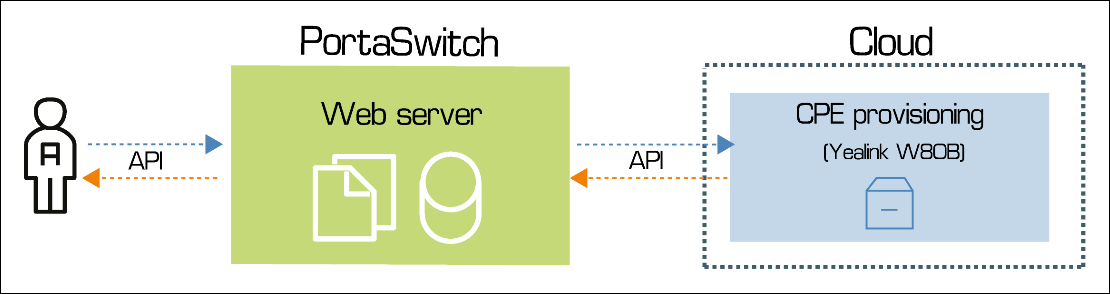
Then the administrator creates the Yealink W80B CPE device and assigns it to an account. PortaBilling generates a configuration file with the CPE device parameters (username, password, device’s MAC address, etc.) and sends it to the CPE provisioning container. This configuration file is used in the CPE provisioning container to adjust Yealink W80B’s internal configuration.
Now Yealink W80B is ready to use by end users.
Configuration
- Subscribe to the needed Add-on Mart module, such as "Yealink W80B", via the Add-on Mart management portal.
- Log in to the Configuration server web interface, navigate to Web_Cluster > Global, and perform the following steps.
- Set the ExternalCpeProvisioningService.Enabled option to “Yes”.

- Specify the number of seconds the system waits for a response from the Add-on Mart cloud infrastructure (AMCI) in the IPaaS.RequestTimeout option, e.g., 30.
- Specify the URL of the AMCI in the IPaaS.URL option, e.g., https://ipaas.portaone.com.

- Set the ExternalCpeProvisioningService.Enabled option to “Yes”.
- If this is the first Add-on Mart module you activate, you need to grant your system access to the Add-on Mart services. For this, perform the following steps:
- On the Add-On Mart management portal, open My modules > Yealink W80B, and click Authorization details
- Click Show password
 and copy the login and password

- In PortaBilling, go to Company info > Add-On Mart panel and specify these credentials:



