



On the Override tariff panel you can override a customer tariff with a new tariff that contains a handful of rates specific to the current customer.
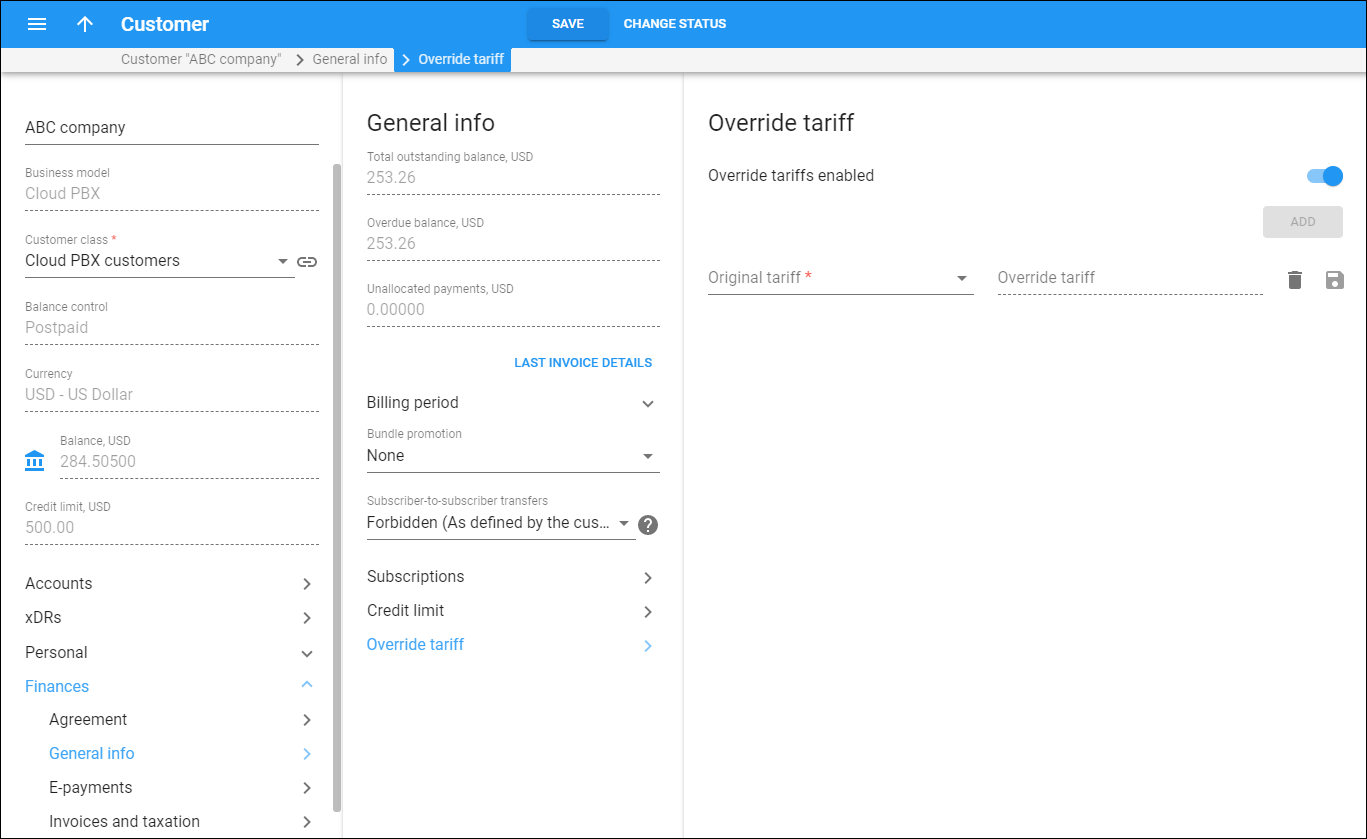
To override a customer tariff with a new tariff:
- Turn on the Override tariffs enabled toggle switch.
- Click Add.
- Choose an original tariff from the list. This tariff contains the majority of the rates.
- Choose an override tariff from the list. This contains a handful of rates specific to the current customer.
- Click Save.
The system performs a rate lookup in both the original and override tariffs. If there are different rates for the same destinations in both tariffs, the one from the override tariff is chosen.
To remove an association between the original and override tariffs, click Remove  .
.
To change an association between the original and override tariffs, click Edit  .
.
To disable override tariff service feature, turn off the Override tariffs enabled toggle switch. Note that the association between original and override tariffs is preserved. Next time you enable a service feature, the override tariff will take effect.


