



Let's say, Smart Calls, Ltd. wants automatically pay all received invoices and top-up the balance for $100 when it approaches the credit limit.
This chapter assumes that you have already performed the configuration steps as described in the Payment configuration handbook.
Configure auto payments (admin interface)
Link copied to clipboard
- On the navigation menu on the left select Sales and then Customers.
- Use the Customer search to find the desired customer, e.g., Smart Calls, Ltd.
- Click the customer name to open their record.
- Go to Finances > Financial info.
- On the Payment method section, select Yes from the Charge the invoice amount using this payment method list.
- Enable the Use automatic payments option and specify the auto payment
parameters:
- Type “100” in the Automatic payment amount, USD field
- Type “200” in the Apply payments when the balance exceeds,
USD field.
For prepaid customers (which balance decreases as they consume services) the when balance exceeds option means that the balance actually becomes lower than the indicated threshold.

- Click Save.
Configure auto payments (customer self-care interface)
Link copied to clipboard
- On the customer self-care interface, go to the Billing Information tab.
- In the left-hand menu, click Payment Info.
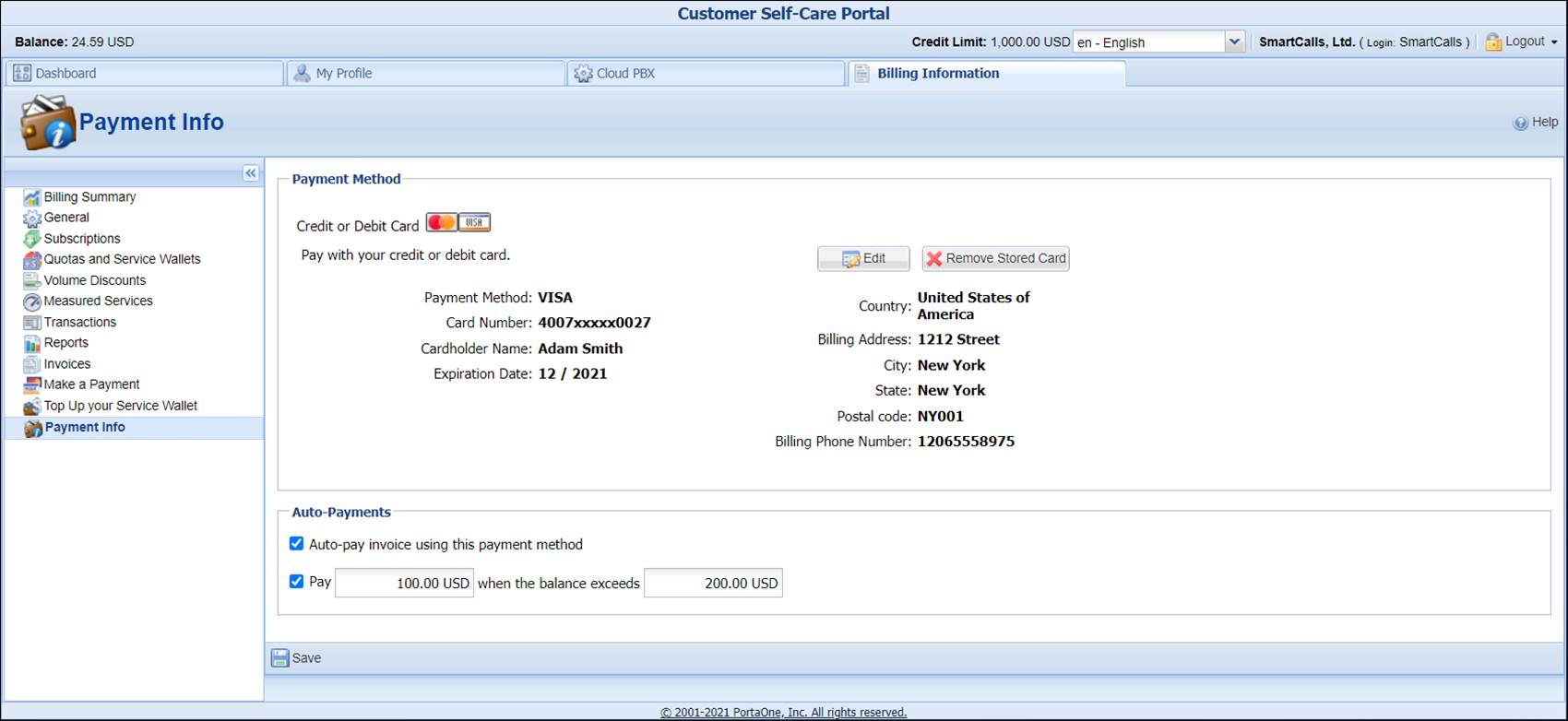
- In the Auto-Payments area, select the Auto-pay invoice using this payment method check box.
- Select check box next to Pay… when balance exceeds … USD.
- Type “100” next to Pay and “200” next to when balance exceeds.
For prepaid customers (which balance decreases as they consume the services) the when balance exceeds option means that the balance actually becomes lower than the indicated threshold.
- Click Save.


