



Service providers can significantly increase the security level of access to PortaBilling and the Configuration server web interface by using two-factor authentication (2FA). With enabled 2FA, users can log in to the system only after entering a valid one-time password (OTP) in addition to their login and regular password. The time-based OTP is generated by a 2FA application, such as Google Authenticator, installed on the user’s smartphone. So, even if an unauthorized person gains access to user credentials, they can’t access the system without the OTP.
For the following entities, 2FA can be enabled in PortaBilling web interface or via the PortaBilling API:
- Users (PortaBilling admins)
- Resellers (individually and at the customer class level)
- Customers (individually and at the customer class level)
- Customer individuals
- Distributors
For the following entities, 2FA can be enabled only via the PortaBilling API:
- Accounts
- Representatives
For Configuration server users, 2FA can be enabled via the server’s web interface.
- Enhanced security for access to the PortaBilling system and the Configuration server web interface.
- Compliance with security policies and the ability to pass security audits.
Requirements
- Users need to install a 2FA application on their smartphone or PC to generate OTPs.
- For successful 2FA, the time on the server and a user’s device should be synchronized with an internet time server.
How it works
Let’s say a service provider Panda Telecom hires Adam, a new engineer. To provide Adam with access to the PortaBilling web interface, the administrator (Root user) creates a new user, enables 2FA for it, and passes the credentials to Adam.
Adam opens the PortaBilling UI page and enters his login and password. Since it’s the first time he logs in, PortaBilling generates the 2FA key and Adam sees the “Activate two-factor authentication” dialog.
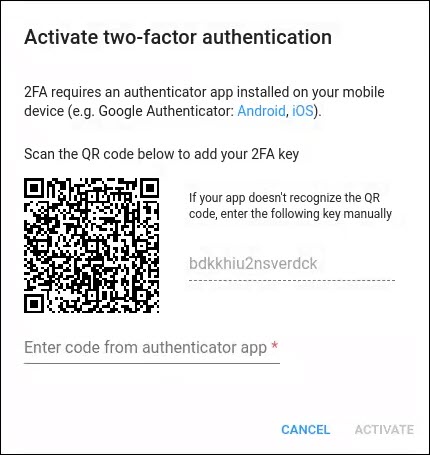
Adam installs the Google Authenticator application on his smartphone and scans the QR code to save the 2FA key in Google Authenticator.
Now, Google Authenticator generates a 6-digit OTP that is based on the current time and valid for the next 30 seconds. Adam enters the OTP in the dialog.
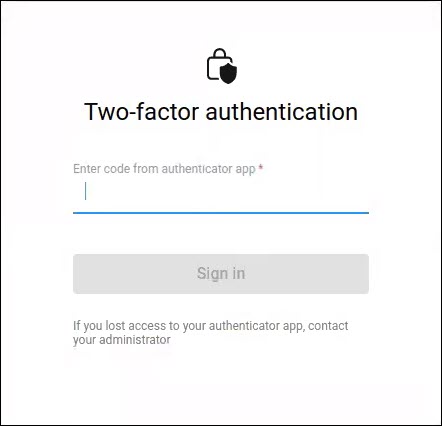
PortaBilling also generates an OTP based on the server time and compares it with the entered one. Since the OTPs match, Adam gets access to the PortaBilling UI. He receives a notification about the successful 2FA activation in the email. Also, if anyone tries to log in with Adam’s credentials and an invalid OTP, Adam will receive a notification in the email.
When logging in next time, Adam enters his login and password, and then he just needs to open Google Authenticator on his smartphone and enter an OTP.
Suppose, a week later, Adam loses his smartphone, where the Google Authenticator with the active 2FA is installed. He asks the PortaBilling administrator (Root user) to reset the 2FA key for his user. After the reset, Adam will need to activate 2FA on the new smartphone as described above.
Specifics
- When the administrator is redirected to self-care portals from the PortaBilling UI, e.g., to troubleshoot an issue reported by the customer, the OTP is not required.
- If a user is logged in while the administrator enables 2FA, the current session will not be dropped, and they will be required to set up 2FA only the next time they log in.
- For Configuration server users, after 5 incorrect OTP entries, access is blocked for 3 minutes. A message showing the remaining wait time appears: “Too many incorrect one-time password attempts. Please try again in N minutes.” Once this period is over, the user can attempt to log in again.
Configuration
PortaBilling
To enable 2FA for a user or a customer class, the administrator needs to open a specific user/customer class > Web-self care panel > turn on the Two-factor authentication (2FA) toggle.
If a user loses access to the 2FA application, the administrator can click the Reset 2FA key.
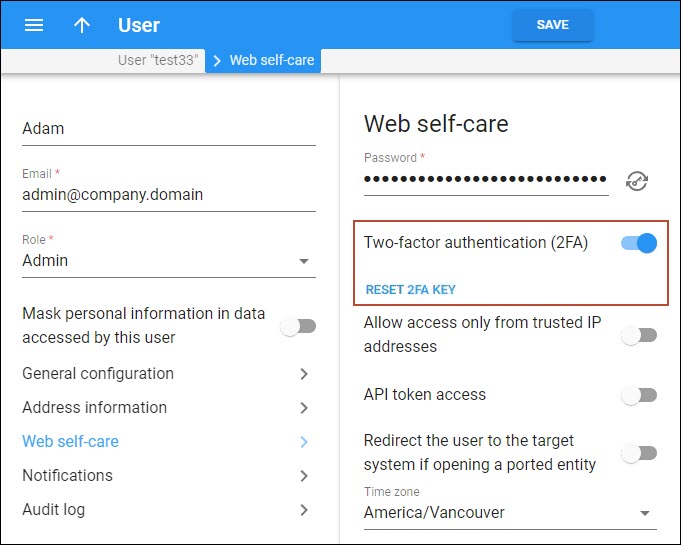
The administrator can override the customer class settings:
- for a specific customer or reseller (open Personal > General info > Web self-care > select the needed option in the Two-factor authentication (2FA) dropdown list);
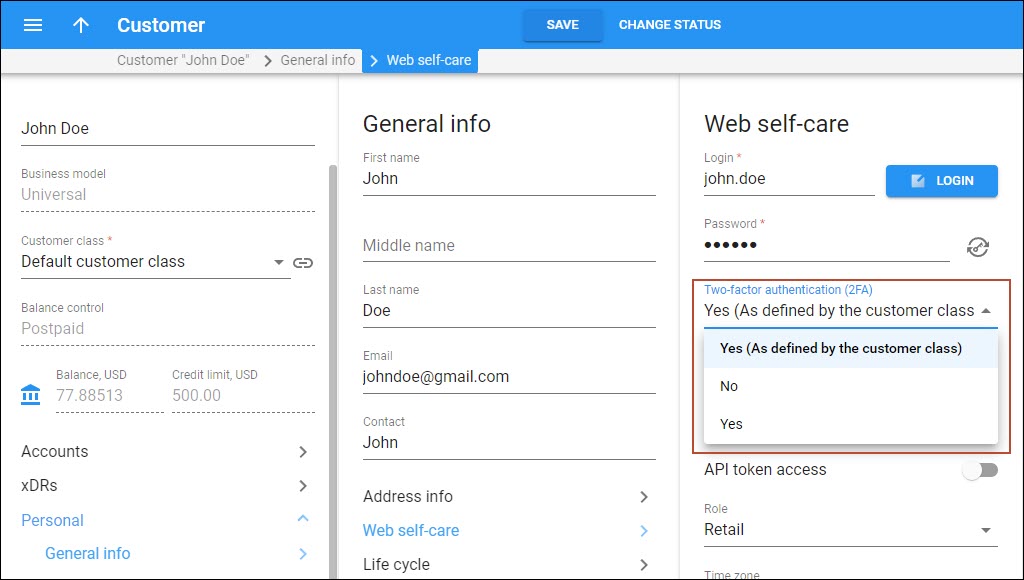
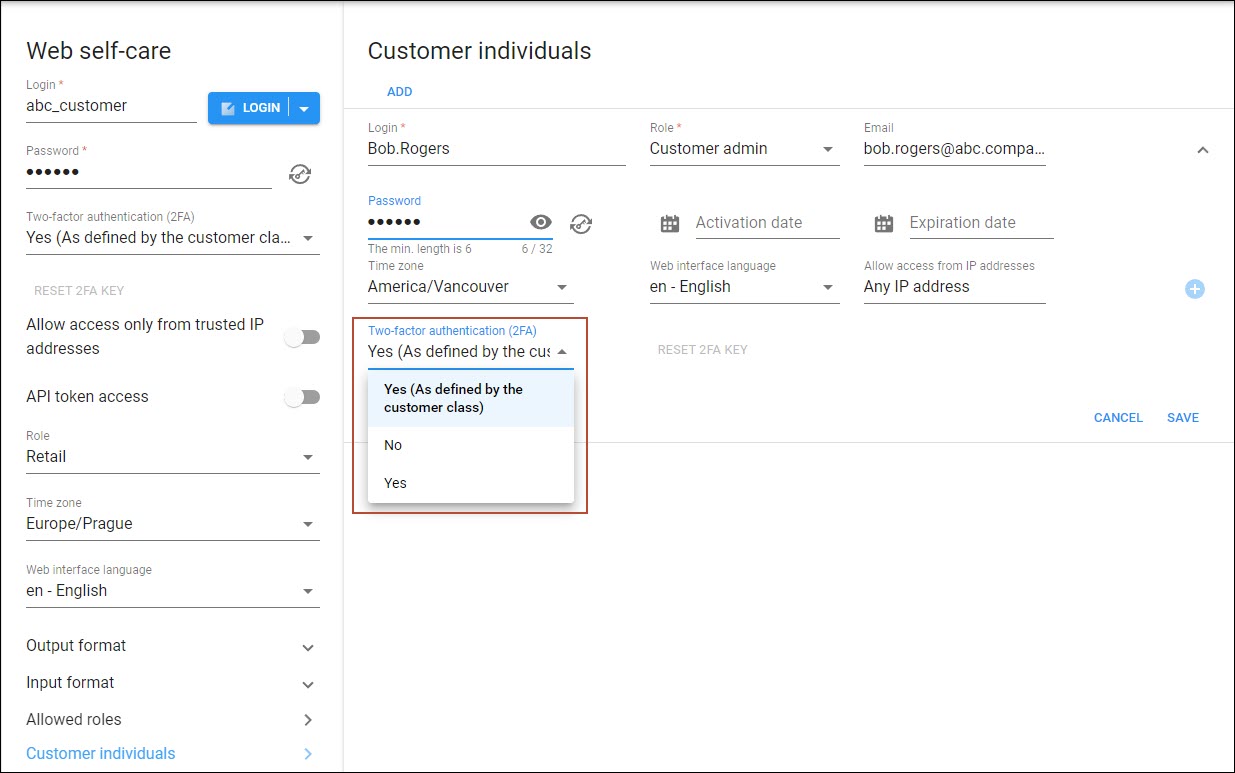
- for the customer self-care portal users (open a specific customer > Personal > General info > Web self-care > Customer individuals > open/add a specific individual > select the needed option in the Two-factor authentication (2FA) dropdown list).
Configuration server
To enable 2FA for the Configuration server web interface user:
- Log in to the Configuration server web interface as the Root user.
- Navigate to the Users tab, and click Create or open an existing user record.
- Select the Require one-time password option in the User details dialog.



