

This chapter assumes that you have already performed the configuration steps as described in the Payment configuration handbook.
Configuration overview
Link copied to clipboard
This document describes how to make an e-commerce payment in the admin interface and in the customer self-care interface:
- Make a payment on behalf of a customer (admin interface)
- Make a payment (customer self-care interface)
Make a payment on behalf of a customer (admin interface)
Link copied to clipboard
- On the navigation menu, select Sales and then Customers.
- Use the Customer search panel to search for the desired customer, e.g., Smart Calls, Ltd.
- Click the customer name to
enter their record.

- On the Customer panel, click Balance
adjustment
 .
.

- For the Balance adjustment option, select E-commerce payment from the Operation type list and click Continue.
- On the Payment method step, select Credit
card from the Pay using list and
specify all the required credit card details.

- Click Continue.
- On the Payment amount step, type in “25” in the Amount field and click Continue.

- On the Billing address step, specify the customer’s billing details.
- Select the checkbox to save the
credit card information and click Continue.

- Review the payment details on
the Summary step and click Apply payment.

- After the successful payment
processing, you will receive the payment confirmation.

Make a payment (customer self-care interface)
Link copied to clipboard
- On the customer self-care interface, go to the Billing Information tab.
- In the left-hand menu, click Make a Payment.
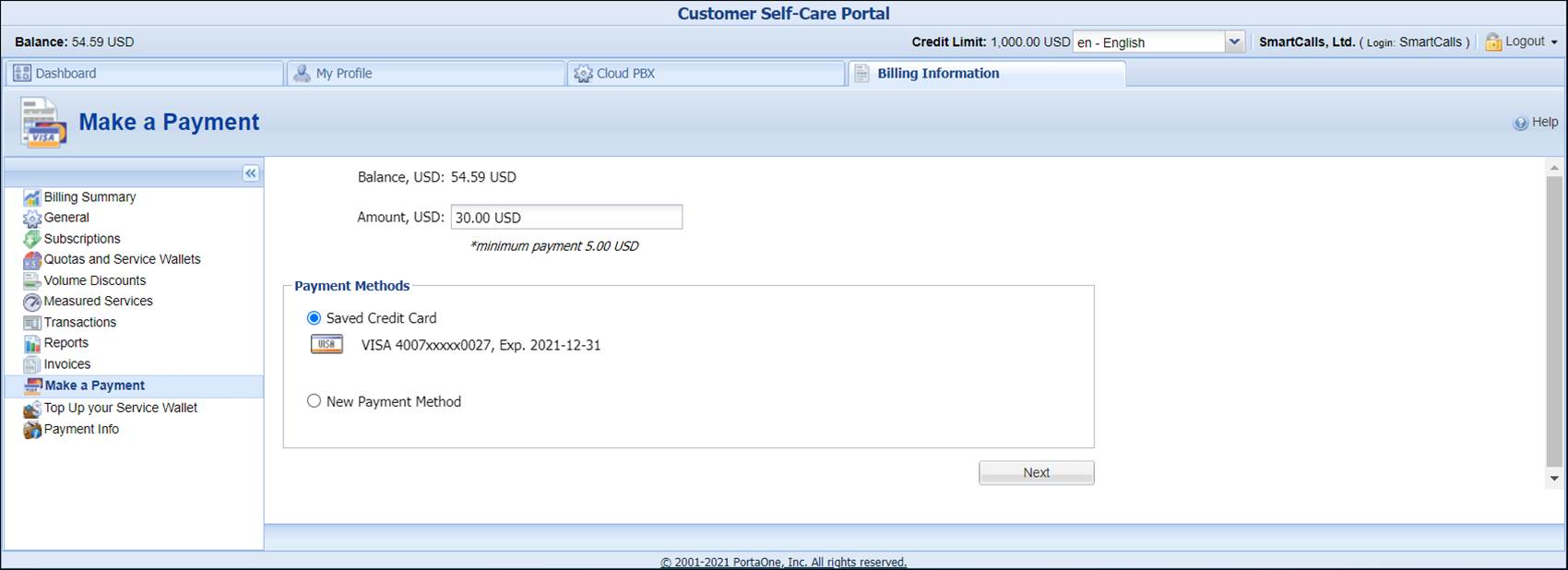
- In the Amount, USD field, type “30”.
- Click the Next button.
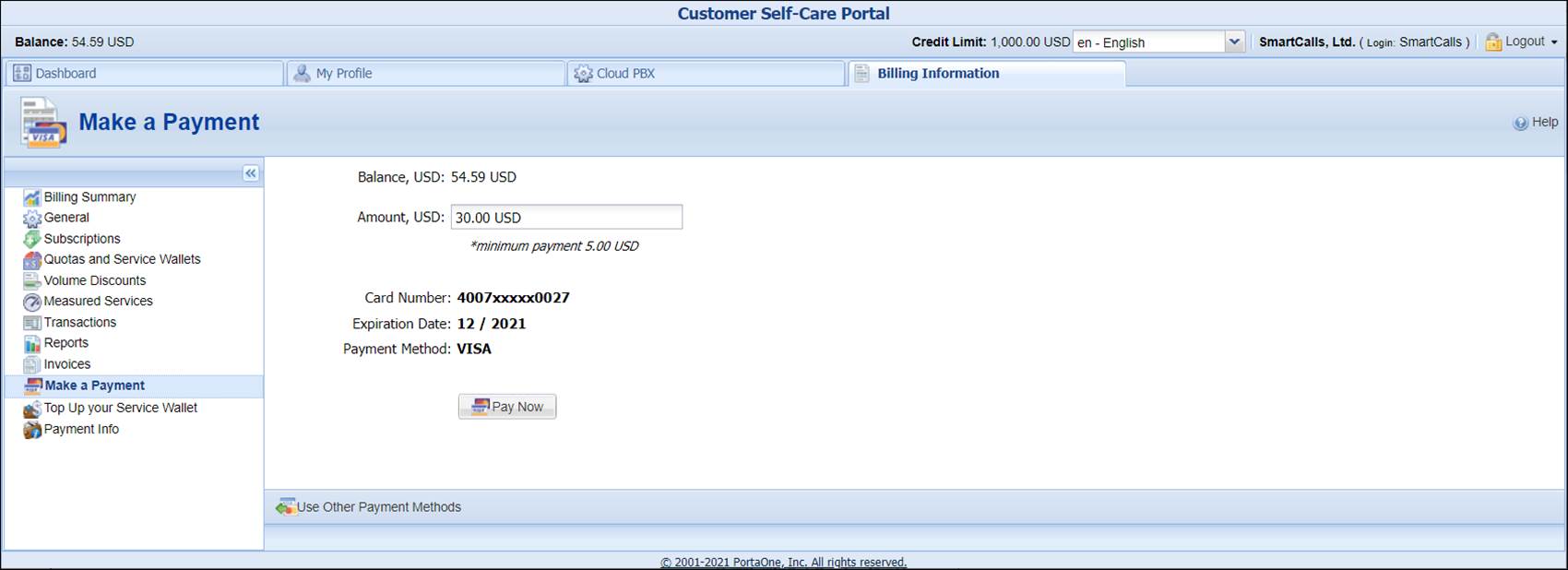
- Click the Pay Now button.
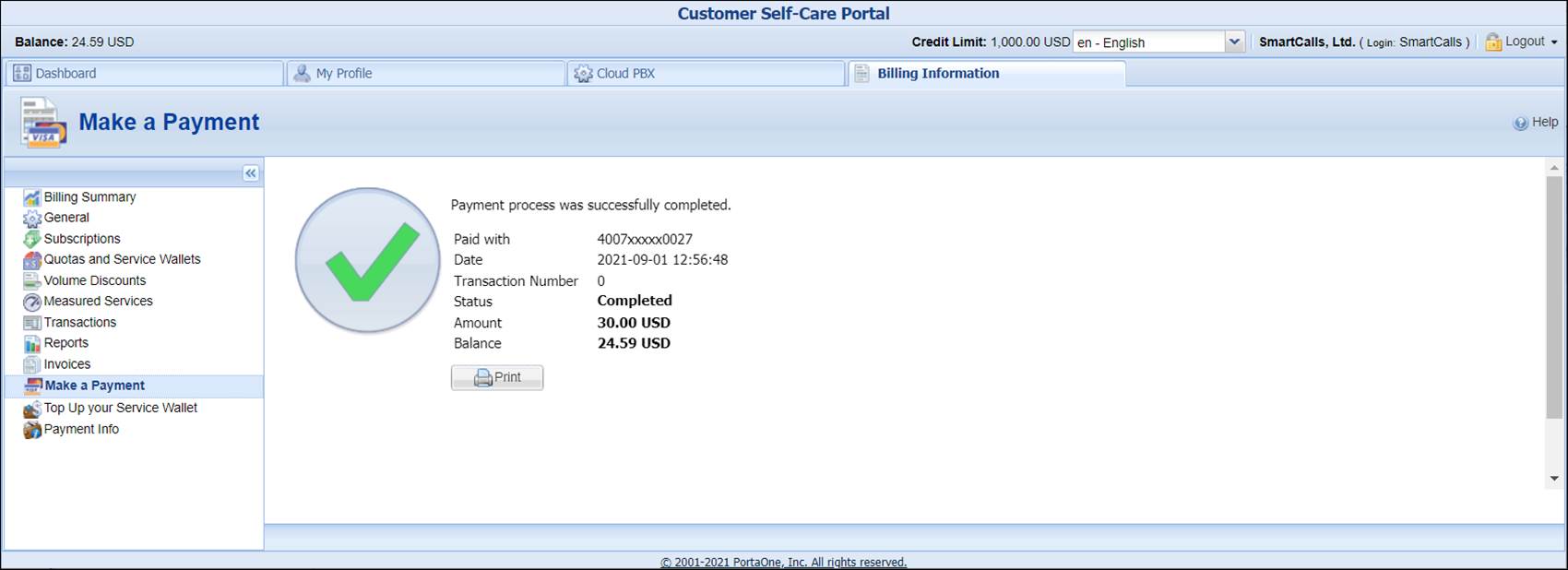
- After the successful payment processing, you will receive the payment confirmation.


