You may need to export rates into a file, for example, to provide a price list to a customer.
This can be done with the Rate download functionality. You just need to open the tariff, click Rate download, and select the file template (built-in or custom). You can also choose to download only rates effective at a specific date.
The built-in file templates allow you to download rates to a file in .csv, .xlsx, or .xls format. The file will include all possible rate parameter columns, with data in the default format.
You can create a custom rate-download template to choose which columns to include and specify the required data format. This allows you to receive an output file with the required layout.
For step-by-step instructions on downloading rates from a tariff, refer to the Rate export handbook.

You can also download origin-based rate decks, which include multiple pricing options for each destination based on the call origination. For details, see the Upload and download origin-based rate decks chapter.
Rate download template
You can create a custom rate download template to define:
- The output file format (.csv or .xls).
- How the data is processed before being downloaded into the file. Some adjustments can be applied directly to the data fields, such as setting a custom date format or removing a timestamp. For example, using the European date format (DD-MM-YYYY) for the “Effective From” column. If you need more complex modifications, such as adjusting prefixes by adding a “+” before a rate code, you can use a Perl post-processing rule.
- How the data is arranged in the file. You can remove unnecessary columns, for example, exclude an “Off-peak Period” column. You can also change the column order, such as moving the “Route Category” column after “Preference”.

To create a template, navigate to My company > Templates, click +Template, and define the settings:
- Name – a unique name for the template.
- Type – the type of template (rate download).
- Managed by – indicates whether a template is managed by an admin or a specific reseller.
- File format – the format used for downloaded files (.csv or .xls).
- Tariff type – the type of the tariff to which the template applies.
You can assign the created template as the default for a specific tariff in the Web-download template field.
Once assigned, the template’s settings are applied to all rate downloads.
If no default download template is defined in the tariff, you can select another available template (previously created templates, if any) or a built-in template (.csv, .xlsx, .xls) that includes all possible rate parameters.

How it works
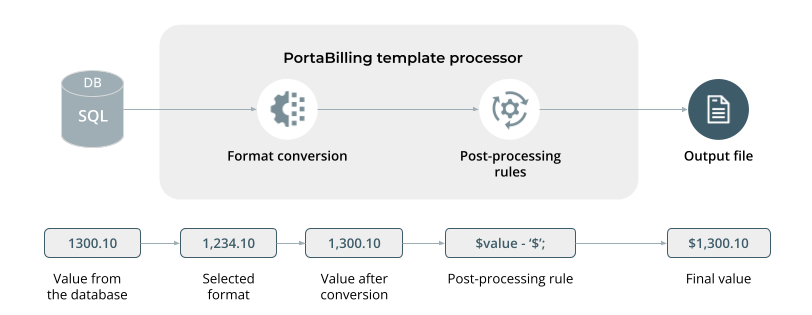
During the download process, the PortaBilling template engine extracts data from the database, converts it into the specified format, applies post-processing rules, and then creates a file of the specified format, inserting the data in the appropriate places in the file.