



This chapter assumes that you have already performed the configuration steps as described in the Payment configuration handbook.
Configure a preferred payment method (admin interface)
Link copied to clipboard
- On the navigation menu, select Sales and then Customers.
- Use the Customer search to find the desired customer, e.g., SmartCalls.
- Click the customer name to enter their record.
- Open Finances > Financial info.
- Go to the Payment method section and click Payment method.

- Select the Credit Card option and specify the required credit card details.
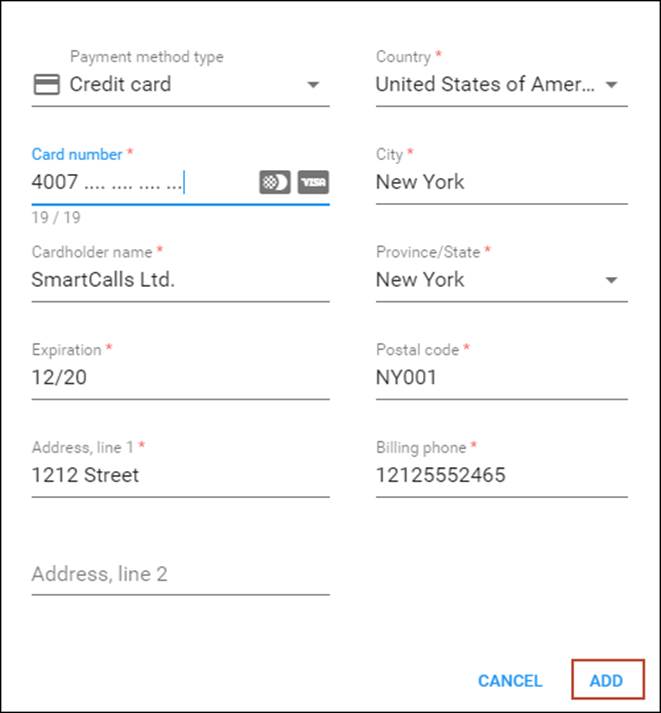
- Click Add.
Configure a preferred payment method (customer self-care interface)
Link copied to clipboard
- On the customer self-care interface, go to the Billing Information tab.
- In the left-hand menu, click Make a Payment.
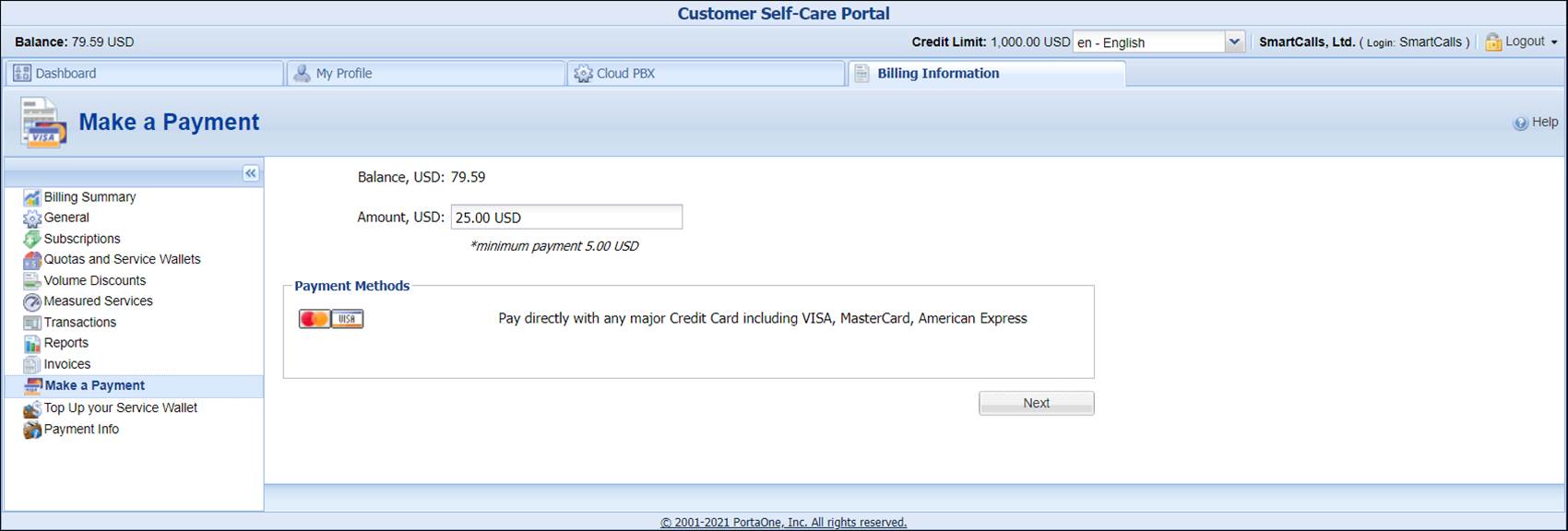
- In the Amount, USD field, type “25.”
- In the Payment Methods section, select Pay directly with any major Credit Card including VISA, MasterCard, American Express.
- Click the Next button.
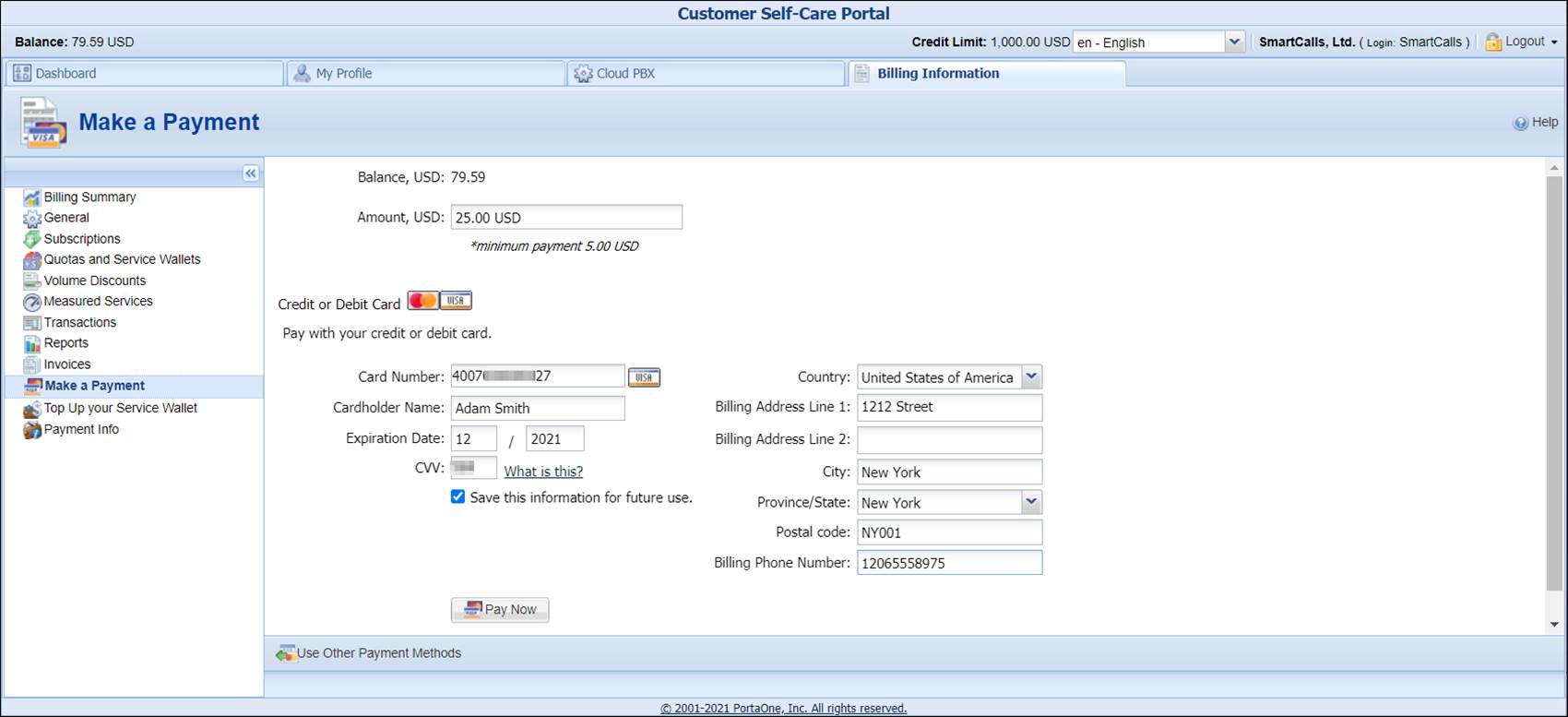
- Select the Credit or Debit Card option and specify the required credit card details.
- Select the Save this information for future use check box.
- Click the Pay Now button.
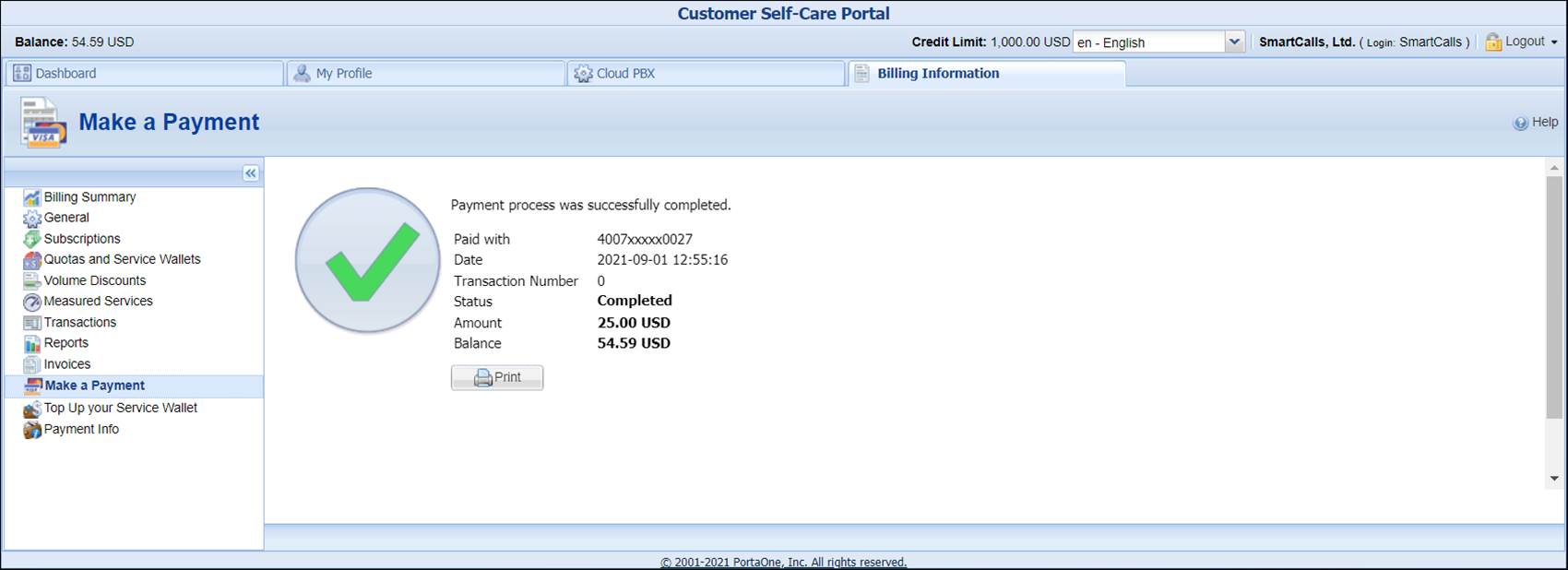
- After the successful payment processing, you will receive the payment confirmation.


