



Subscription plans allow you to charge periodic fees to your customers for using the service.
You can assign subscription plans to products (both main and add-on ones), customers and accounts.
To add a subscription, click Add on the Subscription plan list panel and fill in the details. To save the subscription configuration, click Save. To save and continue editing the subscription details, click Save & Edit details. To create more subscriptions, click Save & Add a copy.
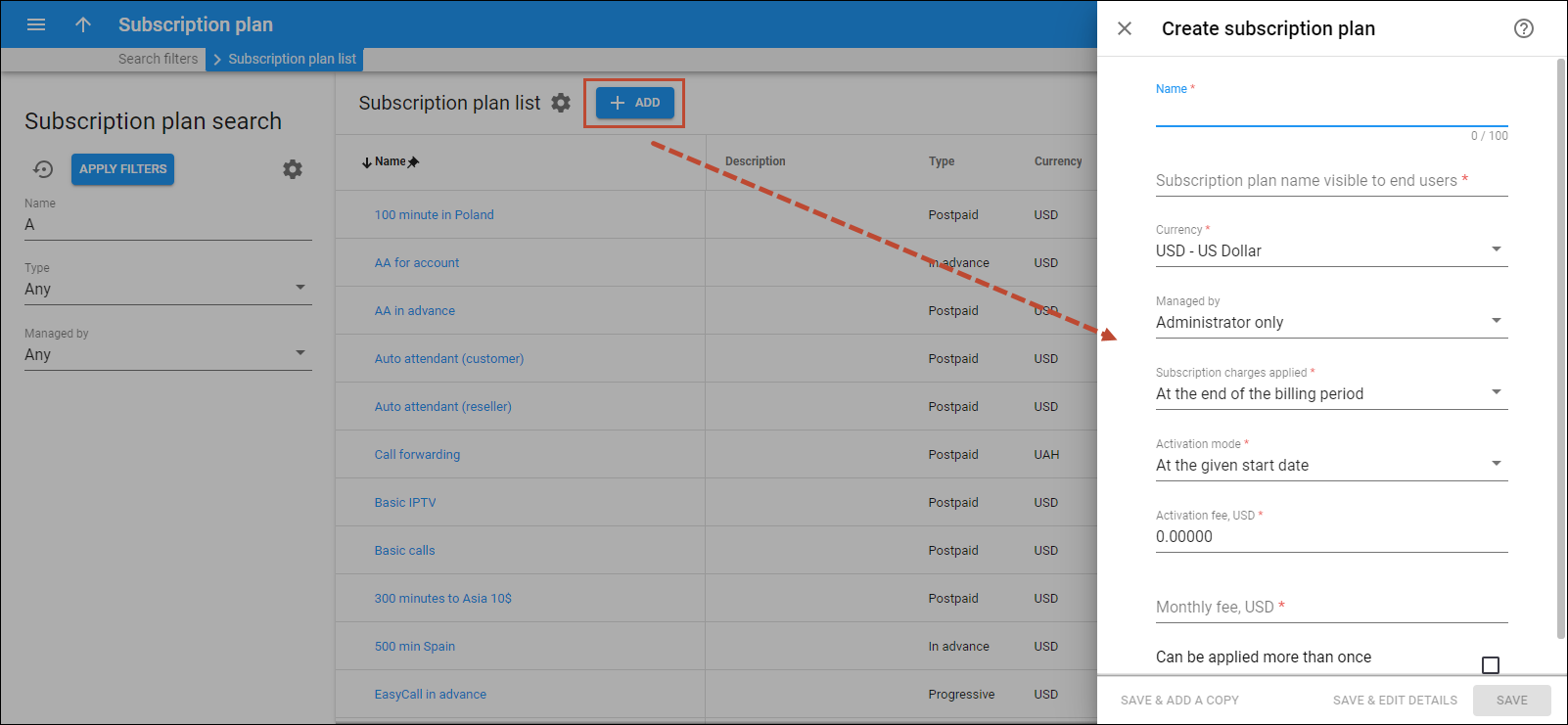
Name
Type a unique name for the subscription plan.
Subscription plan name visible to end users
Type a clear subscription name that end users see on their invoices and self-care interfaces.
Currency
Select a currency the subscription is priced in. Once saved, the currency can’t be changed.
Managed by
Choose whether the subscription is managed by an administrator or a particular reseller.
Subscription charges applied
Select when recurring subscription fees are charged to the customer’s account after subscription activation:
- At the end of the billing period – the customer is charged the full subscription fee when their billing period closes.
- In advance – the customer is charged one or more periods in advance. The charges apply for the following period at the end of the current billing period.
For example, on April 1st, a postpaid customer activates a subscription charged 2 months in advance. Their invoice for April includes charges for April, therefore, and for the following 2 billing periods, May and June. The invoice for May includes charges for July since the subscription charge covers 2 periods in advance (June and July).
When activated within the current billing period, e.g., on April 10th, the customer's invoice contains the pro-rated subscription fee for the incomplete billing period (from April 10th to April 30th) and their advance subscription charges for the following 2 billing periods (May and June).
Periods in advance
Link copied to clipboardSpecify the number of periods to charge your customers in advance.
- Progressively – the customer is charged a pro-rated subscription fee on a day-to-day basis. This means that by the end of the billing period, the charged amount covers the total subscription fee.
For example, if the monthly subscription fee is $9.99, a daily charge is equal to $0.33. On the 10th day, the subscription charges total $3.33, and by the end of the month, $9.99.
xDR generation mode
Link copied to clipboardSpecify how PortaBilling generates xDRs for customer subscriptions.
- Select Keep total charge only to generate a single xDR that is updated every day to cover subscription charges from the beginning of the billing period until the current day.
- Select Generate daily charges to generate a separate xDR for each daily subscription charge. These xDRs can be used for accounting and reporting.
Activation mode
Specify when the subscription becomes active and when any one-time or upfront charges (e.g., activation fee or the first month’s subscription fee charged in advance) are applied:
- At the given start date – subscriptions become active on the date specified in the Start date field. When you assign a subscription with the start date set to today, PortaBilling activates it within one hour of assignment (not immediately).
- Upon the account's first usage – subscriptions become active on the later of the Start date or the account's first usage date. The subscription activates within an hour.
Activation fee
Specify a one-time fee that automatically applies when a subscription is activated. It is not pro-rated.
Monthly fee
Specify a monthly fee.
Daily fee
Specify a daily fee.
Can be applied more than once
Select a check box to assign the same subscription multiple times. Once the subscription is saved, this option is read-only.


