



This taxation plug-in is similar to VAT and is specifically designed for those who need to apply different taxes depending on the type of charges (e.g., tax differently for recurring and usage charges). You can specify your own name and percentage rate value for this tax. You can apply it to:
- all services;
- all services except for subscriptions and credits/adjustments;
- only to subscriptions.
Apply multiple taxes to one subscription and schedule tax rate changes
In some countries like Cameroon, telecom service providers must collect different taxes for subscription-based services to comply with local laws. For example, a voice and data bundle service is taxed with VAT (Value-added tax) and DA (Excise Duty) at the same time.
Customized taxes can be assigned to specific subscriptions or services individually. Additionally, service providers can also apply a tax to only a portion of the charge, for example, only 50% of the charged amount. Multiple taxes can be grouped under a single tax transaction code in PortaBilling. To ensure accurate tax calculation, admins should configure tax transaction codes to use one of the two tax types:
This flexibility ensures that service providers comply with jurisdiction-specific tax rules and can configure taxes more flexibly, by applying different tax rates to the same service and combining several individual taxes together to get the total tax amount.
As a result, PortaBilling creates tax xDRs, adjusts the customer balance, and generates an invoice that includes these tax amounts. This ensures that service providers can collect taxes from the customer properly and in accordance with the corresponding regulations.
Basic taxes
When the service provider needs to apply an individual tax or a combination of multiple individual taxes, they can use the basic tax calculation. In this type of calculation, each tax is applied individually to the charged amount, and then the total tax amounts are summed up.
Bamenda Tech is a customer located in Cameroon. According to the tax jurisdiction, they are required to pay a VAT of 19.25% and a DA of 2% tax for the services. If the customer’s charge is $100, then the tax calculation will be as follows:
- VAT is 19.25% and the tax will be $100 * 0.1925 = $19.25
- DA is 2%, then it will be $100 * 0.02 = $2

Tax amount: $19.25 + $2 = $21.25
Total amount: $121.25 ($100 base amount + $21.25 tax amount)
Cumulative taxes
In cases where tax calculation requires multiple taxes to be applied on top of the previous tax, such as excise taxes, a compound tax can be used. This type of tax is applied on a cumulative basis, meaning that it is applied in a specific order, and the second tax is calculated on the charged amount that includes the first tax.
The same customer, Bamenda Tech in Cameroon, has to pay different taxes for a leased line service. According to the tax jurisdiction, they are first required to pay a DA of 2% and then a VAT of 19.25% tax on top of that. If the customer’s charge is $100, then the tax calculation will be as follows:
- DA is 2%, then it will be $100 * 0.02 = $2
- VAT is 19.25% and the tax will be $102 * 0.1925 = $19.64, where $102 is the amount that already includes the DA tax.

Tax amount: $19.64
Total amount: $119.64
Partial taxes
Service providers may need to collect partial or reduced taxes according to tax laws. For instance, a service provider offers their customers a subscription that combines both internet and voice call services. Since only 50% of the charge covers voice calls, only that portion is subject to taxation.
Both basic and cumulative taxes can be applied to a portion of the tax.
Bamenda Tech, the customer in Cameroon, has to pay partial tax for a converged service (voice and data subscription). They are required to pay VAT (19.25%) for the voice calls portion only, meaning that the tax should be applied to 50% of the customer charge. If the customer’s charge is $100, then the tax calculation will be as follows:
- Сharge for voice call (50% * $100)
- VAT is 19.25% and the tax will be (50% * $100) * 0.1925 = $9.63.

Tax amount: $9.63
Total amount: $109.63
Tax rates scheduling
If a tax rate is scheduled to change in the future, admins can preconfigure the update in PortaBilling. On the effective date, the new rate will be applied automatically. Now, the Customized taxes panel shows:
- the current tax rate,
- any scheduled (future) rates, and
- a history of past rates – all in one place for easy tracking.

Service providers comply with local regulations for taxation.
- To apply different tax rates to individual services and subscriptions, tax transaction codes are required. To configure tax transaction codes with customized taxes, each tax must have the “Applied to” option set to All charges.
- Customized tax used in the taxation code for a subscription or a service should be enabled in the customer class/customer.
- If a customer charge does not include a taxation code, the system will calculate all the enabled taxes defined at the customer class/customer level.
- Previously configured customized taxes and taxation codes are preserved for backward compatibility. However, the “Applied to” option for customized taxes will be discontinued in the future and completely replaced by taxation codes.
Configuration
To configure custom taxes in PortaBilling, admins should do the following:
- Go to Financial > Taxation > Customized taxes and create customized taxes that are applied to all charges (set in the Applied to option).

- Go to Tax transaction codes and add taxation codes with these customized taxes:
- Basic – collect taxes, where each tax is applied the same charged amount and the total tax amounts are summed up
- Cumulative – collect taxes, where the first tax uses the charged amount, and the next is calculated on the amount that includes the total of all previous taxes

- For subscriptions, use the tax transaction codes from step 2. To apply taxes to services, create a new custom service and use the tax transaction code from step 2.
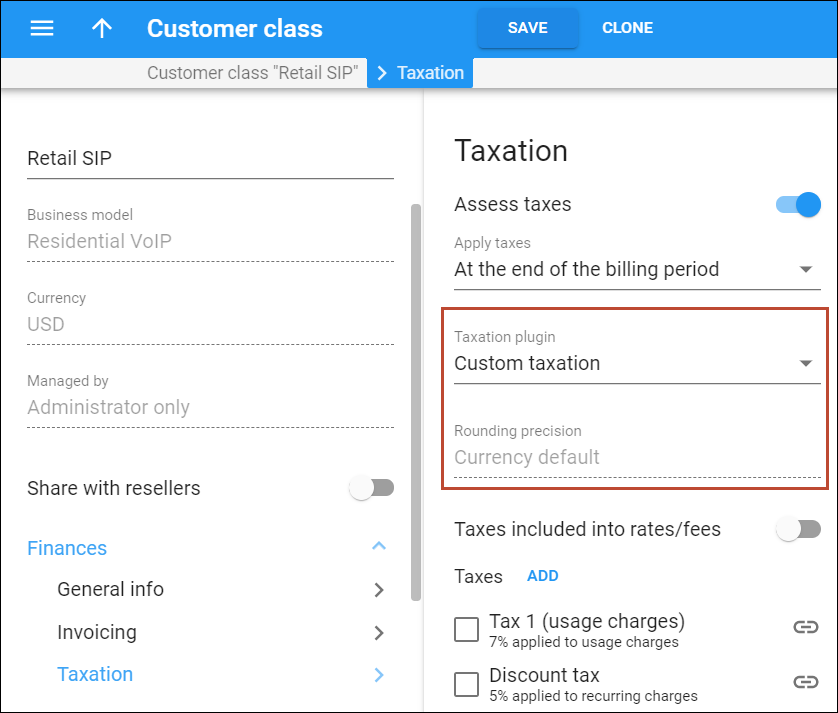
- Enable these taxes in the customer class setting or directly in the customer record.

Rounding
By default, the tax amount for custom taxation plug-in rounds upward. PortaBilling rounds the tax amount to the pre-defined number of digits applicable to the customer class currency. For example, if the customer class currency is USD which rounding precision is 0.01 (2 decimals), then 1.204, 1.205 and 1.206 all round up to 1.21.
Also, you can change the default rounding method to apply mathematical rounding in the Stats.Tax_Rounding_Method option on the Configuration server. For example, if mathematical rounding is applied and the customer class currency is USD which rounding precision is 0.01 (2 decimals), then 1.204 rounds to 1.20, 1.205 and 1.206 round to 1.21.


