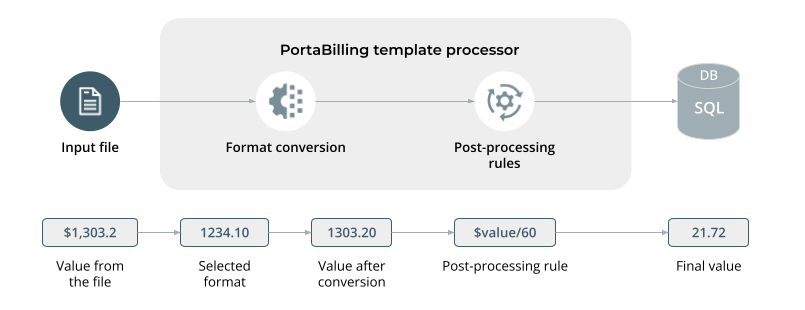
When configuring a vendor or customer tariff, you can manually define rates one by one (e.g., for testing) or import them from a rate file.
To upload rates from a .csv, .xlsx, or .xls file, open the tariff, click Rate upload, and choose the file for upload.


The upload process in the PortaBilling UI consists of the following steps:
- Select the file and initiate the upload – at this step, you can define how PortaBilling should upload the rates from the file to the tariff. For example, if your vendor provides a file with only updated prices, you can choose to add the uploaded rates to the existing ones. If the vendor sends a full rate list each time, you can choose to replace all existing rates during the upload. You can also select a rate upload template (if it was created earlier) that defines the correct file structure to ensure a faster, error-free rate import. By default, during the first upload, a new template is created automatically. This template saves settings from each step of the rate upload process. You can reuse this template for future imports.
- Review file parsing – verify that the system correctly recognizes the file structure (e.g., available columns, delimiters used). If needed, you can manually adjust the parsing results, e.g., specify the row where the actual data begins.
- Review data fields definition (data mapping) – assign fields to specific columns in your file (e.g., “Rate code”, "Price”). The system automatically detects most rate parameters, so you typically only need to confirm the mapping. You can also adjust data formats (e.g., change an effective date format dd-mm-yy hh:mi:ss to mm-dd-yy hh:mi:ss) or set a default value (e.g., set a route category to “Premium”). To do this, click Field Properties and select another format or specify the needed default value.

- Review rate information – at this step, you can see how prices compare to the existing rates (e.g., red and green arrows indicate price increases or decreases for each rate code), make adjustments to individual rates (such as updating prices, changing off-peak periods, or modifying statuses like Payback, Discontinued, or Forbidden), and ensure the tariff is accurate before finalizing the upload.
- Create new rate codes – this option appears if the uploaded rate file includes rate codes not yet defined in the system. You can set rate code parameters (e.g., country, description) for automatic upload of new rate codes. If you use code groups, you can assign a new rate code to existing code groups. You may also skip adding a specific new rate code, but note that the corresponding rate will not be created.
- Rates summary – shows a summary of the rates that are about to be uploaded to the tariff (processed, updated, and new rate codes). You can also specify the email address that will receive the report on the uploaded rates, or change/enter the name of the generated rate upload template.
For step-by-step instructions on how to upload rates into a tariff, refer to the Rate import handbook. For special cases or advanced file upload scenarios, refer to the “How to” section of the handbook.
“Effective from” date
Rates in PortaBilling can have different effective dates, which define when the rates become active. The Rate upload functionality supports uploading rates with present or future effective dates. If a file contains rates with an effective from date in the past, you can either upload it as effective immediately or exclude it from the upload.
Supported rate code formats (E.164, E.212)
You can upload rate codes in different formats depending on the service type:
- For voice calls and retail messaging: rate codes are defined in E.164 format (country code + area code).
- For wholesale messaging services (SMS): rate codes can be defined in E.212 format (MCC/MNC, where MCC is the Mobile Country Code and MNC is the Mobile Network Code).
Origin-based, inter/intra-state, and within/outside EEA rates
PortaBilling supports tariffs that allow pricing based not only on the destination number, but also on the caller’s number:
- Origin-based rates: a tariff can include multiple pricing options for each destination based on the country or network from which a call originates.
- US inter/intra-state rates: a tariff can include two pricing options for the same US destination based on whether a call is made within the same US state or from a different state.
- Within/outside EEA rates: a tariff can include two pricing options for the same European destination, depending on whether the call originates inside or outside the EEA.
Rate upload template
Each time you upload rates from a file without selecting an existing template, the system automatically generates a new Rate upload template based on the settings you’ve specified at each step of the rate upload process. A template is required for the data to be imported correctly. By default, during the first upload, PortaBilling pre-fills the template name with the tariff name, but you can change it if needed.
You can assign the automatically generated template as the default for a specific tariff in the Web-upload template field. Once assigned, the template’s settings are applied to all rate uploads. This template will then be selected automatically during the Rate upload step.

You can select another template (if any have been created before) at the Rate upload step, even if a default template has already been set.

How it works
When rate data is uploaded, the system parses the input file according to its format, identifies and extracts the data elements, converts them into an internal format based on the configuration defined in the rate upload template, applies any post-processing rules, and then writes the processed data to the database.