



Voicemail recording overview
This section describes the voicemail recording flow in PortaSIP and shows how the system:
- prompts the caller
- records the voicemail message and saves it as a file
- stores the file in the user’s voicemail inbox
Jane Smith is currently in a meeting and cannot answer her phone. The call is redirected to the voicemail application, which plays a prompt instructing the caller to leave a message. After the tone, the caller speaks, and the system records the message.On the backend, PortaSIP records the audio stream and sends the file to the web server to convert into a standard audio format (e.g., WAV or MP3). The voicemail is then available in Jane’s mailbox and also sent to her email. After the meeting, Jane sees that there is a new voicemail message. Jane calls her voicemail box and listens to this message.
How it works
- When a recipient doesn’t answer within the defined period, e.g., 30 seconds, PortaSIP redirects the incoming call to the voicemail application.
- The voicemail application plays a prompt instructing the caller to leave a message.
- After the prompt, the tone is played, and the recording begins.
- PortaSIP records the audio stream from the caller and saves it as an audio file in AU or G.729 format.
- PortaSIP then sends a request containing the recorded audio file to the web server for further processing.
- The web server converts the file in the AU or G.729 format into a standard audio format (e.g., WAV or MP3) to enable easy playback and storage.
- If the Speech-to-Text (Whisper) service is enabled (available in the Add-on Mart), it generates a text transcription of the voicemail message.
- Both the audio file and the transcription (if available) are saved in the voicemail storage. The user can then listen to the voicemail later in their mailbox or read the automatically generated transcription in the self-care portal or mobile app if listening is inconvenient.
- If the user has configured an external email address and selected what content should be sent to it (e.g., a voicemail recording in audio format, voicemail text transcription, or a notification only), they will receive an email containing the corresponding information based on the selected option.

Email addresses for voicemail notifications
In the following section, you can see how a user can configure receiving voicemail notifications on their email.
How to set the user's email address where voicemail notifications will be sent
By default, when a new voicemail record is created for a user, the corresponding notification is sent to the email address defined for the user’s account in the Account > Personal info > General info > Email field in PortaBilling, e.g., “user@company.domain.com”.
Additionally, a user can forward the voicemail notifications to their other email address, e.g., a private gmail address. For this, a user needs to:
- Log in to the Account self-care web interface.
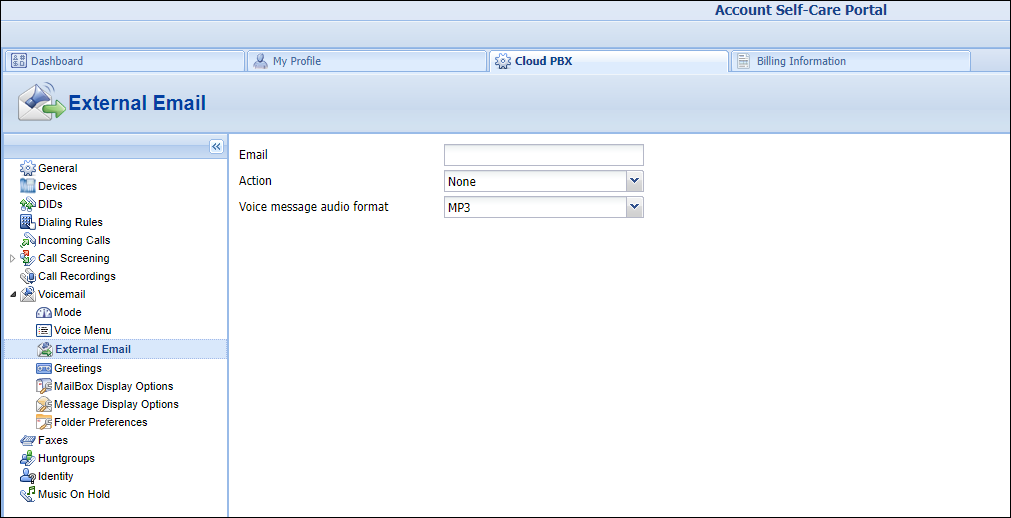
- Go to Cloud PBX > Voicemail > External email.
- Specify the email address in the Email field.
- Select one of the following options in the Action field:
- None – no voicemail recordings will be sent to the external email.
- Forward – a voicemail recording will be sent in the specified audio format (see the Voice message audio format field) to the external email. The recordings will be deleted from the voicemail box. This option is useful when the mailbox limit is not sufficient for the user. The user will see their account ID in the “To’’ address, e.g., 1665126356@sip.portaone.com.
- Forward as Attachment – this works like the “Forward” option, but a voicemail recording will be sent as an attachment in the .eml format. The user will see their email in the “To’’ address, e.g., user@company.domain.com.
- Copy – a voicemail recording will be sent in the specified audio format (see the Voice message audio format field) to the external email and its copy remains in the voicemail box. The user will see their email in the “To’’ address, e.g., user@company.domain.com.
- Notify – the user will only receive a notification about the new voicemail recording in the external mail (the recording remains in the voicemail box). The “To’’ address will show the user’s email, e.g., user@company.domain.com.
- Choose what should be sent to the specified email in the Action field, e.g., a full copy of the message (the notification message with the voice recording).
- Choose the format of the voice message file in the Voice message audio format field, e.g., mp3.
How to set the sender’s email address that will be shown to users
By default, the sender’s email address (the “From” field in the email) is shown to a user as their account ID followed by the IP address/domain of the SIP node. For example, if a user has an account with ID “1665126356”, they will see that the email is sent from, 1665126356@sip.portaone.com.
You can configure the email address that the users see when they receive an email. For this go to the Configuration server web interface and set an email domain in the MediaServer.email_domain option, e.g., serviceprovider.com.
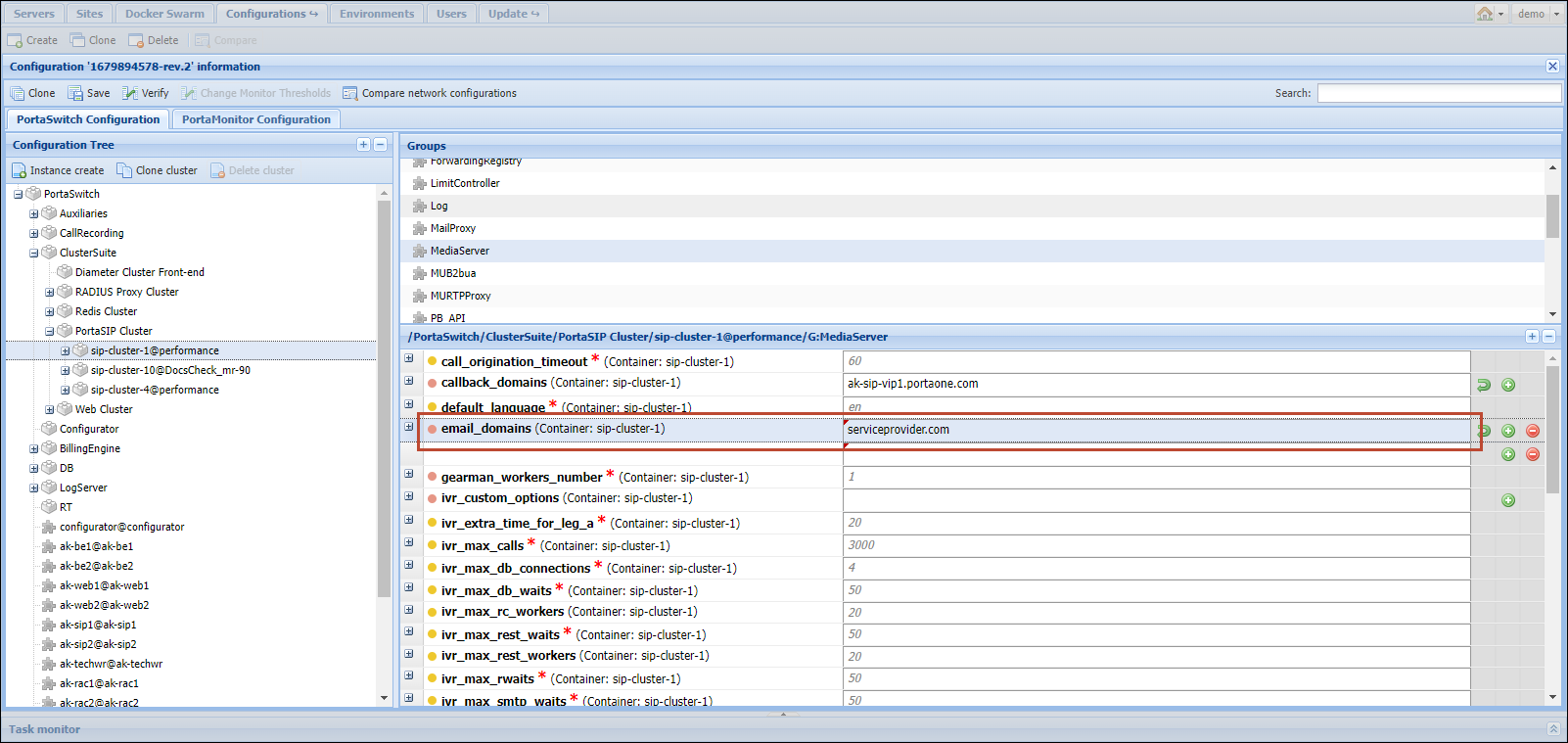
When a user receives an email with a voicemail notification, the “From” field will contain the email address that includes the account ID followed by the domain name specified on the Configuration server. So, in this case, if a user has an account with ID “1665126356”, they will see that the email is sent from the “1665126356@serviceprovider.com” email address.
How to set the sender’s email address that will be shown to subcustomers of a reseller
The system defines what email address to use as follows:
- By default, the email address set in the Reseller record > Company info > General info > Sender email for customer notifications field is used as a “From” header in the emails. The reseller can change this email address from their self-care web interface.
- If no email is specified in the Sender email for customer notifications field, then the email address set in the Reseller record > Company info > General info > Email field is used. The reseller can change this email from the self-care web interface too.
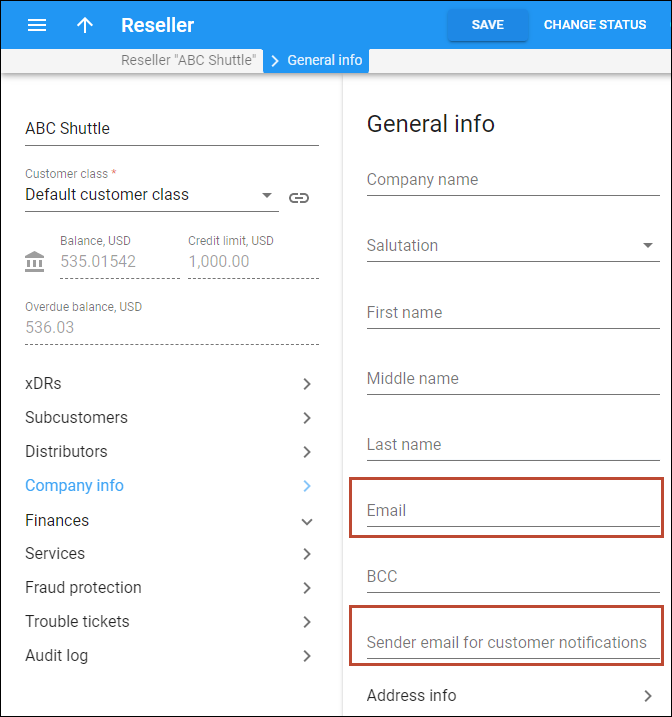
If both the Sender email for customer notifications and Email fields are not set for a reseller, then the "From" field in the email will consist of a user's account ID followed by the generic domain set on the Configuration server. If the domain is not set there, the email will consist of a user's account ID followed by the IP address/domain of the SIP node. See the Sender’s email section for details.
Extension name and number in voicemail notifications
When a PBX user receives a notification about a new voice message, they see the caller’s extension name and number. The user can immediately respond to the message without having to match the phone number with its owner. This vastly improves the user experience.
For PortaSIP to use the extension’s information in the notification, enable the mailbox_use_ext_id_as_sender option on the Configuration server web interface.
_solution/Enable%20extension%20info.png "Voicemail 5")
If the extension information is undefined, the notification contains the caller’s phone number.
Access to voicemail and fax messages in the customer portals
 MR124Feature added in MR124
CloudPBX admins, call center admins, and supervisors can access, manage, and interact with voicemail and fax messages directly in the customer portals (e.g., in the Cloud PBX Self-Care Portal).
MR124Feature added in MR124
CloudPBX admins, call center admins, and supervisors can access, manage, and interact with voicemail and fax messages directly in the customer portals (e.g., in the Cloud PBX Self-Care Portal).
They can listen to voicemail and read fax messages, check their details, download voicemail recordings, delete messages, and mark them as read or unread.
It helps ensure that important messages intended for extensions aren't missed and can be reviewed, downloaded, or followed up on without requiring access to each device. For example, the supervisor or admin can quickly prioritize requests that need immediate attention and delegate or instruct call center agents accordingly.
This enhancement was extended with customer access to personal voicemail and fax messages.
Lisa is a sales department supervisor at a brokerage company. She supervises sales agents to ensure that every call from a prospect is answered. The sales department is configured as the hunt group, “Sales,” that includes 5 agents (extensions 100–104) and a shared voicemail configured on a separate extension (105). Callers are placed in the call queue until an agent becomes available, with the option to leave a voicemail if the wait is too long. A prospect calls the sales department. Since all agents are busy, the caller leaves a voicemail message instead of waiting. The message is stored in the voicemail of extension 105.
Later, Lisa wants to check voicemail messages to prioritize which calls need immediate attention and assign an agent to call back. She logs in to a supervisor portal, accesses the voicemail history for extension 105, listens to the new message, and forwards it to the agent.
CloudPBX admins, call center admins, and supervisors can manage all voicemail and fax messages in one place, making it easier to track missed calls and respond promptly.
Caller details in voicemail and fax lists
MR125Feature added in MR125
With this release, Cloud PBX admins, call center admins, and supervisors using custom self-care portals can view caller and recipient details in the voicemail/fax list. To support this, the PortaBilling API method has been extended with two new parameters: “from” and “to”. Along with the basic voicemail/fax message information (such as size, duration), this method now also returns the caller's details and the number that received the message.
The custom portal should be updated to show these details. For the CloudPBX Self-Care Portal subscribers, this information will be shown in future versions.
Alex is a PBX admin at a healthcare clinic. He manages the phone system for multiple departments, including reception, the billing department (handling payments and insurance claims), and patient support. Each department has its own voicemail number configured on a separate extension. When Alex logs in to the self-care portal and opens the voicemail list, he can instantly see who left a message and which clinic department’s number received it.
This allows Alex to quickly filter urgent messages, such as a patient requesting a call-back, and forward them to the appropriate staff without delay.
Cloud PBX admins, call center admins, and supervisors can handle daily tasks more efficiently by accessing voicemail and fax message information faster.
Transcription of voicemail messages
You can use AI-driven speech-to-text services to offer automated voicemail transcriptions to your customers. This is especially useful for cloud PBX and call center users – when they are unable to listen to audio messages, they can quickly read the message instead.
Voicemail transcriptions use the same Add-on Mart module as call recording transcriptions. When a new voicemail is received, the audio is automatically transcribed by a speech-to-text service. Using the PortaBilling API, you can display both the voicemail audios and the transcriptions in your own account self-care portal or mobile app. You can also allow users to configure an external email address and receive voicemail transcriptions directly by email.
As with call recordings, voicemail transcription can be monetized as an add-on subscription or included in a usage-based bundle with a specific number of hours of recorded calls and voicemails.
Requirements
To use the speech-to-text transcription of voicemails and call recordings:
- Sign up for an account with an external service (Whisper)
- Subscribe for the corresponding module in Add-on Mart
- Configure the integration:
- Obtain an API key from the external service and enter it in the Add-on Mart module’s Configuration UI
- If this is the first module you activate, specify the Add-on Mart credentials in PortaBilling
- Service providers can expand their cloud PBX or call center offering with voicemail transcription and generate additional revenue.
- End users can read voicemails at a glance and respond quickly.


