



Prerequisites
Link copied to clipboard
- You have signed up for an account with the speech-to-text transcription service (Whisper) and have the corresponding API key.
- You have an active Add-on Mart subscription for the Speech-to-Text (Whisper) module.
- Call recording and/or voicemail functionality is configured for your system.
Configure the integration
Link copied to clipboard
- On the Add-on Mart Management Portal, go to the Subscriptions tab, choose the module and click Manage.
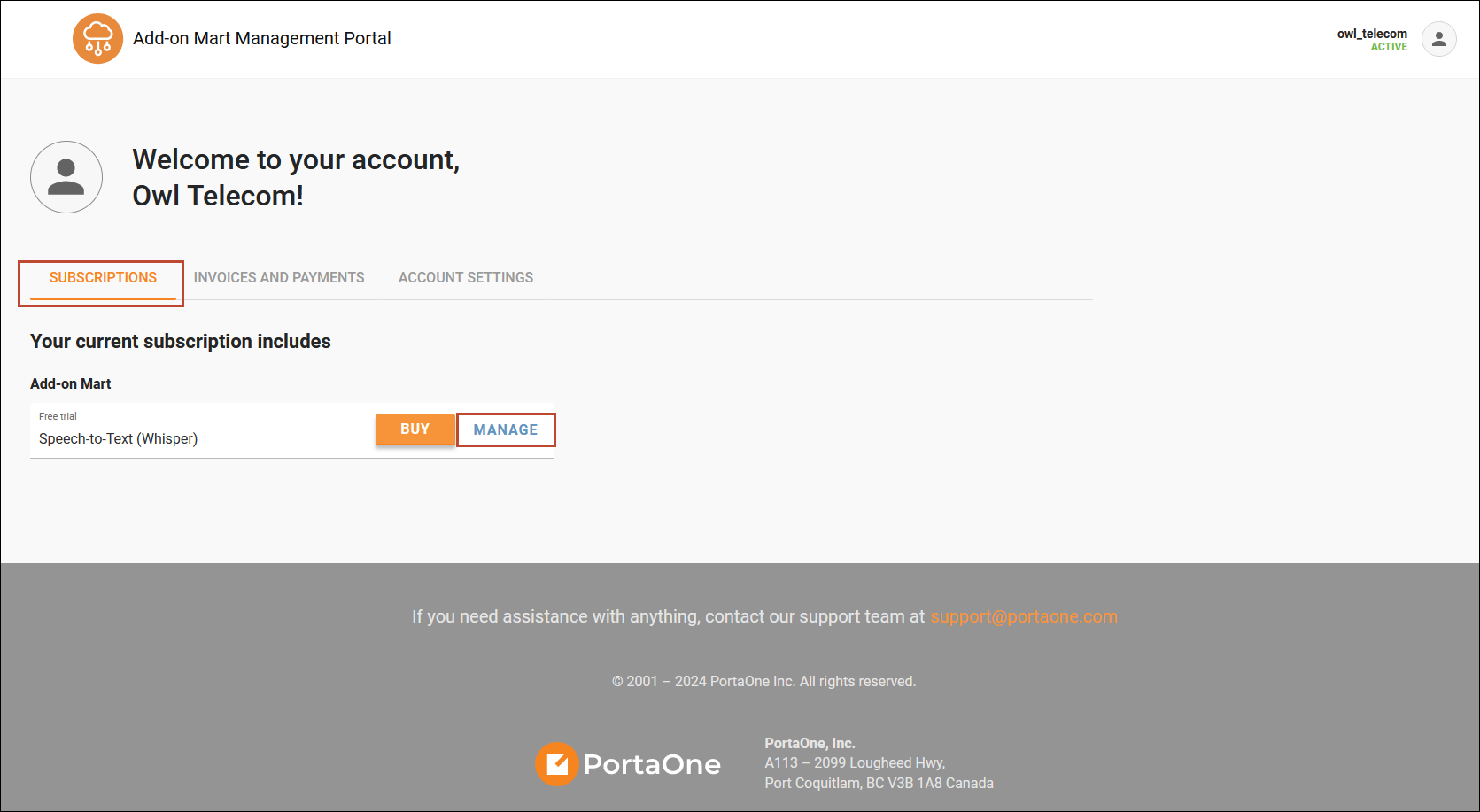 You will find the login and password in the Instance info section.
 - Click Configure to open the module’s Configuration UI and paste the Service token – the API key obtained from Whisper.
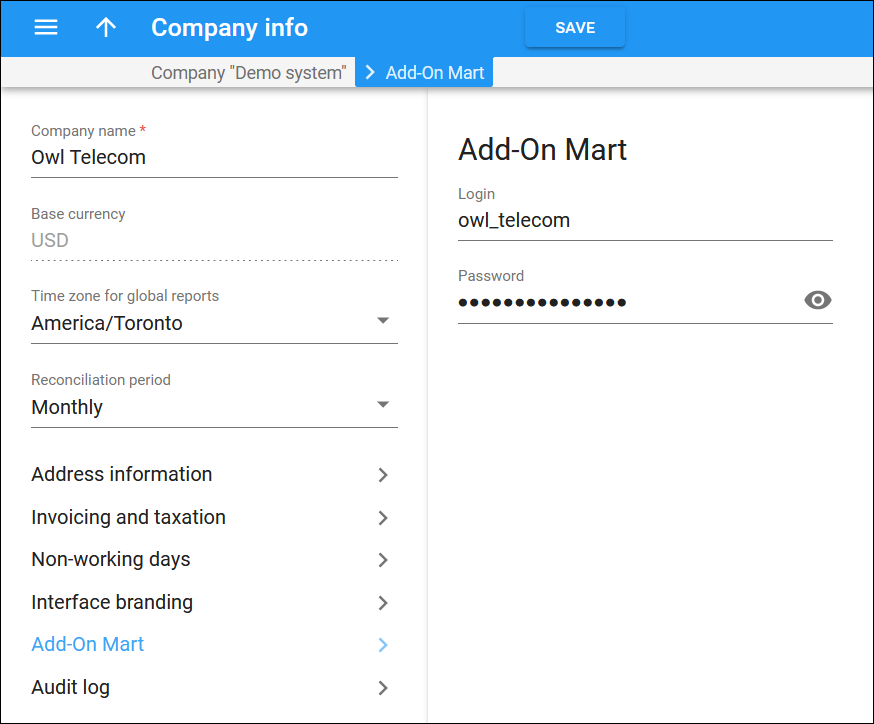
- In PortaBilling, navigate to Company info > Add-on Mart. If the Login and Password fields are empty (this is the first Add-on Mart module you’re activating), enter your Add-on Mart credentials.
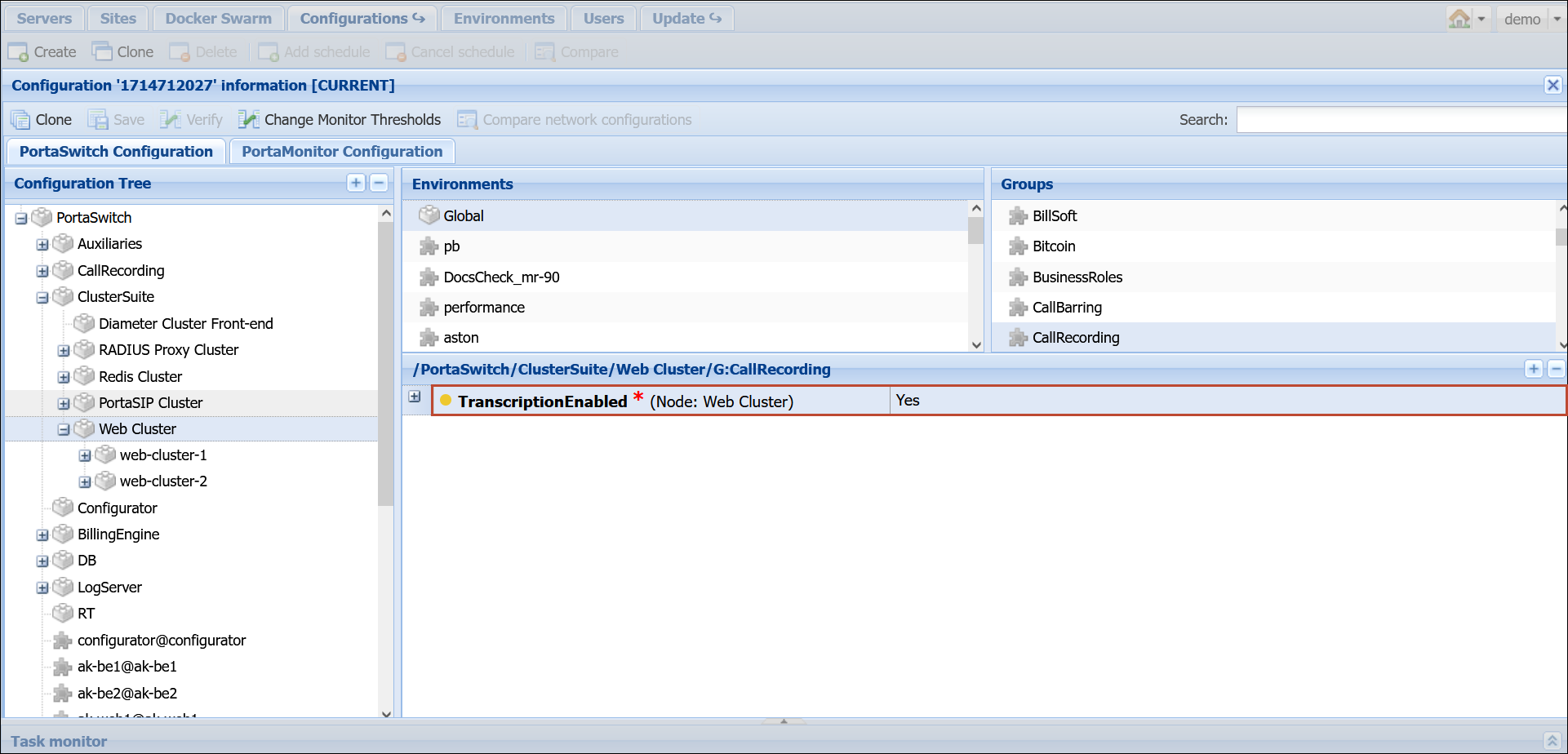
Settings on the Configuration server web interface
Link copied to clipboard
- To enable transcription of call recordings, set the CallRecording.TranscriptionEnabled option to Yes.
- To enable transcription of voicemails, select the audio format (wav or mp3) supported by the speech-to-text service in the MediaServer.vm_transcription_audio_format option.
If you install MR122 or a later system version from scratch, this option is set to mp3 by default.

Settings on the PortaBilling web interface to enable the service for end users
Link copied to clipboard
The speech-to-text service can be enabled for an account via the main or add-on product, and then managed individually per account.
Before enabling the speech-to-text service, make sure that call recording and/or unified messaging is enabled on the product.
To enable transcription of call recordings:
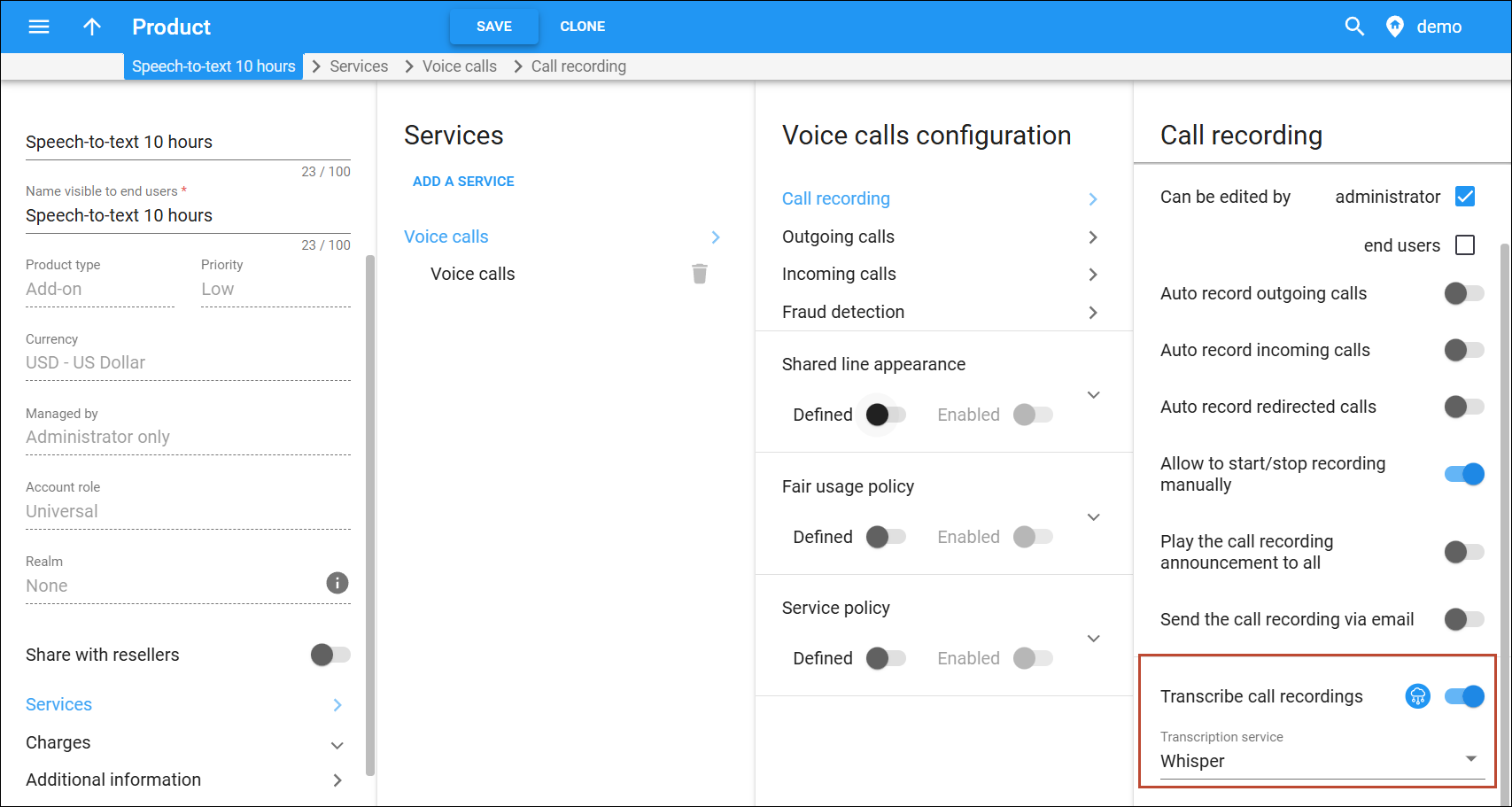
- Open the product’s Services tab > Voice calls > Call recording, and turn on the Transcribe call recordings toggle.
- Choose the transcription service (Whisper) from the drop-down list below.
To enable transcription of voicemail messages:
- Open the product’s Services tab > Voice calls > Incoming calls, and turn on the Transcribe voicemail toggle.
- Choose the transcription service (Whisper) from the drop-down list below.
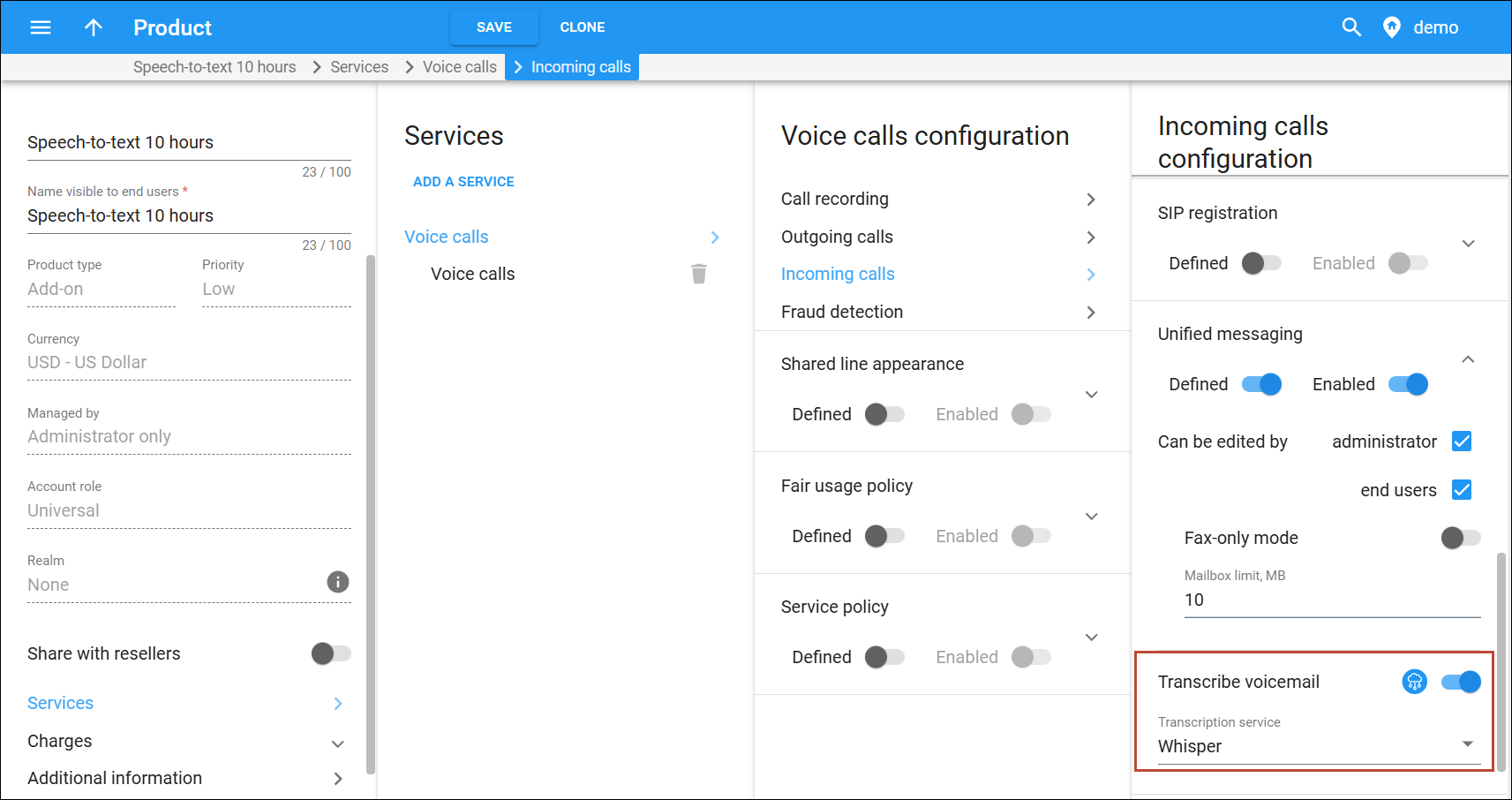
You can then manage the speech-to-text service enabled via a product on the account (e.g., disable the Transcribe call recordings option if this feature should be disabled for this account).
See the call recording transcription or voicemail transcription handbook for detailed instructions on configuring usage-based billing for the speech-to-text service.
Transcriptions of call recordings and voicemails are counted together as a single usage total.


