



Secure card payments with card data sent directly to Stripe
Service providers that collect and store card details to process online payments must comply with the Payment Card Industry Data Security Standard (PCI DSS). To make card data handling more secure, Stripe requires new merchant accounts to send card details directly from web portals to Stripe servers.
Service providers that develop their own self-care portals can now meet this requirement. When making a payment, users enter their card details in a secure form provided by the payment processor, and the data is transmitted directly to the processor’s servers. After the payment processor confirms the transaction, PortaBilling applies the payment to the customer’s balance. If the user saves the card, the card details remain stored on the payment processor’s servers, and PortaBilling receives a token that can be used to charge the card for future payments. Since card details never pass through PortaBilling, PCI DSS compliance becomes much simpler for service providers. They can start accepting payments as soon as they open a merchant account.
This functionality will be available in the CloudPBX Self-Care Portal and Mobile Account Self-Care App/Portal in future versions.
- Start accepting card payments immediately after opening a Stripe account.
- Reduce security risks because no card data is ever passed to PortaBilling.
- To support the new payment flow, your developers need to build/update your portals to display the payment processor’s embedded form. For this, the portal should use the following parameters:
- “library_url” and “public_key” parameters in the Payment.get_payment_methods_for_owner API method
- “client_secret” parameter with the Account.make_transaction or Customer.make_transaction API method
- To save a card, the account or customer must have an email address. Stripe links the saved card to the customer using their email.
Owl Telecom provides home internet services with monthly invoices. Subscribers manage their services and pay invoices through Owl Telecom’s own web self-care portal. To accept online payments via Stripe, Owl Telecom opens a merchant account with Stripe and then activates the Stripe module in Add-on Mart.
John Doe, their customer, receives a $40 invoice for his monthly internet plan. He opens the portal, enters his card details in the Stripe card form, and selects the option to save the card. The card details are sent directly to Stripe, which processes the payment, stores the card details, and sends a token to PortaBilling. PortaBilling applies the payment to the invoice and saves the token received from Stripe.
The following month, PortaBilling automatically charges the same card for the new invoice amount.
Send eInvoices to EU customers
Service providers can now send business customers electronic invoices (eInvoices) that comply with the EU’s eInvoicing standard, EN 16931, using the new eInvoicing (Storecove) module in Add-on Mart. Unlike PDF invoices, eInvoices contain structured data that can be processed automatically by customers’ ERP and accounting systems.
Compliance with EN 16931 is becoming increasingly important as eInvoicing requirements expand across the EU. Public-sector organizations across the EU are already required to accept eInvoices that comply with this standard. By 2030, EN 16931 eInvoices will also become mandatory for cross-border B2B invoicing within the EU, and some countries are introducing these requirements even earlier.
The new module passes invoice data from PortaBilling to Storecove, which generates an XML that is compliant with EN 16931 and country-specific requirements. Storecove then delivers the eInvoice through the Peppol network, directly to the customer’s ERP or accounting system.
The module works with regular and on-demand invoices (initial, midterm, and out-of-turn). Admins can enable eInvoicing for either a customer class or an individual customer, track each eInvoice from submission to delivery, receive notifications when generation or delivery fails, and resubmit failed eInvoices with one click.
If required, regular PDFs can still be sent along with eInvoices.
- Compliance with the EU eInvoicing directive and the ability to provide services to public-sector organizations and business customers across the EU.
- Customers can save time processing invoices and avoid errors from manual data entry.
Owl Telecom, a cloud PBX service provider, needs to send structured eInvoices to its Belgian business customers who are subject to the country’s B2B eInvoicing requirements. Owl Telecom signs up with Storecove and gets registered on the Peppol network. The admin then sets up the eInvoicing (Storecove) module in Add-on Mart and enables eInvoicing for the customer class “Belgian business customers”.
ABC Company, one of these customers, shares its Peppol ID with Owl Telecom, and admin adds it to the customer record. At the end of the month, PortaBilling generates an invoice for ABC Company. The module sends the invoice data to Storecove, which validates it and delivers the eInvoice to ABC Company through Peppol.
ABC Company’s accountant receives the invoice directly in the accounting software, with all the details already filled in, eliminating the need for manual entry.
- PortaSwitch MR132 or later.
- An active Storecove account. The service provider must complete the Storecove onboarding, including Peppol registration, for each country where it sends eInvoices.
- An active subscription to the eInvoicing (Storecove) module in the Add-on Mart.
- The customer’s Peppol ID must be added to their customer record in PortaBilling.
- Resellers cannot connect their own Storecove account. eInvoices for resellers’ customers are sent through the service provider’s Storecove account and Peppol registration.
- Voiding an invoice does not withdraw an eInvoice that has already been sent. Instead, when PortaBilling generates a new invoice it sends it as a separate eInvoice. Therefore, the service provider needs to agree with the customer on how to handle the original one.
- Invoices of customers with eInvoicing enabled cannot be adjusted.
- eInvoicing works only with VAT taxation, where taxes are added on top of the price. PortaBilling doesn’t allow enabling eInvoicing for customers who are charged according to tax-inclusive prices.
- Support for the German market, which requires the service provider’s bank details on eInvoices, is planned for a future release.
Send carrier-specific response codes for rejected calls
When a carrier sends a call to another carrier for termination and the call is rejected (for example, the called number is busy or not in use), the originating carrier expects a response code that explains the rejection reason. Based on this code, the carrier’s system determines the next step, such as playing its own announcement to the caller or sending the call through another route.
Previously, when PortaSwitch rejected a call from a carrier, different voice prompts were used to announce the rejection reason to the caller. However, the SIP response code remained the same (403) for most rejected calls. In carrier-to-carrier traffic, the response codes are more important than voice prompts, which are often disabled. As a result, the originating carrier couldn’t process rejected calls properly.
Now, admins can define which response codes PortaSwitch should send for specific call rejection reasons. Because different carriers may expect different codes for the same reason, admins can set up a service policy for each carrier and configure response codes accordingly.
The list of rejection reasons for which response codes can be customized depends on the carrier configuration in PortaSwitch:
- For calls coming from a vendor, admins can set codes for four rejection reasons:
- the called number is busy
- the called number is set to reject the call
- the called number is temporarily unavailable
- the called number is not in use
- For calls coming from a customer, admins can set a code for any rejection reason listed in the service policy.
If PortaSwitch routes a customer’s call to a vendor and the vendor rejects it, PortaSwitch passes the vendor’s response code to the customer as is.
To define a code for each reason, admins can select one from the list of predefined SIP response codes or type a custom value from 400 to 699.

Owl Telecom, a service provider, has been assigned the phone number range 41411230000–41411239999. Although Owl Telecom serves the whole range, not every number within it is assigned to an account. Two carriers, Tata Telecom and GlobalNet, send calls to numbers in this range through Owl Telecom. In PortaSwitch, both carriers are set up as vendors with From vendor connections.
If a called number within Owl Telecom’s range isn’t in use, both carriers want to stop call hunting, so they don’t try other routes. In this case, each carrier expects a specific response code:
- Tata Telecom expects 404 Not Found.
- GlobalNet expects 480 Temporarily Unavailable.
The admin creates a separate service policy for each carrier and sets the SIP response code for the cld_unassigned rejection reason:
- 404 in Tata Telecom’s service policy
- 480 in GlobalNet’s service policy
Then admin assigns each policy to that vendor’s connection.
When Tata Telecom sends a call to 41411235555, a number that isn’t assigned to any account, PortaSwitch rejects the call with 404 Not Found.
When GlobalNet sends a call to 41411235555, which still isn’t assigned to any account, PortaSwitch rejects it with 480 Temporarily Unavailable.
Better relationships with carriers, as they can process rejected calls properly.
Reduced system load when monitoring call quality
Call quality monitoring can now generate less network traffic and reduce server load. This is most noticeable in systems handling high volumes of calls where call quality is monitored for only a small number of customers, such as companies with service level agreements on voice quality.
Previously, PortaSIP collected quality reports (e.g., on packet loss and jitter) from phones for all calls. Now, when a call is authorized, PortaBilling first checks whether call quality monitoring is enabled for the customers involved in the call. PortaSIP then collects quality reports only for calls in which at least one party has monitoring enabled. The rest of the process remains the same: PortaBilling uses a customer’s call quality profile with defined quality thresholds to analyze the reports and assign a quality status (good, fair, or poor) to the customer’s calls.
The resources used for voice call monitoring scale only with the number of customers that require monitoring.
Web interface changes
Redesigned Product page
The Product page has been redesigned to simplify product configuration and align it with the rest of the PortaBilling web interface.
The redesign includes the following changes:
- The Product list and Product groups are now organized into two tabs on a single Product page.
- Search parameters have been moved from the left-side panel to a single row at the top of the page, allowing more columns to be displayed without horizontal scrolling.
- Product management now follows the standard web interface behavior: admins look up rates, clone, and delete products using the buttons in the Action column.

- When admins create a main or add-on product, all required settings are available on a single panel organized into tabs. Admins must now select at least one service before saving. This allows them to complete the product configuration during creation, so each new product can be assigned to accounts immediately.

- Submenus that previously opened in sliding side panels are now grouped into tabs that use the full page width. The product navigation displays the number of services of each type included in the product.

- When admins add a charging rule, the Access code field now offers a list of the most frequently used values for selection, reducing the risk of typos. Admins can still enter a different access code.

- Role permissions for Product management have been reorganized to match the new page structure. For example, Additional info has been renamed to Configuration, while Subscription and Usage charging are now part of Configuration. Admins who use roles with specific access to products should review the role permissions after the update.

- The Audit log button is now on the top bar, next to Notifications and Help.

Admins spend less time managing products and product groups.
Improved readability of copied log extracts
Admins can copy parts of billing and SIP logs for further investigation or to share with colleagues. Now, when admins copy any part of the log in the Log viewer using Ctrl+C or the right-click menu, the copied text retains its structure. Each log entry begins with its date, time, and log level, followed by the message text on the same line. Multi-line entries preserve their layout. The text is ready to be pasted into a ticket, chat, or email, with no manual editing.
The new copy format works when Advanced view is enabled.

Faster log analysis, as copied log extracts are easier to read.
Improved display of private calls on the Trace session page
Starting with this release, admins can see the real caller number (CLI) and called number (CLD) of private calls on the Trace session page. This works in both the admin and reseller web interfaces. Previously, the page showed “Private” instead of the CLI and masked digits instead of the CLD.
A number can be private in the following cases:
- The CLI can be private when the caller uses the Hide CLI feature or the connection settings instruct PortaSwitch to remove the caller’s identity from the outgoing call.
- The CLD can be private when CLD masking is enabled for this number (CLDMasking settings in the Configuration server web interface).
To indicate that a number is private, the page displays it in grey italics with a tooltip: “The CLI/CLD is hidden due to privacy settings.”

This allows admins access to all the information when troubleshooting private calls: they see the real number and know that it was hidden.
By default, users with any admin role who have access to the Trace session page can see the real CLI and CLD. To restrict access, create a new role or clone an existing one. Then set the Unmasked To (CLD) and/or Unmasked From (CLI) attributes to Restrict.
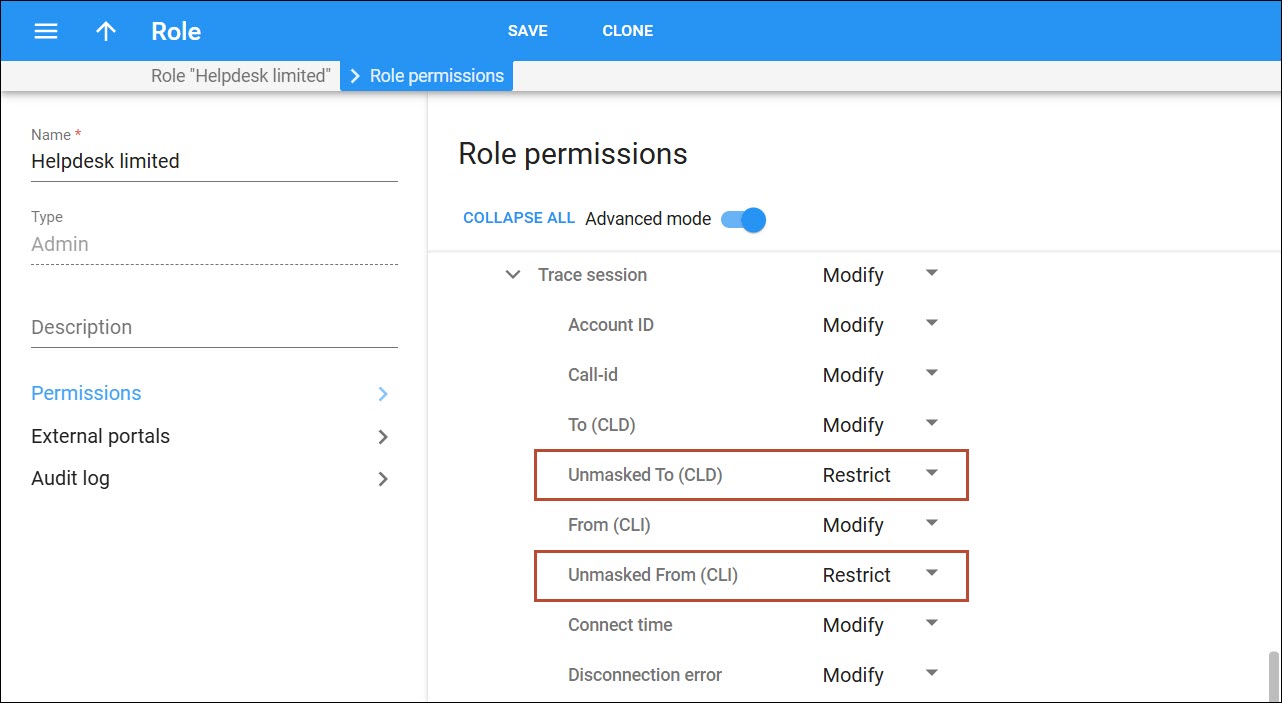
Users with this role see “Private” instead of the CLI and masked digits instead of the CLD, as before.
- More clarity when troubleshooting private calls.
- Control over who can see the private numbers.


