

Here you can configure outgoing call processing for accounts with this product and define the default values of service attributes.
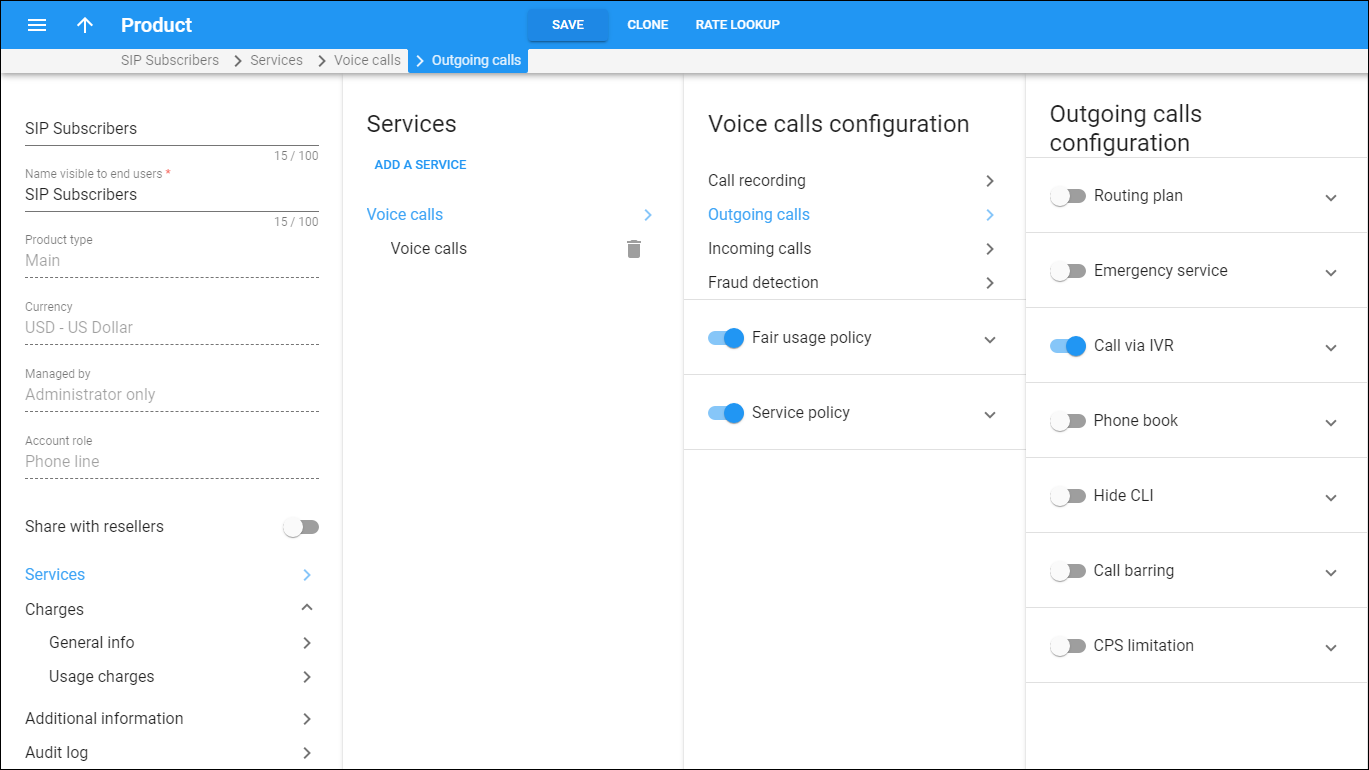
Routing plan
Routing plans allow you to control which vendors to use for terminating outgoing calls and in which order to arrange them.
Individual routing plan – choose the routing plan to use for routing outgoing calls when the user dials a destination number without a specific selection code.
Emergency service
Turn on the toggle to activate emergency call routing for accounts that use this product.
Select the emergency routing module:
- Default – uses a specific emergency plugin (e.g., Intrado) configured on the Configuration server web interface within the E911.EmergencyPlugin option.
- Location-based – routes emergency calls using the local emergency routing number based on the account's configured location (emergency administrative unit). Requires the EmergencyModule.Emergency_VoiceRouting_Enabled option set to Yes on the Configuration server web interface.
- Bandwidth – routes emergency calls via the Bandwidth E911 service. The account's address is pre-registered with Bandwidth through their API when the feature is enabled or the account address is updated. This option is available when the Bandwidth module subscription is active in Add-On Mart and the E911 service is configured.
Call via IVR
Enable outgoing calls to pass via a pre-defined Pass-through IVR voice application. When users dial the destination numbers, they hear a voice announcement, e.g., a maximum allowed call duration or a prompt to dial a service password for additional authorization on a toll call.
Voice application – select the voice application to process all fee-based calls to an outside network. On-net calls among accounts of the same customer (within the same cloud PBX) and calls to other IVR applications (e.g., to voicemail) bypass the Pass-through IVR application.
Phone book
Allow end users to maintain their own sets of frequently dialed numbers, assign speed dial codes to them and define a list of favorite numbers. To make this happen, select the Can be edited by end users checkbox.
Speed dial code – enable users to use speed dial codes to call favorite numbers.
Maximum speed dial length – specify the maximum allowed length (1-9) of speed dial codes.
Maximum favorite numbers – specify the maximum quantity of numbers that the user can mark as favorites.
Enable end user to change favorite numbers – turn on the toggle switch to allow end users to make changes in their list of favorite numbers. A predefined number of days must pass before a user can edit/delete a favorite number. PortaBilling calculates these days from the moment the user marks the number as favorite.
The number of days a newly added favorite number cannot be changed – specify the number of days after which end users can make changes in their list of favorite numbers. This option is active only after you activated the Enable end user to change favorite numbers option.
Favorite numbers allowed patterns – this is a comma-separated list of patterns for numbers that an end user can mark as favorites. For example, to allow an account user to mark London, UK destinations as favorites, input "442" here.
This field can contain the following special symbols:
-
% – wildcard for any number of symbols, and
-
_ – equivalent wildcards for one symbol.
If this field is empty, any number can be marked as a favorite.
Hide CLI
This allows you to remove CLI (ANI) information for outgoing calls.
Hide CLI by default – move the slider to remove the CLI for all outgoing calls. When a user makes a call, their phone number is not displayed to the other party.
Call barring
Call barring allows your customers to block outgoing calls to specific destinations. PortaBilling checks if the number dialed matches any pattern specified in the call barring rules. If it does, the call is rejected.
Turn on the toggle to enable call barring for all accounts with this product assigned.
To allow customers to manage call barring rules on the self-care portal, select the Can be edited by end users checkbox.
CPS limitation
The calls per second (CPS) limitation defines how many dialing attempts an account with this product assigned can make per second. Turn on the toggle switch to enforce CPS limitation.
Allowed rate – set the limit of dialing attempts per second for this product. If the limit is exceeded, new dialing attempts are blocked. The permitted values are from 1 to 1000.


