



The dispatching SBC (DSBC) is used for these scenarios:
- In site-redundant PortaSwitch for:
- Zero-downtime updates.
- Load-balancing between sites.
- In Dual Version PortaSwitch for uninterrupted service.
- In Dual Version PortaSwitch with site-redundant systems. The DSBC performs the functions described in items 1 and 2.
- For DID provisioning from one PortaSwitch to another and incoming call delivery to those DIDs.
Find DSBC deployment recommendations here.
General configuration
- Add the DSBC servers as described in the Add servers chapter.
- On the Servers page, select the server to run the DSBC on and click
 Change server configuration.
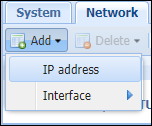
 - On the Network tab, click Add, then choose the IP address and add it to serve as the service IP for the DSBC instance.
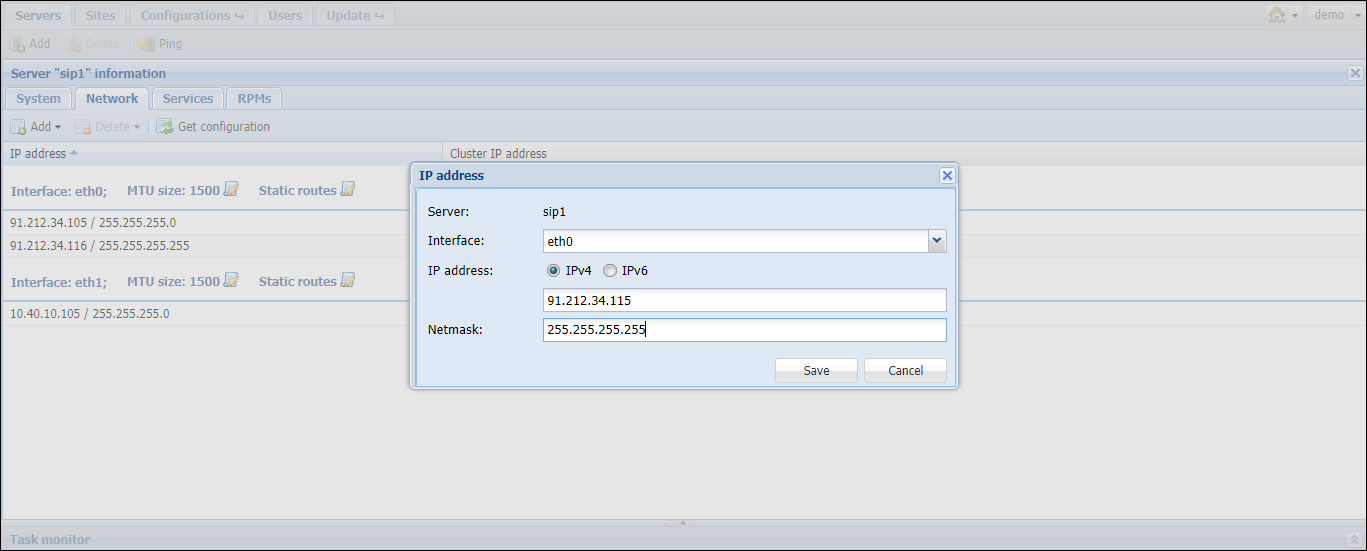
- Repeat steps 2-3 to add IP addresses to all the DSBC servers.
- Go to the Configurations tab and clone the existing configuration.
- From the Configurations tree, select ClusterSuite > PortaSIP Cluster > <your_sip-cluster>
- Click the
 Instance create button.
 - Fill in the Instance create details:
- Type – select Dispatching SBC;
- Server – select the DSBC server you have added;
- Service IP – select the server’s IP address;
- Click Save.
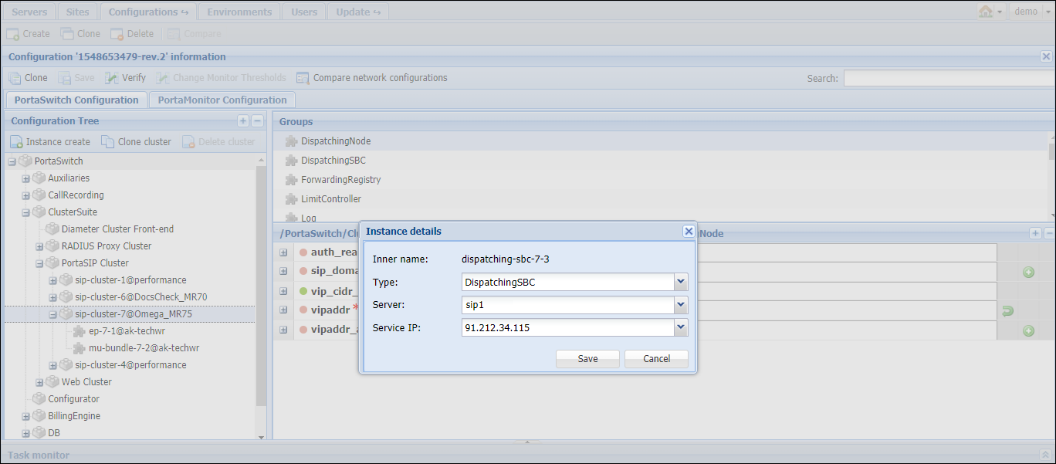
- Repeat step 8 to create a DSBC instance on the second server.
- Select the DispatchingSBC group and specify the virtual IP address in the vipaddr field.
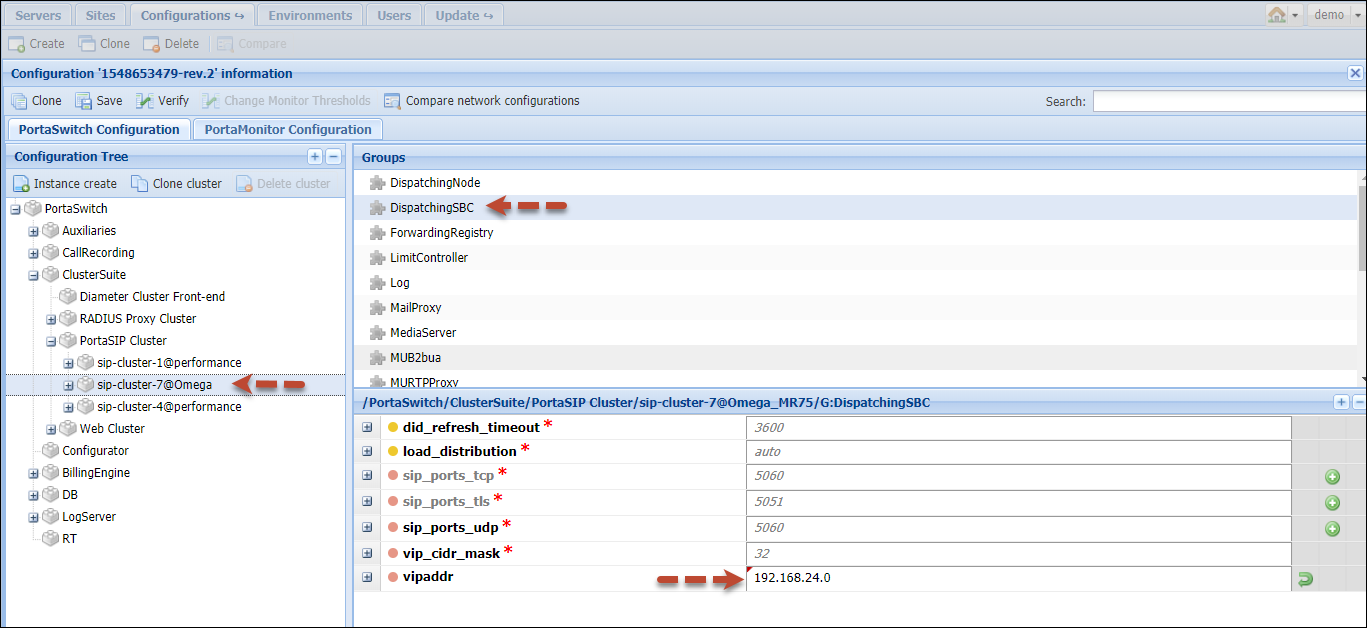
- Click Verify to verify the configuration.
- Click Check/Apply to apply the configuration.
High-availability for the DSBC in site-redundant PortaSwitch
To provide high availability for your site-redundant PortaSwitch, deploy the DSBC on both the main and secondary sites. You can assign the same virtual IP address to the DSBC on both sites, or assign a separate virtual IP address to the DSBC on each site.
Select the relevant option depending on your network configuration.
- Perform the general configuration of the DSBC on every site.
- On the Configurations tab, clone the existing configuration.
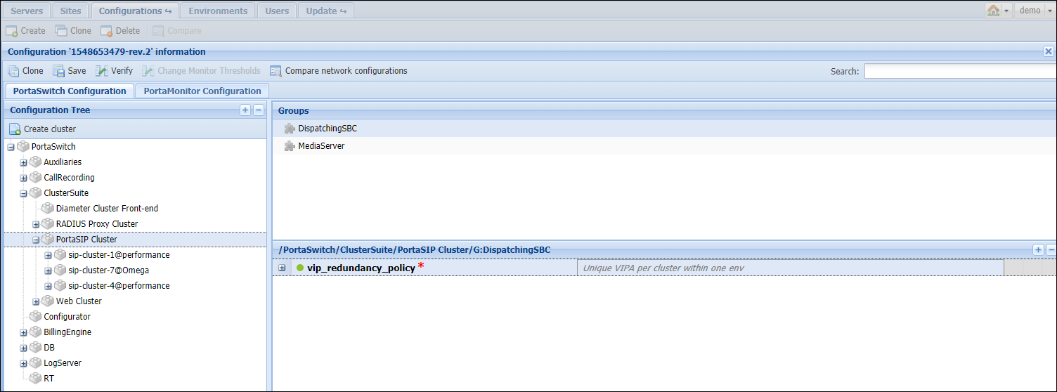
- From the Configurations tree, select ClusterSuite > PortaSIP Cluster.
- Select the DispatchingSBC group and select one of the following for the vip_redundancy_policy option:
- Unique VIPA per cluster within one env means that on every site, the DSBC has a different IP address.
- Same VIPA for all clusters within one env means the DSBC on both sites has the same IP address.
- Click Verify to verify the configuration.
- Click Check/Apply to apply the configuration.
IP aliasing for the DSBC
You can configure several entry points for the DSBC by adding IP aliases to its virtual IP address.
- Perform general configuration of the DSBC.
- On the Configurations tab, clone the existing configuration.
- From the Configurations tree, select ClusterSuite > PortaSIP Cluster > <your_sip-cluster>.
- Select the DispatchingSBC group. In the vipaddr_aliases field, click + and specify an IP address alias in CIDR notation (e.g., 248.78.116.247/24).
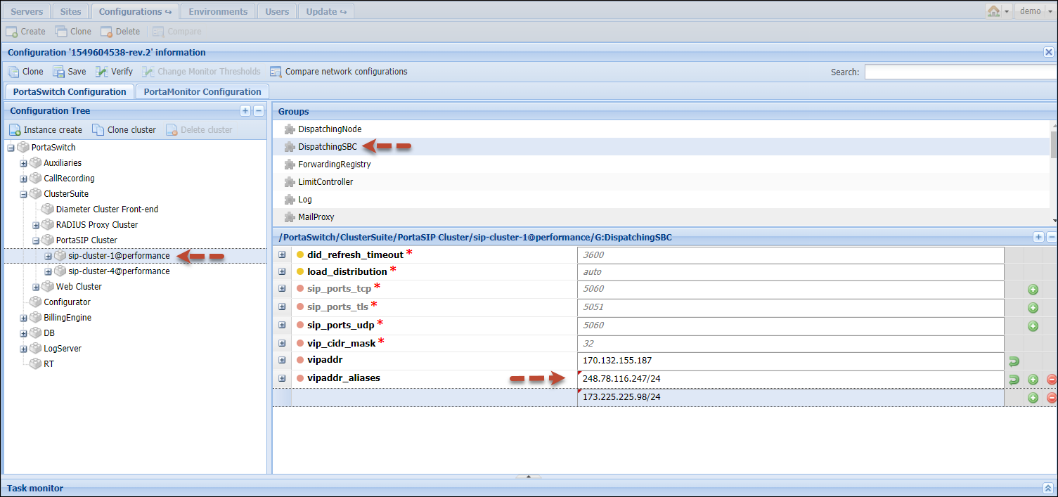
- Repeat step 4 to add more aliases as needed.
- Click Verify to verify the configuration.
- Click Check/Apply to apply the configuration.
Load balancing between sites in site-redundant PortaSwitch
You can configure the DSBC to send different portions of traffic to each site in your site-redundant PortaSwitch. Find more details about load balancing among sites here.
- Perform the general configuration of the DSBC.
- On the Configurations tab, clone the existing configuration.
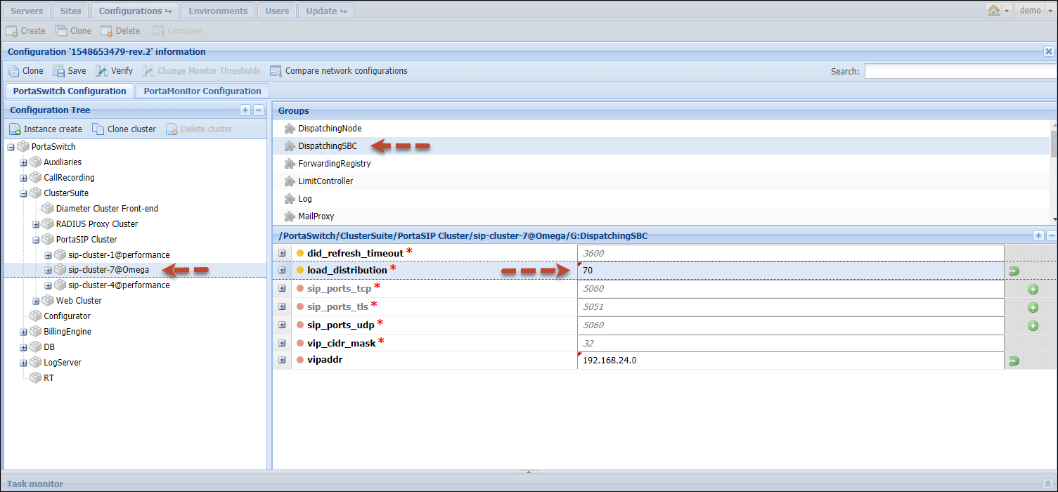
- From the Configurations tree, select ClusterSuite > PortaSIP Cluster > <your_sip-cluster>.
- Select the DispatchingSBC group.
- In the load_distribution option, specify the percentage of requests to be sent to this PortaSIP within a range of 0 to 100, where:
- 0 means no requests will be sent to this PortaSIP;
- 100 means all requests will be sent to this PortaSIP;
- auto means all requests will be evenly distributed among all PortaSIPs deployed in your installation.
- Click Verify to verify the configuration.
- Click Check/Apply to apply the configuration.
DSBC in Dual Version PortaSwitch
In Dual Version PortaSwitch, the DSBC dispatches calls and registration requests to the system where the account currently resides. Find more details about call routing in Dual Version PortaSwitch here.
- Perform the general configuration of the DSBC.
- From the Configurations tree, select ClusterSuite > PortaSIP Cluster > <your_sip-cluster>.
- Select the ForwardingRegistry group.
- In the foreign_forwarding_list option, specify one endpoint record per PortaSIP cluster on the source system, in SIP-URI format, using the following mandatory parameters:
- scheme – define whether the connection is secure or not: sip for a regular connection, sips for a secure (TLS-encrypted) one.
- host – specify the virtual IP address of the PortaSIP cluster on the source system. Use the cluster's own IP address, not a VIPA alias – each PortaSIP cluster needs exactly one address.
- ienv – specify the internal identifier of the billing environment the requests are dispatched to.
- You can also specify the following optional parameters:
- port – specify the port PortaSIP listens on. The default port is 5060 for sip and 5061 for sips.
- transport – specify tcp, udp, or tls. The default is udp for sip; tls is required for sips.
TLS is supported if the source system is on mr127 or later.
- site – specify the name of the site the PortaSIP cluster belongs to. The main site is used by default.
- reverse – set this to 1 to create a reverse mapping from the source system back to this system. Omit this parameter, or set it to 0, for a one-way route.
- load – specify the percentage of calls sent to this PortaSIP cluster when more than one cluster serves the same billing environment on the source system. Use a number from 0 to 100, or auto to split the remaining percentage evenly among clusters that don't have an explicit value.
Examples:
sip:217.182.15.104:5601?ienv=3
sip:217.182.15.111:5603;transport=tcp?ienv=3&site=Barcelona
sips:84.112.28.144:5602?ienv=3&site=Main&reverse=1&load=50
sips:84.112.28.144:5602?ienv=3&site=Second&load=auto

- Click Verify to verify the configuration.
- Click Check/Apply to apply the configuration.
Call delivery to DIDs provisioned from your PortaSwitch
You can distribute your pool of DID numbers across multiple PortaSwitch systems, enabling customers of other service providers to provision DIDs on demand. The DSBC then handles call delivery for those DIDs across systems. Find more details about DID distribution across PortaSwitch systems here.
- Perform the general configuration of the DSBC.
- On the Configurations tab, clone the existing configuration.
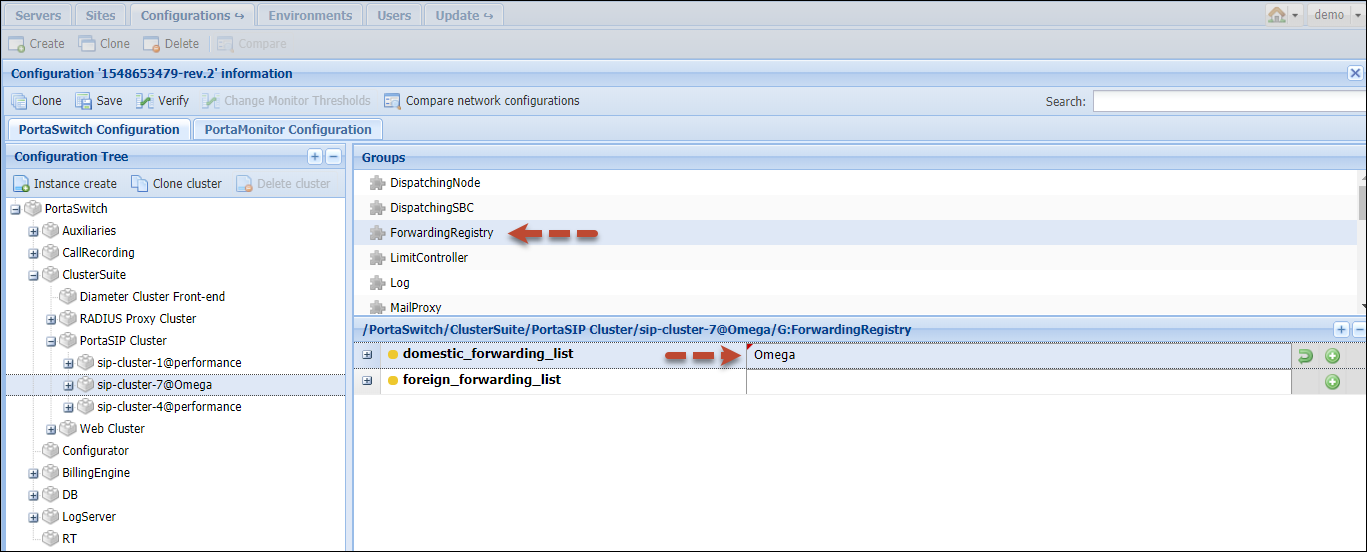
- From the Configurations tree, select ClusterSuite > PortaSIP Cluster > <your_sip-cluster>.
- Select the ForwardingRegistry group and define the endpoint of another PortaSwitch system where the DIDs will be provisioned in the foreign_forwarding_list option.
- Click Verify to verify the configuration.
- Click Check/Apply to apply the configuration.


