



Services are typically billed based on individual events such as voice calls. There is another popular business model in which billing is based on the continuous usage of allocated resources.
This handbook will show you how to introduce this business model by configuring the resource consumption metrics and how to check the customers’ resource usage.
In the configuration example, we define the “soft” limit of 10 concurrent calls for SIP trunking customers as part of their service bundle covered by their $10 per month subscription. If the maximum number of concurrent calls exceeds that defined limit, an additional charge of $1 per concurrent call is applied to them.
Configuration overview
- Enable the metrics storage on the Configuration server
- Create a subscription plan
- Configure resource consumption metrics for a customer class
- Assign the customer class to a customer
- Assign the subscription plan to a customer
- Override charging for a customer (optional)
- Check customer statistics
1. Enable the metrics storage on the Configuration server
- On the Configuration server web interface, go to the Configurations tab.
- Clone the current configuration.
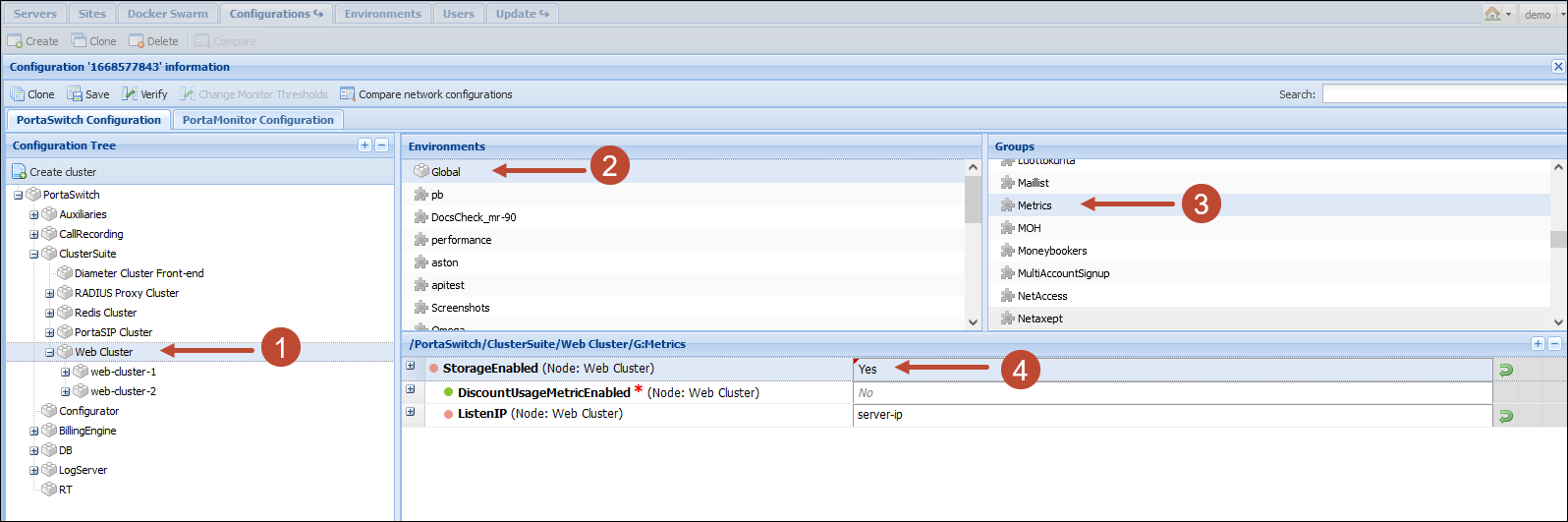
- In the Configuration Tree, select Web Cluster.
- In the Environments panel, select Global.
- In the Groups panel, select Metrics.
- For the StorageEnabled option, select Yes.
- Click Save and then click Verify.
- Verify the new configuration and click Check/Apply.
2. Create a subscription plan
To charge customers for concurrent calls, create a subscription plan and perform its configuration as described in the Charging for value-added services handbook.

3. Configure resource consumption metrics for a customer class
Every consumed resource has its own metric. The metric defines how the consumption of that resource is measured and how customers are charged for it.
To apply measurements and charges for allocated resource consumption to multiple customers at once, configure the resource consumption metric for that customer class.
- On the navigation menu, select Sales, then select Customer classes.
- Click the name of the specific customer class to edit it.
- On
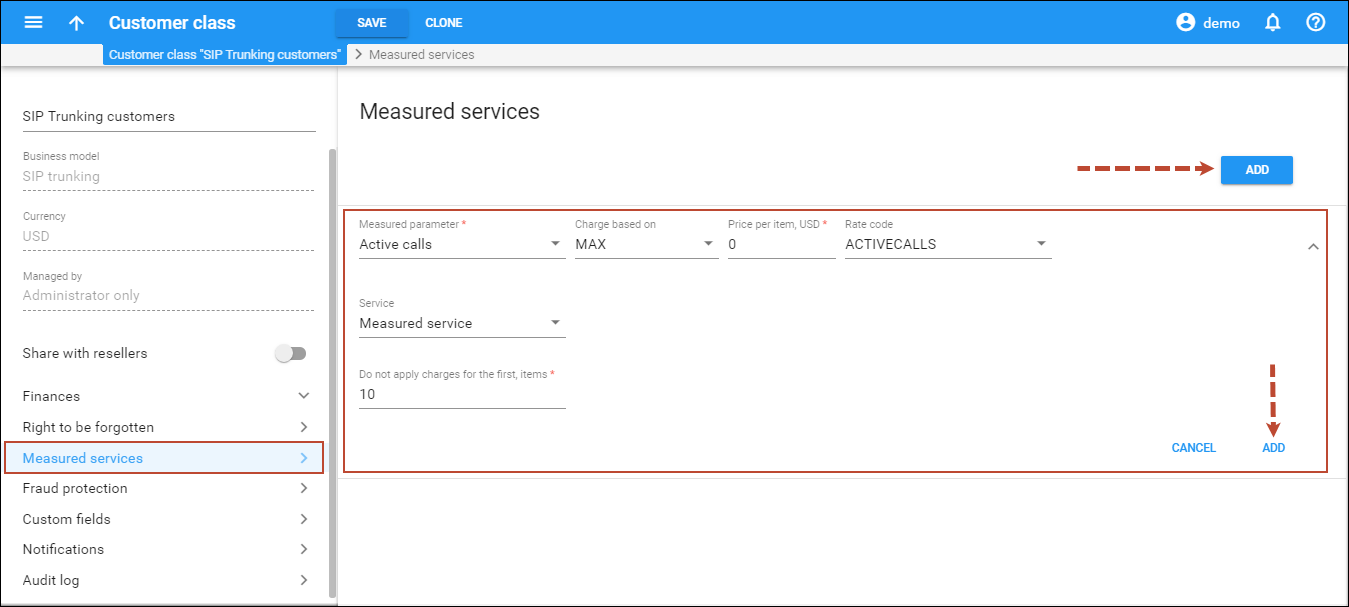
the Edit customer class page, select Measured services
and click Add.
- Specify
the following information about any new metric:
- Measured parameter – select Active calls from the list.
- Charge based on – define the charging criterion per resource usage. Select MAX from the list.
- Price per item, USD – specify the price you will charge your customers for each unit of consumed resources (e.g., $1 for every active call).
- Rate code – specify which rate will be used to calculate charges for customers. This is shown in customers’ xDRs and invoices.
- Service – this service type will be used to calculate charges for customers and is shown in customers’ xDRs and invoices.
- Do not apply charges for the first, items – specify the number of active calls included in your service bundle (in our example it is 10).
- Click
Add.
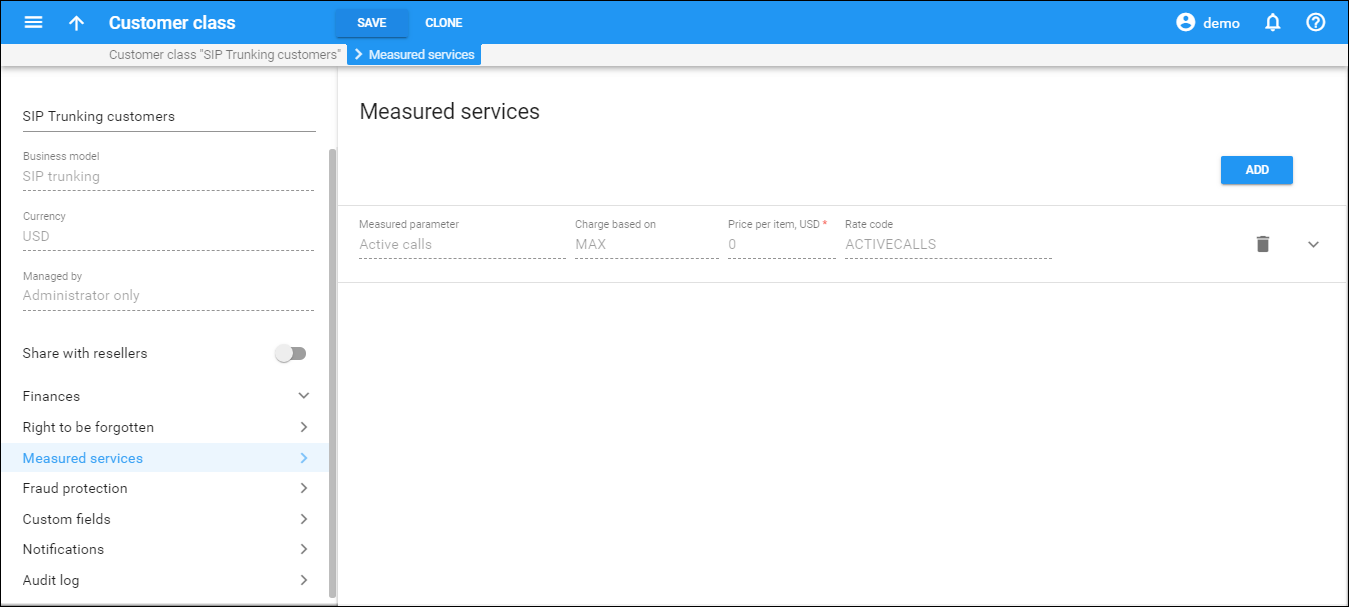
Each metric can only be added once.
4. Assign the customer class to a customer
This step is only required if a customer does not belong to the customer class you have modified in the previous section. Otherwise, skip this step.
- On the navigation menu, select Sales, then select Customers.
- Click the name of the specific customer to edit it.
- Select
the customer class in which you have configured the measurement parameters
from the Customer class list.

- Click Save.
5. Assign the subscription plan to a customer
- On the Customer panel, select Subscriptions.
- Click + Subscription.
- Select
the subscription you have just created from the list.

- Click Save.
6. Override charging for a customer (optional)
If necessary, you can configure a different charging scheme for an individual customer and associate it with the defined measurement parameter (e.g., if, for example, you want to increase the limit of concurrent calls for this customer to 15).
- On the Customer panel, go to Measured services.
- Click Edit
 next
to the required metric to edit it.
next
to the required metric to edit it. - Specify
new charging parameters for this customer.

- Click Save.
7. Check customer statistics


You can also browse the statistics on the customer self-care interface:
- Log in to the customer self-care interface using the customer’s web access
login and password. After that you will be able to see the customer’s
dashboard interface.

- On the Billing Information tab select Measured Services.
- Click
the
 icon
next to the resource consumption metric.
icon
next to the resource consumption metric.
- View
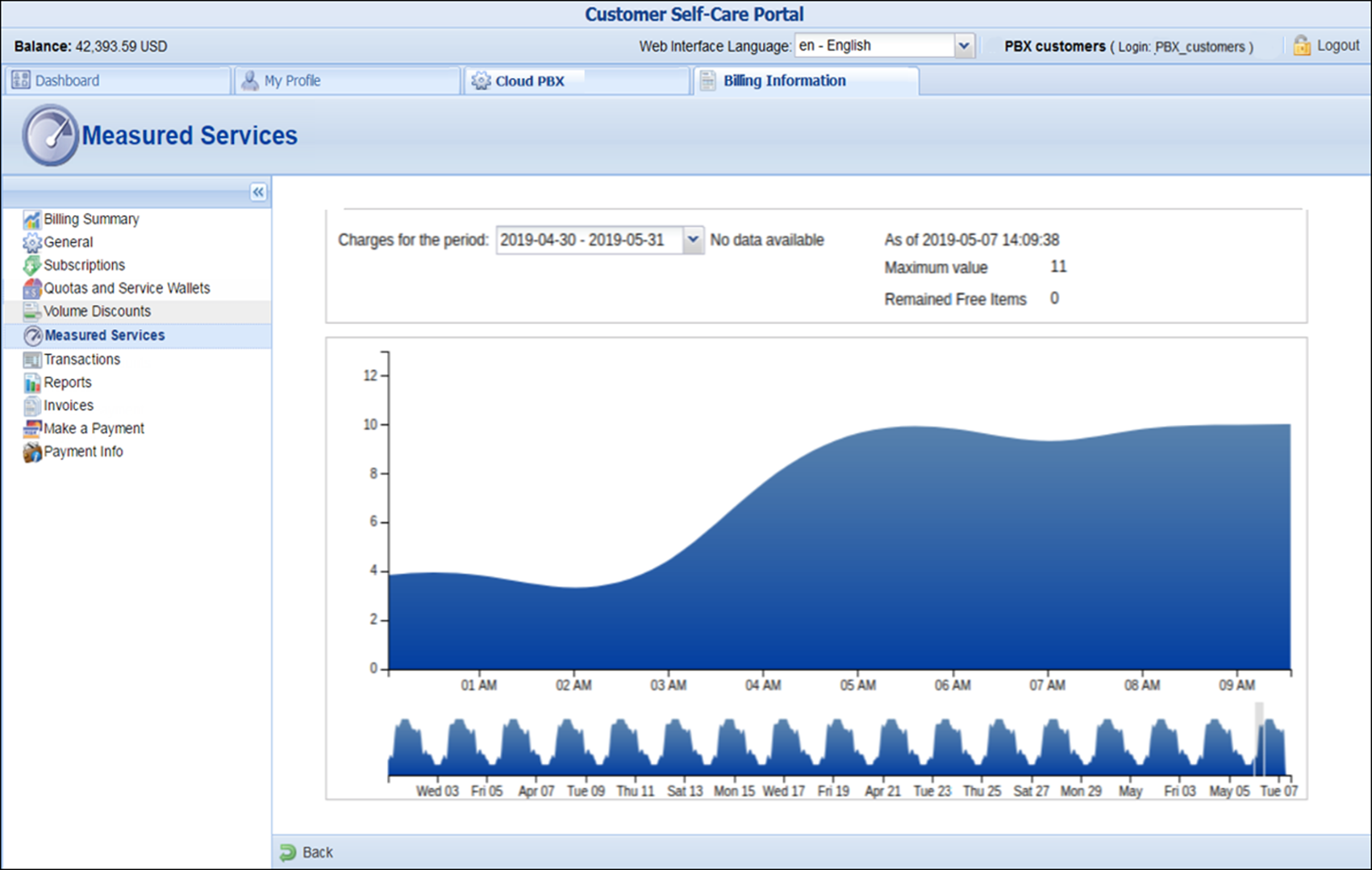
the statistics information:
- Click on the start date in the bottom graph and drag the mouse cursor to the finish date to browse the detailed statistics for a particular time period.
- Charges for the period – select the customer’s billing period. Either the current and/or any of the previous billing periods can be selected.
- Amount
charged – if a customer is charged for resource consumption, those
charges are reflected in the selected billing period.
The charges for the current billing period will not be displayed since this billing period is not yet closed.
- Maximum value – the measured resource value for the current billing period.
- Remained free items – the number of allocated resources included in the service bundle for the current billing period.


