



This functionality allows cloud PBX users to make toll calls from any SIP phone in the office using their own authorization code (PIN number).
When an office worker makes a call from his colleague’s phone, he is prompted to enter some additional authorization code to identify himself so that this call’s charges are applied to his account. This way a cloud PBX owner can see who actually made the call and who was charged for it.
This functionality prevents service abuse and enables individual accountability for each user’s account.
Consider the following scenario as the configuration example. Customer Smart Calls, Ltd. want their employees to make toll calls only after they enter an authorization code. Let’s say that some of their employees have the following accounts and PIN numbers:
- Rachel – 17785551209 and 4545.
- Mark – 17785551210 and 8989.
When Rachel makes a toll call from Mark’s SIP phone, she is prompted to enter the additional authorization code. She enters her PIN number and the call is put through. When the call ends, PortaBilling applies the charges and creates xDRs for both accounts. Mark’s account is charged for the call to the IVR and Rachel’s account is charged for the toll call. You can see the call records on the account self-care interface or on the account xDR page.
When Rachel makes a call to her colleague Jake or makes a toll-free call, this call is then initiated without additional authorization.
Since toll calls pass through the IVR application in this scenario you must specify the associated number that is identical for all accounts that use this functionality. This associated number is then sent back to the IVR in an authorization confirmation.
For user identification, create aliases for the accounts with IDs that include an account’s associated number (the part of the phone number in our example) followed by the # symbol and an authorization code (e.g., 1778555#4545, 1778555#8989, etc.).
Configuration overview
- Create the IVR application
- Configure the IVR application
- Create the first account
- Enable the associated number
- Enable the IVR application
- Add an alias
- Create the second account
- Testing
Create the IVR application
- On the navigation menu, select Infrastructure, then select Voice calls processing and go to Voice applications.
- On the Create voice application panel, fill in the following fields:
- Name – specify the IVR application’s name (e.g., Roaming PIN).
- Application type – choose Pass-through IVR.

- Click Save.

Configure the IVR application
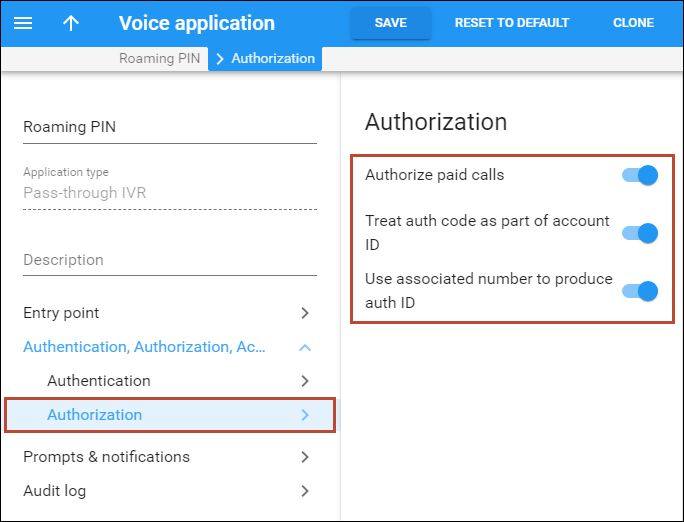
- On the Voice application panel, go to the Authentication, Authorization, Accounting section, then select Authorization and enable the following options:
- Authorize paid calls to enable additional authorization for toll calls.
- Treat auth code as part of account ID for billing outgoing calls to separate accounts which are made from a shared phone.
- Use associated number to produce auth ID to authorize the user via the associated number and authorization code.
- Click Save.
Create the first account
This configuration requires a credit limit for the customer. If the credit limit has already been set, you may go directly to the Customer page to continue the configuration, otherwise set a reasonable credit limit for the customer.
Create an account for the customer and define the associated number for it.
- On the navigation menu, select Sales, then select Customers. Note that if you have not yet created a customer, consult the Create a Customer section of the Cloud PBX Services handbook.
- On your customer’s panel, click Accounts / DIDs.
- Click + Account and fill in the account information:
- General tab:
- Type – select Credit.
- Account role – select the type of account. Select Universal from the list.
- ID – SIP ID, i.e., the phone number that is used to log in to the SIP server and receive incoming calls (e.g., 17785551209).
- Service password – use the Generate password button to generate a secure password.
- Balance control – select Subordinate from the list.
- Activation – leave the default value or select the date from which the account is usable.
- Expiration date – leave the default value or define when the account expires.
- Products tab:
- Product – choose the main product that you would like the account to have.
Please refer to the Basic Residential VoIP Service handbook for a detailed description of creating an account.

- Product – choose the main product that you would like the account to have.
- General tab:
- Click Save & Edit details.
Enable the associated number
- On the account’s panel, click Service configuration in the Voice calls section.
- In the General tab, enable the Associated number option and specify the first part of the phone number (excluding the last four digits) as an associated number. This is used for creating the first part of the authentication ID and should be the same for all of a customer’s accounts.

Enable the IVR application
- Go to the Outgoing calls tab.
- Enable the Call via IVR option and select the previously created Voice application (e.g., Roaming PIN).

- Click Save.
Add an alias
- Go to General info > Account aliases, click + Add, and specify the alias details:
- Alias role – select Universal here.
- Alias ID – specify the Associated Number#PIN (e.g., 1778555#4545) in this field.
- Allow authentication – disable this option.
 You can specify any numbers to be used as Associated and PIN numbers. However, make sure that the Associated number is identical for all of a customer’s accounts while the PIN numbers must be unique for each account.
- Click Save.
Create the second account
- Repeat steps to create the account 17785551210.

- Go to the Aliases tab and add the Associated Number#PIN (e.g., 1778555#8989) as an alias.

- Click Save.
Testing
- Configure your SIP user agent with account 17785551209’s ID and password. (For more details, refer to Test the whole system section of the Basic Residential VoIP Service handbook.) Then have your SIP user agent log in to the SIP server.
- Make a call from this account using the 8989 authorization code.
- Go to account 17785551209’s xDR page and browse the xDRs.
For a more detailed description, please refer to the Verify Call History for an Account section of the Basic Residential VoIP Service handbook.

- Go to account 17785551210’s xDR page and browse the xDRs.

- Go to the customer xDR page and browse the xDRs.



