



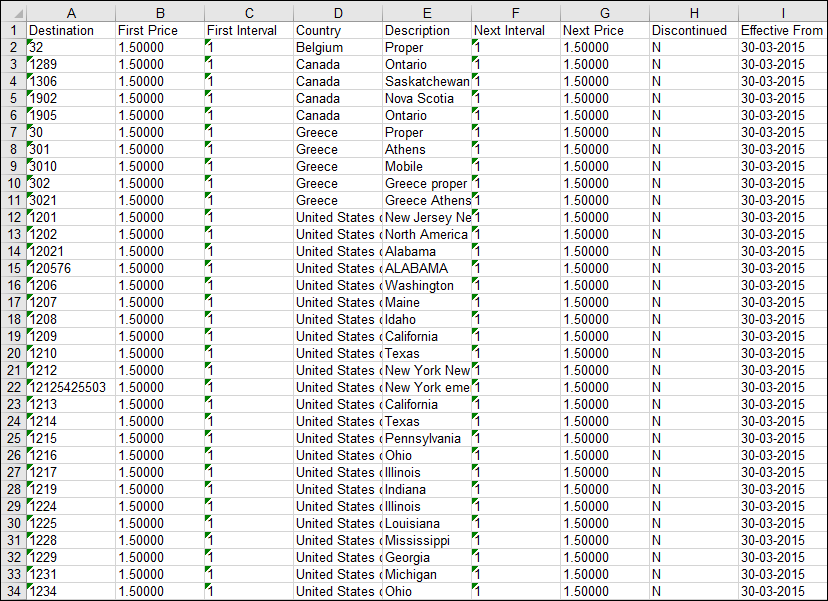
If you're a wholesale service provider, you need to regularly update customer rates and send these updates to your customers (carriers whose calls are terminated to your network). You can download rates in a specific file format and structure with rate export functionality. It eliminates manual file processing and allows sending the exported rates to your customers right away. Let’s say you need to send files with up-to-date rates to your wholesale customers in a specific format and structure. To save time on editing the file with rates each time you download it, you create a rate download template and customize it:
- Specify the output file format (e.g., .xls).
- Remove unneeded columns (e.g., “Off-peak First Price”, “Off-peak Next Price”, and other off-peak related columns).
- Change the column order (e.g., move the “First Price” column next to the “Destination” column).
- Set the custom date format and remove a timestamp (e.g., the European date format (DD-MM-YYYY) for the “Effective From” column).
This chapter provides instructions on how to set up your template and download ready-to-send files with either all the tariff rates or specific ones.
Configuration overview
- Create rate download template
- Customize rate download template
- Set the template as default for a specific tariff
- Download rates using custom template
- Download specific rates
Create rate download template
- Navigate to My company > Templates and click + Template.

- In the Add template panel, fill in the template details:
- Name – type the template name, e.g., “Wholesale customers”.
- Type – select Rate download.
- File format – select the format, in our example Microsoft Excel 1997-2003 (.xls).
- Tariff type – select Normal. The tariff type defines the default set of data fields in the template.
- Normal – the default template for rate download.
- Quantity-based – the rate download template for a tariff used for quantity-based services (IPTV, messaging service, data service, etc.).
- Routing – the rate download template for a vendor tariff with routing enabled.

- Click Save.
Customize rate download template
On the Template panel, click Columns and configure the data fields on the Columns data fields panel.
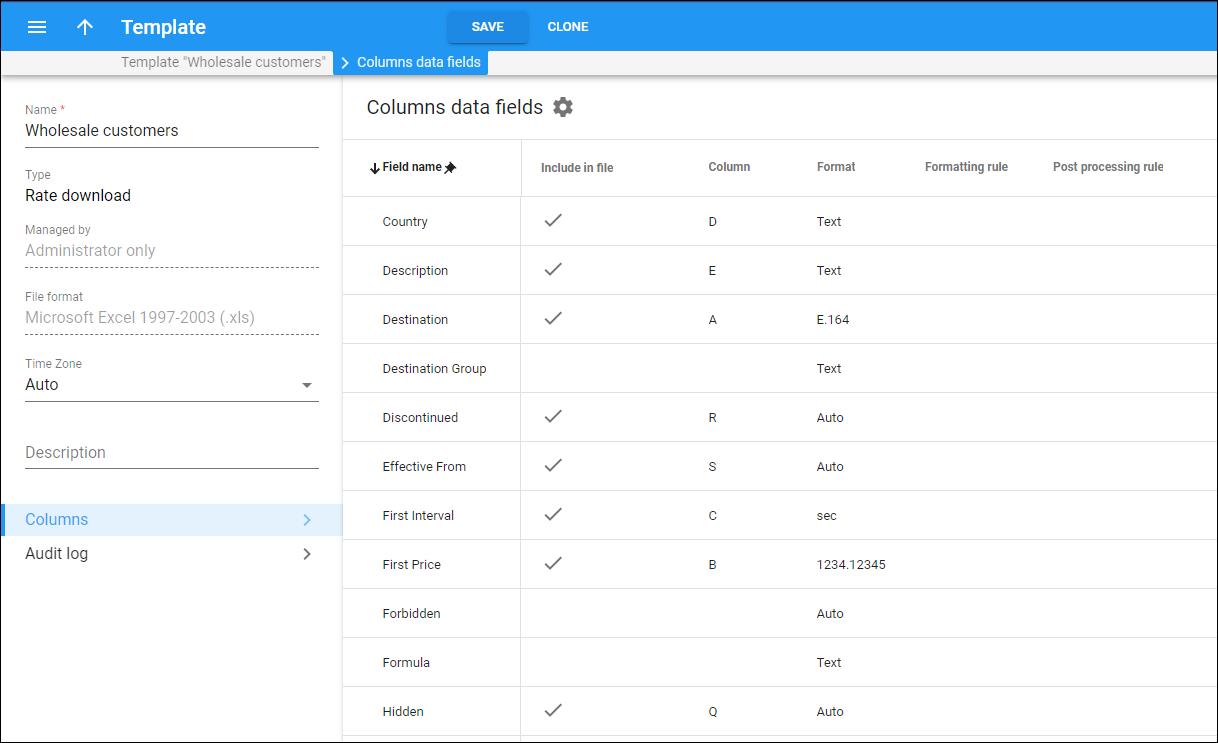
Remove unneeded columns
Exclude “Off-peak First Price”, “Off-peak Next Price”, and other off-peak related columns from the template.
- Hover over the “Off-peak First Price” data field and click Edit
 .
. - In the Edit data field dialog, select None in the Column field.
- Click OK.
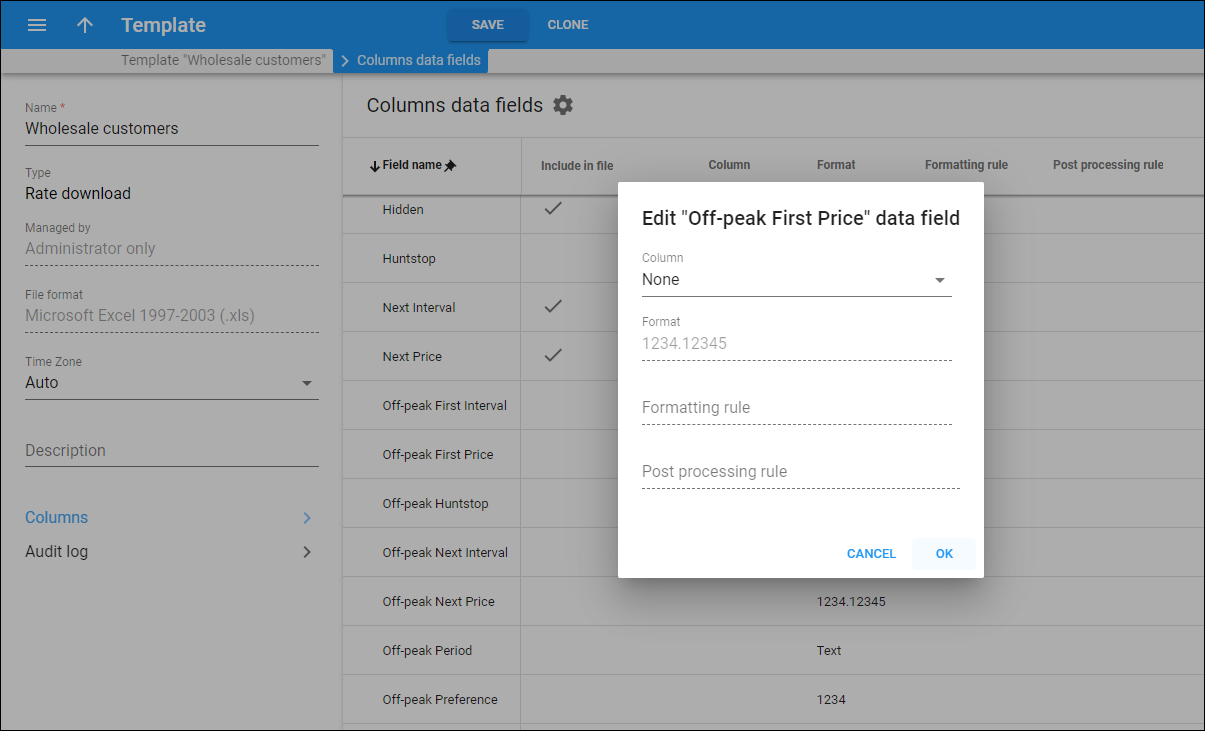
- Repeat the steps 1-3 to remove other columns.
Change the column order
Move the “First price” column next to the “Destination” column.
- Hover over the “First price” data field and click Edit .
- In the Edit data field dialog, specify “B” in the Column field, which means that this will be the second column in the output file.
- Click OK.
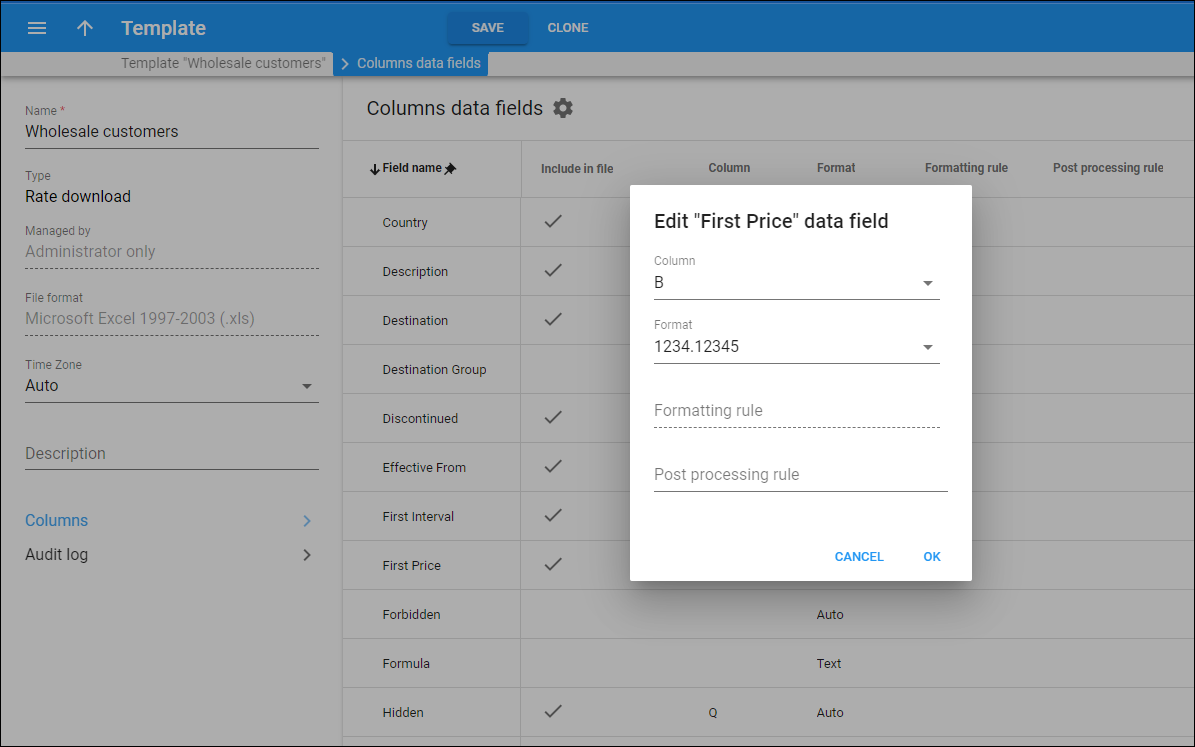
Set the custom date format and remove a timestamp
Change the date format to European (DD-MM-YYYY) for the “Effective From” column.
- Hover over the “Effective From” data field and click Edit .
- In the Edit data field dialog, open the Format dropdown list, select Other:
- Specify “DD-MM-YYYY” in the Formatting rule field.
- Click OK.
- Click Save.
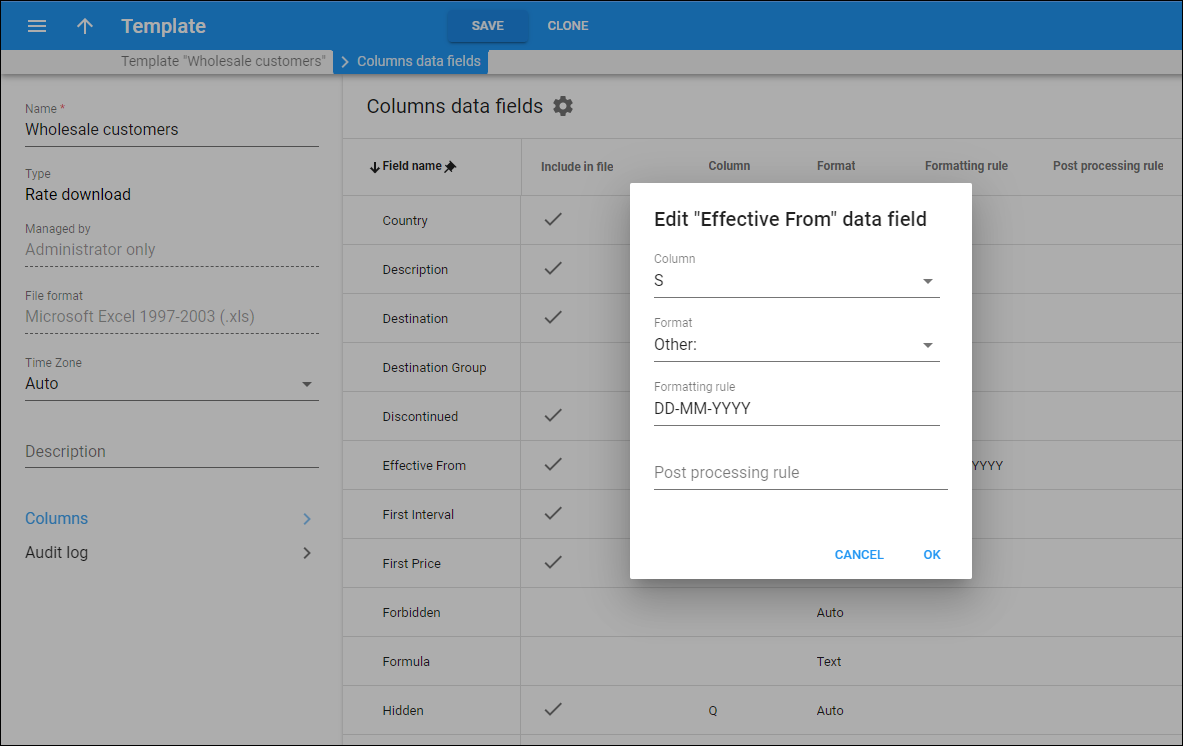
Refer to Template data fields chapter for more information.
Set the template as default for a specific tariff
- Go to the Service catalog and select Tariffs.
- Open a specific tariff, e.g., “Termination price list”.
- On the Tariff panel, navigate to General configuration > Upload/download configuration tab.
- In the Web download template dropdown list, select the “Wholesale customers” template.

- Click Save.
Download rates using custom template
- Open the “Termination price list” tariff and click Rate download on the toolbar.
- In the Rate download dialog, click Download.
The “Wholesale customers” template is already selected, as it’s assigned to the tariff as default.

The rate download operation is scheduled.
- Once the file is ready, you get a notification. Click Notification
 in the top-right corner. In the notification panel that opens, click Download.

Now, you can send the downloaded file with up-to-date rates to customers’ emails.
You can use a quicker way to download the customer rates:
- Go to Service catalog > Tariffs.
- On the Tariffs panel, select a specific tariff, e.g., “Termination price list” and click Rate download
 .
.

Download specific rates
- Go to Service catalog, select Tariffs and open a specific tariff, e.g., “Termination price list”.
- On the Tariff panel, click Rates.
- On the Rate list panel, filter the rates, e.g., by the Code group “Europe”.
- Select checkboxes for specific rates.
- Click Download.

- Repeat the steps 2 and 3 from the Download rates using custom template section.
The file with specific rates is downloaded. You can send this file to customers’ emails.



