



This tab allows you to create a list of custom files (e.g., sudo configuration files) and directories that should remain on your servers during the software upgrade.
When the system is being prepared for a software upgrade to a new release, the files are automatically copied to the partition where the new version of the code is installed, and therefore appear on the production partition after the software upgrade.
Note that files and folders specified on the Deposit page don’t become duplicated; they will be taken directly from specified folders during a software upgrade. Therefore, all changes made to these files after adding them on the Deposit page (including removal) will be preserved. For example, if files are physically deleted from the file system, they will be lost despite the fact that they were added on the Deposit page.
To list your custom modifications on the Deposit page:
- Log in to the Configuration server web interface.
- Go to the Deposit tab.
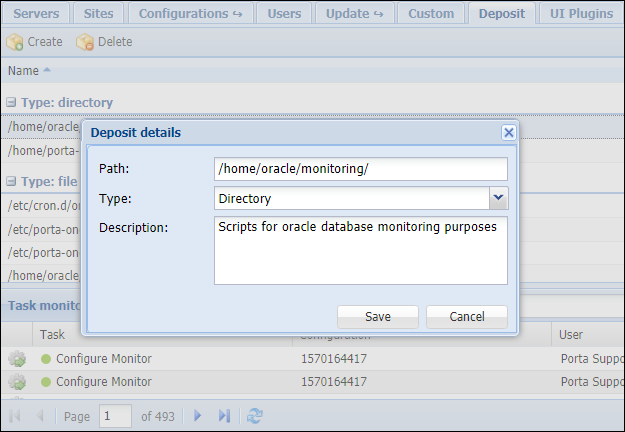
- Click Create and fill in the details in the Deposit details window:
- Path – set the path to the directory/file. For instance, to keep your custom modules related to the xDR mediation, define the path to the DataTransformation option, e.g., /home/porta-cdrmediator/CDR_Converter/ or /home/porta-cdrmediator/CDR_Converter/MyModule.pm

- Type – select the type of custom module to deposit.
- Directory – to save all the files from the directory.
- File – to save a specific file, e.g., a data transformation rule.
- Description – type a short description, e.g., Custom modules for xDR Mediator.

- Path – set the path to the directory/file. For instance, to keep your custom modules related to the xDR mediation, define the path to the DataTransformation option, e.g., /home/porta-cdrmediator/CDR_Converter/ or /home/porta-cdrmediator/CDR_Converter/MyModule.pm
- Click Save.



 Back to main menu