


Recent xDRs
On the Recent xDRs tab, you can filter the recently produced (for the current billing period) xDR records, browse a list of xDRs filtered by your search criteria, view the xDR summary information, and download xDRs.
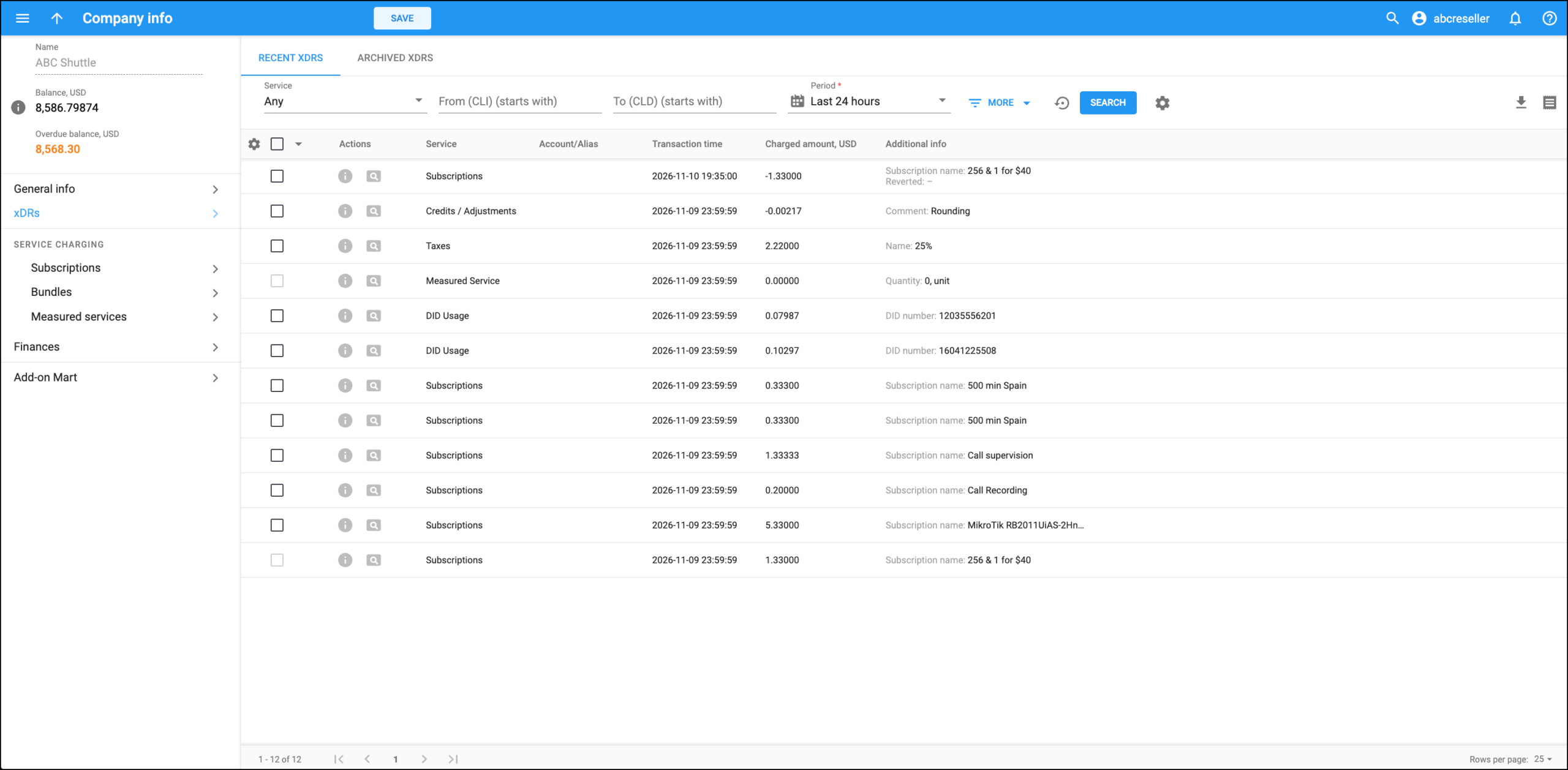
xDRs search
The xDRs are billing data records that store information about various billing events: calls, SMSes, payment transactions, etc.
Specify one or more search criteria and click Search.
If you want to stop the search, press “Esc” on the keyboard. Click More  to view all available search criteria.
Click Default filters  to reset the search criteria to their initial values. To refresh the search results, click Search.
PortaBilling automatically loads the list of records once you open the recent xDRs tab. You can turn off data autoload if you don’t want all records to load each time you open the page. To disable data autoload, click
Page search settings  and clear the Automatically start searching upon opening the page checkbox. The list of records won’t load until you click Search.
Service
Filter xDRs per service, e.g., for voice calls. The list includes the default services and the services you have created. You can also filter xDRs separately for subscriptions, payments, taxes, and DID usage.
From (CLI)
Filter the xDRs by the phone number of the session originator (a caller or the message sender). This field is available for Voice calls, Conferencing, and Messaging service types only. By default, PortaBilling filters phone numbers that start with your input.
To change the search mode for this field, click Matching mode  and select another option to filter xDRs by the originating phone number that:
- Contains – contains your input (anywhere in the number).
- Starts with – starts with your input.
- Ends with – ends with your input.
- Exactly matches – exactly matches your input.
PortaBilling automatically saves the matching mode from the previous search.
To (CLD)
Filter the xDRs by the destination phone number or the message recipient. This field is available for Voice calls, Conferencing, and Messaging service types only. By default, PortaBilling filters phone numbers that start with your input.
To change the search mode for this field, click Matching mode and select another option to filter xDRs by the destination phone number that:
- Contains – contains your input (anywhere in the number).
- Starts with – starts with your input.
- Ends with – ends with your input.
- Exactly matches – exactly matches your input.
Period
Filter xDRs by the date they are produced.
Show unsuccessful attempts
This option is available for Voice calls, Conferencing, and Messaging service types only. Turn on the toggle to include xDRs for unsuccessful session attempts in the results list.
xDRs list
Each entry of the xDRs list consists of:
Service
This column is only displayed when “Any” is selected in the Service field on the Search panel. It shows the name of the service, e.g., “Incoming calls,” or transaction type, e.g., “Credits/Adjustments.”
Account ID
The ID of the account charged. The ID is the link to this account's page. If the charge is applied directly to the reseller, it is empty.
From (CLI)
The phone number of the session originator.
To (CLD)
The phone number of the party called or the message recipient.
Transaction time
The date and time when the transaction was recorded.
Charged amount
The sum of charges applied.
Details
Click Info  to view detailed information about the session, such as time zone, transaction status, and/or error code, duration, etc. Find the available auxiliary information about the session:
- information about the roaming country and carrier;
- information about cloud PBX calls, such as hunt group or extension number that made, accepted, or redirected the call, as well as information about split sessions, if available.
Additional info
Additional comments about the transaction (e.g., manual payment, etc.). This column is available when “Any” is selected in the Service field on the Search panel.
Download xDRs
To download the selected xDRs for further analysis, statistics purposes, click Download. Then click Notifications on the toolbar, open the notification, and click Download. The output file is in the .csv format.
xDR summary
Click Summary on the toolbar to see the xDR summary information for the selected period.
The xDR summary includes the following information:
- Total number of xDRs filtered;
- Totals by services;
- Total sum of payments and credits;
- Total sum of taxes.
Customize the panel
- Change table settings – click Settings
 in the title bar to customize columns, change row style, or reset table settings.
- Re-order the columns – drag-and-drop the column headers right or left to place the columns in the order you want.
- Change the default number of results globally – use the Number of results drop-down list in the bottom-right corner to adjust the maximum number of rows that appear on the panel. By default, the xDRs list panel displays 25 rows. Once the number is changed, it's automatically saved, so the same number of rows is shown for PortaBilling entities, e.g., customer, account, reseller, etc.
Archived xDRs
On this tab, you can select the parameters of the archived xDRs report.
To download a report with archived xDRs, set the search criteria and then click the relevant date on the calendar. To compress the file, select the Zip the file before download option.
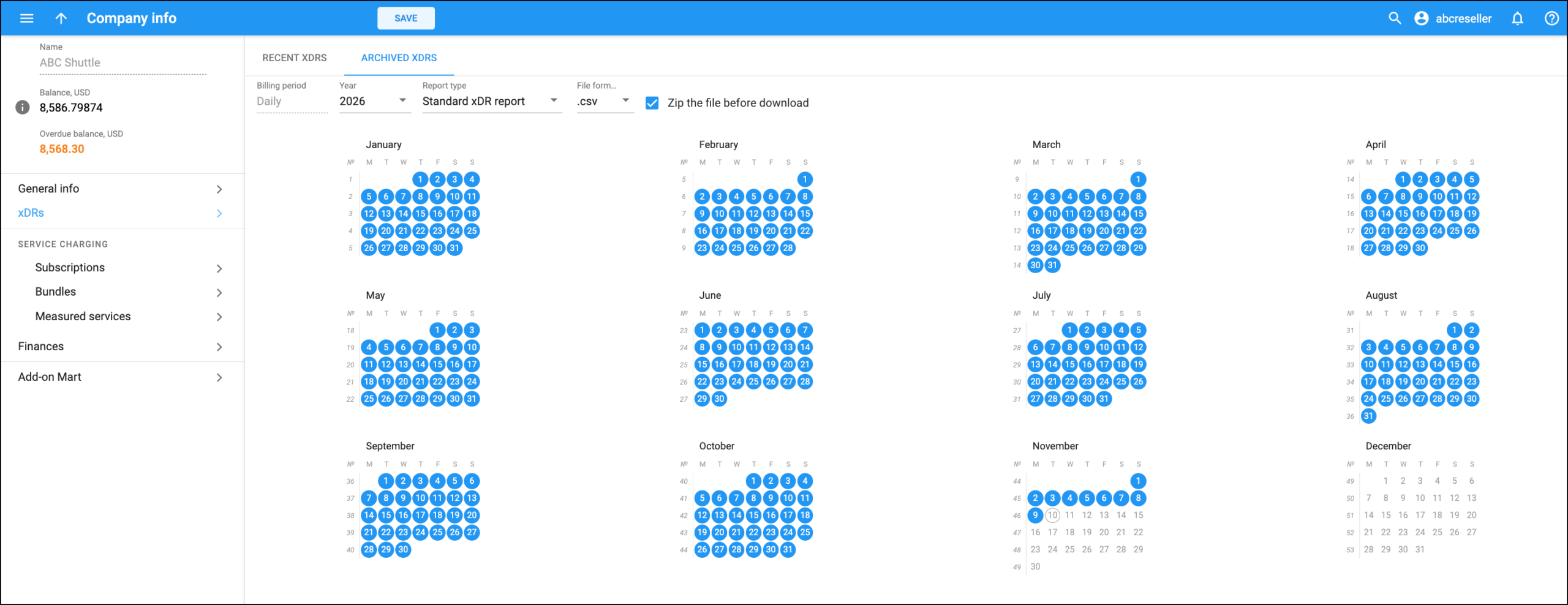
Billing period
This option is read-only and shows the billing period.
Year
Select the year when the report with the archived xDR was generated.
Report type
Select the type of xDR report you want to download:
- Standard xDRs report – generated for all customer’s accounts that the reseller is assigned for.
- Site based report – generated for accounts that belong to a specific customer site that the reseller is assigned for. This option is disabled by default. To allow downloading reports of this type, contact your service provider.


 Back to main menu