IPTV configuration

Link copied to clipboard


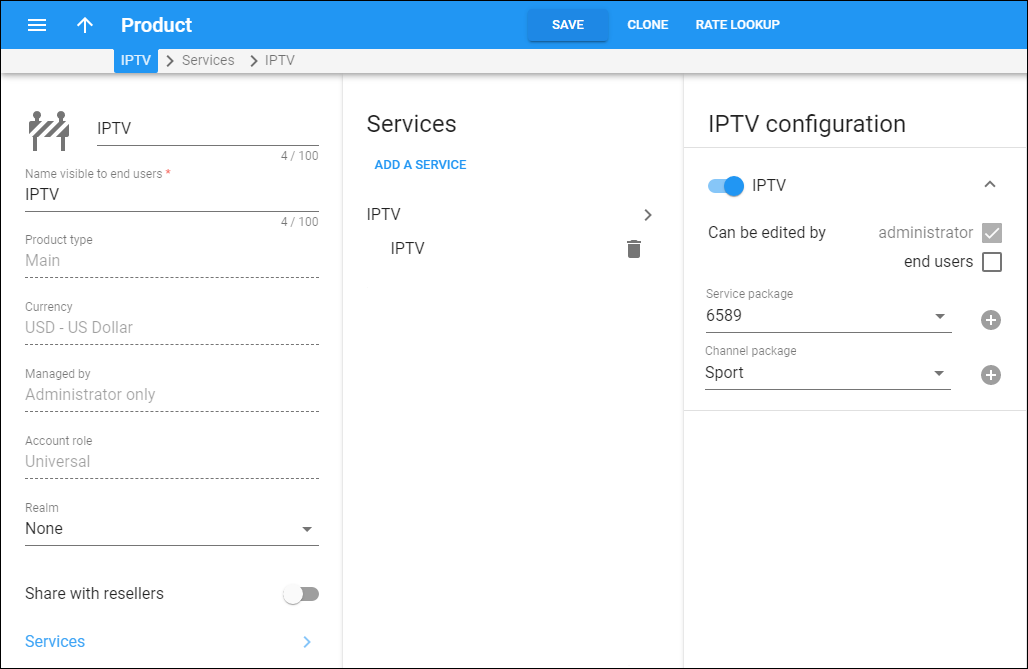
On this panel, you can define service features and manage service and channel packages for the IPTV service type.

IPTV product panel with service and channel packages.

IPTV

Link copied to clipboard

Turn on the toggle to enable the IPTV feature for accounts with this product assigned.

Can be edited by

Link copied to clipboard

By default, the administrator can enable/disable the IPTV feature for accounts with this product assigned.

Select end users to allow end users to enable/disable the IPTV feature on their self-care interface.

Service packages

Link copied to clipboard

Select the service packages available to accounts with this product assigned.

Channel packages

Link copied to clipboard

Select the channel packages available to accounts with this product assigned.

Package list

Link copied to clipboard

For each assigned service/channel package, the following information is shown:

Name

Link copied to clipboard

Name of the package configured on the IPTV platform, e.g., Gold Package.

Internal ID

Link copied to clipboard

Package ID stored in the PortaBilling database.

Provider

Link copied to clipboard

IPTV provider of the package, e.g., Conax.

External ID

Link copied to clipboard

Package ID from the IPTV platform, e.g., 650043.

Assign packages

Link copied to clipboard

To assign a new service or channel package, click Assign and follow the steps in the dialog.

Define search filters

Link copied to clipboard

Use the following parameters to filter packages:

  • Provided by – filter by IPTV provider.
  • Provider package ID – filter by the external package ID defined on the IPTV platform.
  • Package name – filter by package name defined on the IPTV platform. To add more packages, click Add Add. To remove a package, click Delete delete.

    Assign channel packages search filters.

Select packages

Link copied to clipboard

Select the required packages and click Assign.

Select channel packages to assign.

Delete packages

Link copied to clipboard

Select a service or channel package and click Delete.

Customize the panel

Link copied to clipboard
  • Change table settings – click Settings settings in the title bar to customize columns and change row style.
  • Re-order the columns – drag-and-drop the column headers right or left to place the columns in the order you want.
  • Re-order the rows – click Arrow up (or down) next to the column header to re-sort the rows. For example, the Channel packages panel displays packages in alphabetical order. You can re-sort them in reverse order.
  • Change the default number of results globally –  use the Number of results dropdown list in the upper right corner to adjust the maximum number of rows that appear on the panel. By default, the panel displays 25 rows. Once the number is changed, it’s automatically saved, so the same number of rows is shown for PortaBilling entities, e.g., customer, account, reseller, etc.
Docs for
What's new
Admin manuals
Handbooks
UI help
Developers documentation