



Transmission of CDR files from external systems
PortaSwitch has a built-in FTP/SFTP server, where an external system (e.g., telephony gateway, producing CDR files) can submit CDR source files for processing.

The source file transmission can be done in one of the following ways:
- Your system downloads CDR files from your vendor’s server, where they accumulate CDR files from their network equipment.
xDR mediator operates as an FTP/SFTP client. It connects to the external system and downloads CDR source files via FTP/SFTP. To make this happen, the administrator defines the credentials necessary for accessing the external system as well as the path to the folder from which to download the files.
- Your vendor’s network equipment such as BroadWorks generates and uploads CDR files to your FTP/SFTP server.
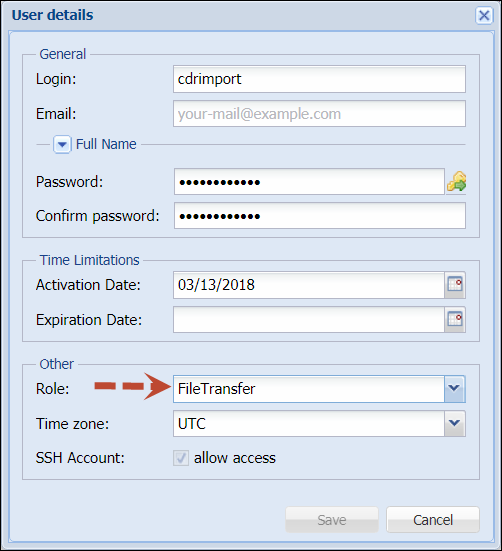
In this case, the file transmission flow is reversed. The administrator enables FTP/SFTP server on the PortaSwitch side (disabled by default) and creates username/password that allows access to it. The external system uses these credentials to upload the CDR source files to the specified folder on the server.
FTP/SFTP file transfer (inbound or outbound) is the recommended configuration compared to other ones (e.g., via secure copy - SCP) since it increases the system security (the user does not have access to anything outside the FTP server) and simplifies xDR mediator support through system updates.
The source CDR file received from your vendor includes the data columns in a custom order. For PortaBilling to parse the data correctly, go to the Configuration server web interface and list the column names from the source file within the CDRSource.column_list option, keeping the order as in the file. For instance, let’s say a .csv file has the following structure:

In this case, you need to list the header names in the CDRSource.column_list field in the corresponding order:
User-Name, Calling-Station-Id, Called-Station-Id, Acct-Session-Time, h323-connect-time, h323-disconnect-time, h323-remote-id, NAS-IP-Address
While developing a custom data transformation module, the values like IP address or gateway ID can be hardcoded. This means that there is no need to specify them in the source file and on the Configuration web server. You can find more info on the xDR import configuration in the handbook.
If you need to import CDRs for voice calls, you need to set up the connection of the Voice calls type and select how to identify the gateway when receiving the data. For this, select one of the options in the Identify gateway by field:
- IP – use this option if you know the IP address of the network carrier.
- Gateway ID – use this option if you don’t know the exact IP address.
- Gateway ID/IP – identify the gateway by both its IP address and its gateway ID. This option is useful when there are multiple gateways in the network, and you need to ensure the correct one is used.

Retroactive billing during xDR import
To calculate charges for a billing session, PortaBilling must consider the delay between the session’s effective time – the time when the session starts/is connected, and the charging time – the time when the user is actually charged. For real-time charging, this delay is very short (only a couple of seconds). When it comes to xDR import, the delay can be considerable – several hours or even days (e.g., roaming xDRs can arrive several days after actual service usage). In the latter case, the billing periods that these charges and bundle consumption refer to can already be closed.
Therefore, to ensure correct charging for a closed billing period, PortaBilling retroactively bills during an xDR import and uses the tariff applicable at the time the session started to produce the xDRs. The xDRs are then added to the open billing period.
Bundle usage
The quota counters reset independently of the billing period closure (there’s no automatic reset once the new billing period starts). The reset is triggered by a specific event in the new billing period, such as an attempt to make a call.
When xDRs for the previous (already closed and invoiced) billing period are imported, the bundle usage, e.g., minutes from a bundle item, can be withdrawn:
- From the previous billing period’s counters – in case the bundle item's counters haven’t been reset yet, e.g., there were no attempts to make a call in the new billing period.
- From the new billing period’s counters – if the bundle item's counters have already been reset, e.g., the service has been used already in the new billing period.
Let’s consider the following example:
Say John Doe has a bundle that includes bundle items: “1000 domestic minutes and “100 roaming minutes,” both of which are renewed monthly. During November, he uses up 90 minutes in roaming. The November billing period ends.
On December 2, the roaming vendor sends you CDRs with John’s service usage for November 30, which includes a 15-minute roaming call. Upon xDR import, these charges are applied in one of the following ways:
Scenario 1
On December 1st, John already made some calls (domestic), so his bundle is renewed in the new billing period and now includes 1000 domestic and 100 roaming minutes.
The 15 minutes of the call made in November are withdrawn from the December service volume (from 100 minutes).
Scenario 2
John hasn’t used any services in December, and his bundle item counters haven’t been renewed yet.
In this case, 15 minutes of the call made in November are withdrawn from the November service volume (10 minutes). The 15-10=5 minutes that are not covered by the bundle item are charged according to November pricing.


