



To add a new charging rule, click + Entry in the product’s Usage charging tab and fill in the details. To save the product configuration, click Save.
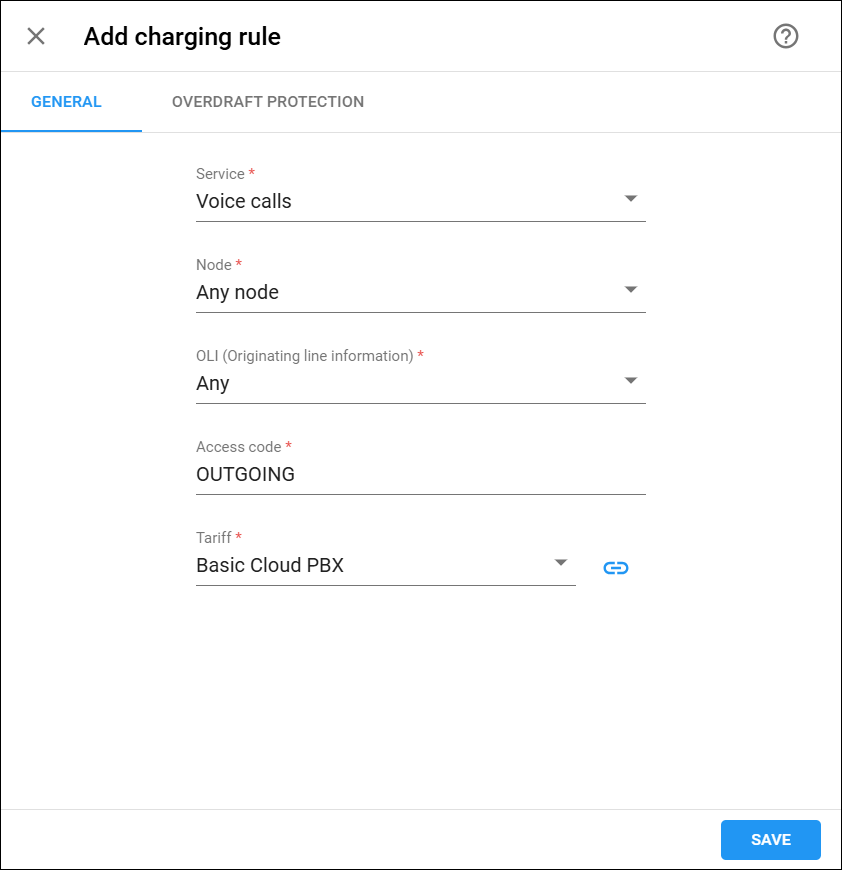
General
On this tab, you can specify the provided services and how you charge for them.
Service
Choose the type of service that is provided.
Node
Choose the node on which the service is provided to end users or select Any node.
OLI (Originating line information)
Select the originating line information (OLI) this rule applies to. This field is available only for the voice calls service.
This allows you to apply different tariffs depending on where a call originated, e.g., a home phone or a pay phone. Select Any to apply the rule regardless of OLI.
Access code
Select a predefined access code or type one that matches a value provided by the application handling the service. It allows you to use different tariffs for the same service. For example, you can use different tariffs for outgoing, incoming, and forwarded calls using the OUTGOING, INCOMING, and FOLLOWME access codes, respectively.
Tariff
Choose a tariff to charge customers for the provided service. Click Link  to view or edit the tariff.
For the voice call service, you can apply different tariffs based on the routing plan used to route the call. To do this, select Assign tariffs per routing plan from the list and configure the Tariffs per routing plans mapping table.
To create a new tariff for customers, select Add a new tariff…
Reseller tariff
Choose a tariff to charge a reseller for the service they provide to their customers.
To create a new tariff for the reseller, select Add a new tariff…. Its price definition mode (“per individual rate code” or “per code group”) will be set automatically to match the setting of the selected customer tariff.
Tariffs per routing plans
Map each routing plan used by this product to the tariff that applies to calls routed through that routing plan. This table appears only when Tariff is set to Assign tariffs per routing plan.
- For the Other Routing Plans option in the Routing plan list, assign the tariff used for calls routed via the routing plan explicitly assigned to an account (for example, when an end user makes a call without dialing a selection code). For reseller products, also select the tariff to charge the reseller.
- To add tariffs per specific routing plans, click Add <ICON>. Select the routing plans permitted for this product’s accounts from the Routing plan list and assign the corresponding tariffs.
- Click Save.
Overdraft protection
In this tab, you can define the overdraft protection settings for a charging rule. Overdraft protection is enabled by default when you create a product.

Remaining balance requirement
This indicates whether an account must have a certain amount of funds available prior to session authorization.
- No restriction – PortaBilling will not verify an account’s available funds if that account has sufficient funds to cover session charges. Thus, an account with no available funds can still make and receive free-of-charge calls.
- Positive amount available – the account must have some available funds to use the service, even if the service itself is provided free of charge (e.g., free calls).
- Positive amount greater than the service availability threshold – this option increases the amount of available funds required to use the service. PortaBilling compares the account’s available funds to the Service availability threshold defined for the product (Product > General info > Service availability threshold). The account can use the service only if their available funds exceed the service availability threshold.
- According to configuration options – this option is available for backward compatibility. By default, it is enabled for products created before MR34 when PortaBilling checked the available funds based on the CheckAvailableFundsCredit/CheckAvailableFundsDebit options on the Configuration server. This option, along with the previously mentioned options on the Configuration server web interface will be removed in the future.
Rate match mode
Charge calls either based on the destination or the caller’s number:
- Default – rating is based on the destination number.
- Based on the caller number – PortaBilling uses the caller’s number to match the rate from the tariff.
Allow zero charged services for suspended users
Select the checkbox to allow the use of free services for suspended users.
Send alerts when overdraft is detected
Select the checkbox to receive notifications when PortaBilling detects fraud attempts. These are attempts to use the services simultaneously while all funds are locked by a session (for services such as calling with prepaid cards). Such activity could be the result of inaccurate overdraft protection constraints.
Lock at least … for each session
Specify the minimum amount of funds PortaBilling will lock when authorizing each session, including free sessions. PortaBilling computes the session duration and the amount of funds to allocate for the session (session deposit) based on the tariff rate and the total amount of available funds. If the computed session deposit is lower than the defined minimum, PortaBilling locks the minimum amount. If the computed session deposit is higher, PortaBilling locks the computed amount. To illustrate, consider the fund locking flow for an account with $10 of available funds and $5 minimum lock. If the computed session deposit is $11, PortaBilling locks $11; if the computed session deposit is $3, PortaBilling locks $5. Note that simultaneous sessions are not possible with this configuration.
To allow simultaneous sessions while ensuring overdraft protection for them, enable dynamic re-authorization and combine this option with the Each fund lock allocates no more than option. In this case, PortaBilling locks the amount you specify in the Lock at least… for each session option and computes the session duration based on the value specified in the Each fund lock allocates no more than option.
For example, the Lock at least … for each session value is $2, the Each fund lock allocates no more than value is $1. PortaBilling locks $2 and computes the session duration for $1 during the initial authorization. To re-authorize the session, PortaBilling locks and computes the next session duration chunk based on $1.
Limit maximum locked funds for each session to
Specify the maximum amount of funds PortaBilling will lock when it authorizes the session. Note that PortaBilling computes the session duration based on the total amount of available funds. For example, if you define $3 to be locked for every session and the customer has $10 in available funds, PortaBilling computes the session duration for $10 but locks only $3. As a result, $7 remains available for establishing simultaneous sessions. If the customer starts a second session while the first one is in progress, PortaBilling authorizes it for $7 and locks an additional $3.
This allows you to fine-tune the strictness of overdraft protection for postpaid services where a certain amount of overdraft can be allowed. This is effective only when both the Overdraft protection option and the dynamic re-authorization are disabled, or your gateway does not support it.
Each fund lock allocates no more than
Specify the maximum amount of funds to lock and use it to compute the session duration for the initial authorization. If the gateway does not support dynamic re-authorization, the session is disconnected. For example, if the fund lock amount is $3 and the call rate is $1 per minute, PortaBilling authorizes the call for 3 minutes and then instructs the call to be disconnected.
In the case of dynamic re-authorization, this also determines the extension (chunk) of the funds already consumed. In the example above, PortaBilling initially authorizes the call for $3 and re-authorizes it for another $3 after 3 minutes, provided the account has sufficient available funds. Otherwise, it calculates the call duration based on the remaining available funds.


