



This panel helps you find a specific bundle. Specify one or more of the search criteria listed below and click Apply filters. If you want to stop the search, press “Esc” on the keyboard or click Stop
on the search panel.
Click Default filters 
to reset the search criteria to their initial values. To refresh the search results, click Reload data.
PortaBilling automatically loads the list of records once you open the page. You can turn off data autoload if you don’t want all records to load each time you open the page. To disable data autoload, click Settings  and clear the check mark for the Automatically start searching upon opening the page option. When the check mark is absent, the list of records won’t load until you click Apply filters. If the search result contains a single record, the system can open it automatically. For this, select the If the search produces a single result, automatically open it option.
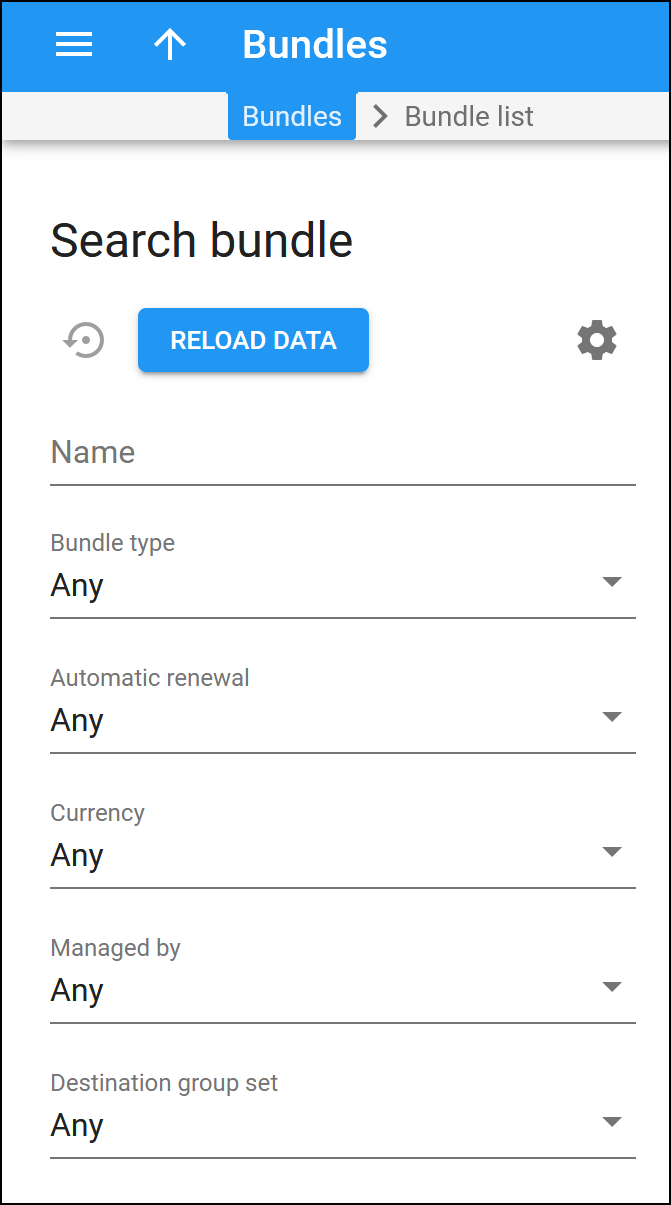
Name
Filter bundles by their name or description. Type a bundle name or description here.
Bundle type
Filter bundles by their type:
- Any – search among all bundles.
- Repeated use with renewal – search among the prepaid bundles that combine different services, such as voice calls, data, and SMS, for a single fixed fee, all sharing a common lifecycle with the option for auto-renewal.
- Legacy (quotas and wallets) – search among the bundles that include quotas and service wallets (the old “Volume discount plans”).
Automatic renewal
When searching among the bundles of the Repeated use with renewal type, you can further filter them based on the Automatic renewal setting:
- On sufficient funds –filter the prepaid bundles with auto-renewal enabled (if a customer has enough funds on their balance, the renewal fee is automatically charged).
- Never – filter the bundles with auto-renewal disabled.
For bundles of the Legacy (quotas and wallets) type, the only available setting is Set per item.
Currency
Search for bundles by the currency used for billing calculations.
Managed by
Filter bundles depending on whether an administrator or a specific reseller manages them:
- Any – search among bundles that are managed by administrators and resellers.
- Administrator only – display bundles that are managed by administrators.
- Reseller name – display bundles that are managed by a specific reseller.
Destination group set
Filter bundles by a destination group set:
- Select Any to search among bundles regardless of the associated destination group.
- Select a specific destination group set to filter bundles associated with this destination group set.


