




In custom fields you can store a set of extra data about customers (e.g., driver’s license ID or tax code) to supplement standard PortaBilling information. This additional information can be necessary for support and troubleshooting. You create custom fields on the Custom data page. You see them in the list on this panel. For custom fields to appear on the customer or account page, assign them to the customer class.
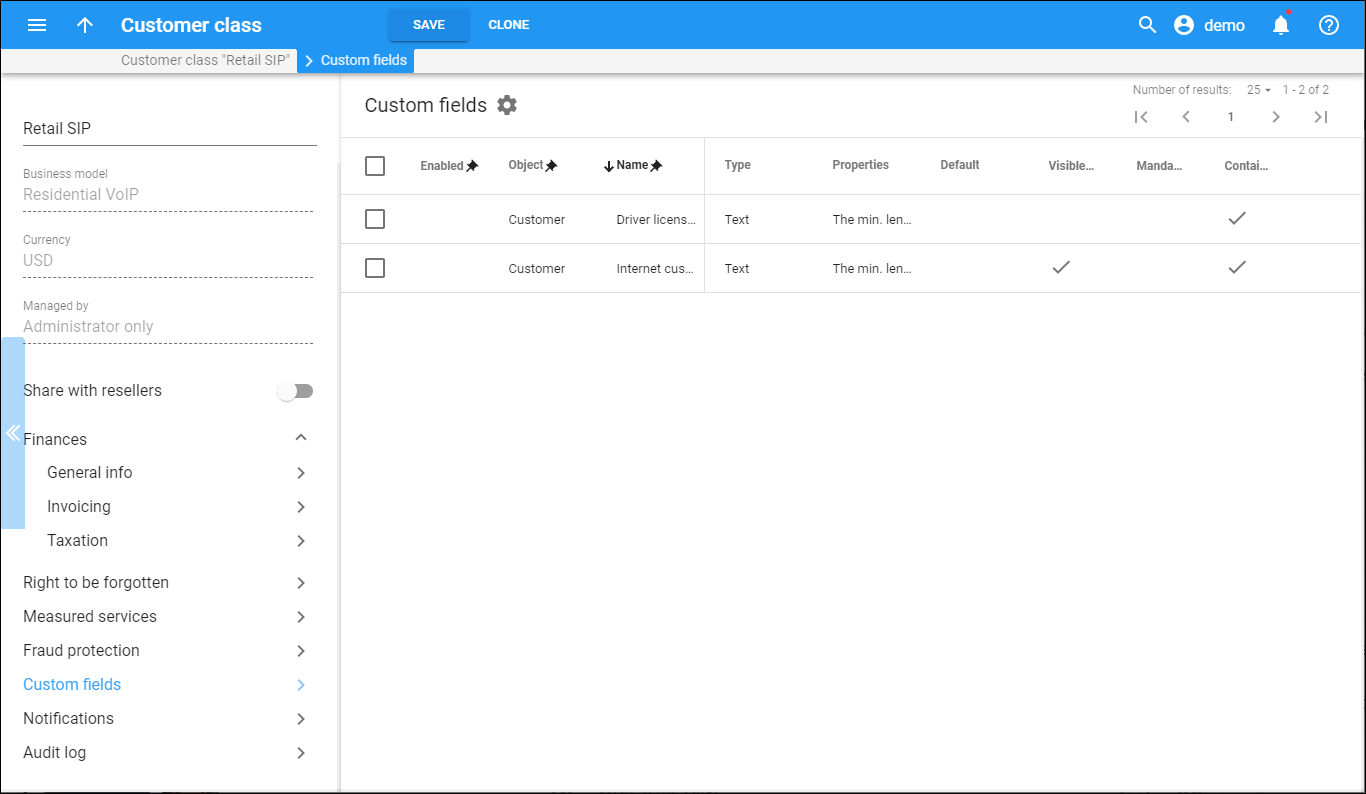
To assign a custom field to the customer class:
-
Select the custom field from the table;
-
Click Enable from the tool bar;
-
Click Enable in the Enable custom fields dialog window to confirm your action.
To remove a custom field from the customer class, select it from the list and click Disable.
Each entry in the result list consists of:
-
Enabled – the custom field status. The Enabled
status shows the custom field is assigned. A blank space means the custom field isn't assigned to the customer class.
-
Object – this defines whether the custom field applies to the customer or the account.
-
Name – the descriptive name of the custom field. Both you and your customers, if allowed, see this field under this name on their page.
-
Type – the custom field type.
-
Properties – the properties of the field that define its form, appearance, or value. These properties are specific to the field type.
-
Default – shows the default value for the custom field, if defined.
-
Mandatory – defines whether this custom field is mandatory.
-
Visible to the end user – additional information about customers can be sensitive and must be shown on the web interface without any risk of exposing it to end users. However, information such as a customer’s bonus, driver's license ID, etc. can be useful for both an administrator and an end user. This field shows whether end users can see and edit this custom field on their self-care interfaces.
-
Contains personal data – this indicates that the data in this custom field is considered personal. In this case, it is masked for users who are not permitted to access and process personal data according to the GDPR regulations.


