



Once you add a Trunk profile, assign DID numbers to it. These are the DID numbers that will be available for the trunk users. Set the DID number that will be used for outgoing calls (main SIP trunking account in PortaBilling) as default.
To upload DID numbers :
7.1 Log in with your Reseller credentials to the Reseller portal.
7.2 Go to Enterprises and open a specific Enterprise (customer record).
7.3 Go to Phone numbers and click Upload Phone Numbers.
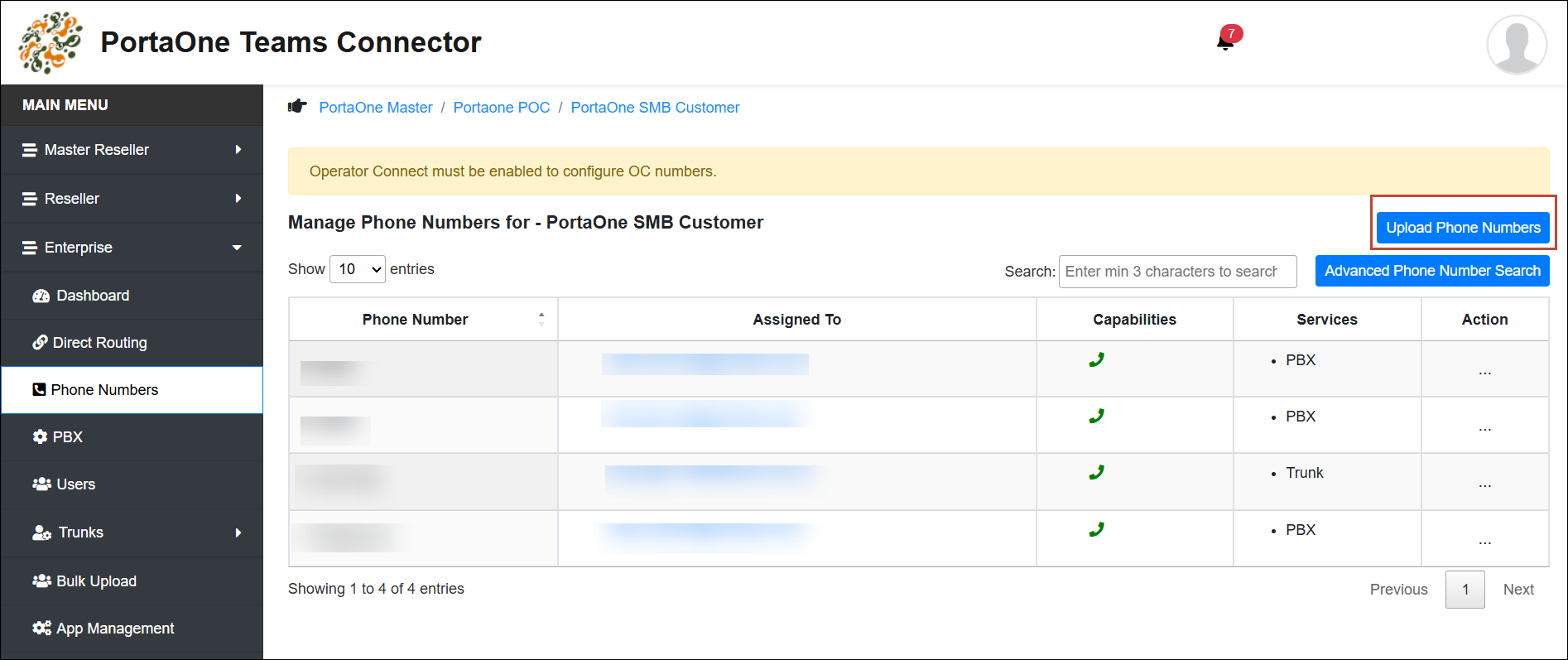
7.4 In the Bulk Upload Phone Numbers form, click Sample File Format to download a sample file with the correct structure and adjust your file.
7.5 After that, select the necessary options and upload the prepared file. Consult the TeamMate documentation for a detailed description of the available fields.
Now, your customers can assign DID numbers to trunk users on the Enterprise portal and start using the service.
How to delete a DID number
Click Action  near a specific DID number and then click Delete.
Consult the TeamMate documentation for detailed information.


