



The CloudPBX Self-Care Portal is a web application that allows your business customers to independently manage their cloud PBX, call center, and SIP trunking services without assistance from a PortaSwitch admin.
Portal users with administrative roles, such as PBX admins, call center supervisors, or VoIP engineers, can manage company-wide or ring-group-level settings, including extensions, call queues, and SIP trunks. Individual employees can access only their own extension and personal communication settings, such as voicemail and call forwarding.
You can customize the portal with your own branding, including domain name, logo, and color scheme. The portal supports multiple languages, including English, German, Ukrainian, Thai, Brazilian Portuguese, Spanish, and French, with the possibility to add more languages upon request.
Customer self-care features
These features are available to portal users with administrative access, such as PBX admins and managers.
Within the CloudPBX Self-Care Portal, customers can configure essential PBX functionalities:
- Create extensions for team members, choose a main product, and assign an IP phone to an extension so that the phone can be automatically provisioned. It’s also possible to activate add-on products for an existing extension (e.g., enable call recording or voicemail).

- Organize extensions into ring groups (e.g., for “Sales” and “Support” departments) and define the sequence in which the extensions will be called.

- Set up auto-attendants to create customized call flows based on different time periods, such as business hours or after hours. For example, you can offer a menu of standard options (e.g., “Press 1 for Sales, press 2 for Technical Support”) during working hours and redirect calls to voicemail or provide alternative options outside of working hours. It is also possible to upload custom voice prompts to guide callers through the available choices.

- Create call screening rules based on the phone number lists predefined by the service provider (for example, “Telemarketers”), and specify how calls from these numbers should be handled, such as rejecting them or sending them to voicemail.

- Configure call parking slots and assign them to line keys on IP phones, so users can park and retrieve calls with a single button press.

- Manage fax mailboxes (browse, preview, and download incoming faxes). Fax mailboxes can be assigned DID numbers as needed.

- Automatically provision IP phones (either supplied by the service provider or those owned by the business) with the correct settings such as codecs, SIP server address, or network configuration. With “Bring Your Own Device” support, cloud PBX customers can easily add or upload their IP phones.

- Manage DID numbers by activating new ones, assigning them to specific phone lines, and setting the main company number for outgoing caller ID.

- View call history for a specific extension, ring group, or DID number. It is also possible to filter calls (e.g., by date or caller) and play or download call recordings.
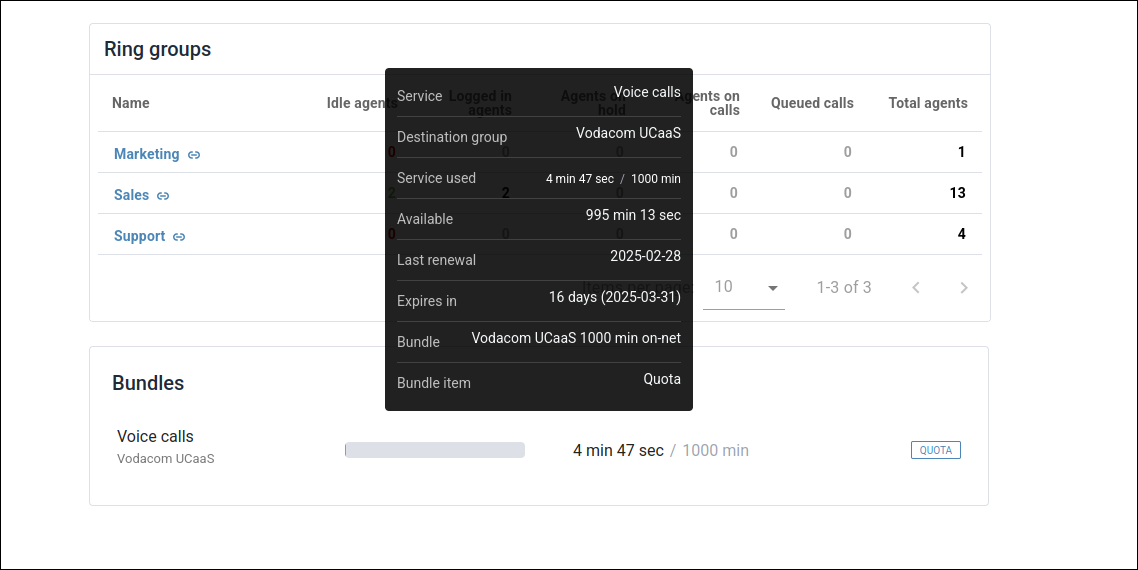
- View all active company bundles, including service usage limits and remaining quotas.
Call center features
The CloudPBX Self-Care Portal includes the following features for call center supervisors:
- Call queues help call centers manage incoming calls by placing them in a queue until an agent becomes available. It is possible to set up voice prompts to announce estimated wait times, and configure options for handling long-waiting callers.

- With call supervision, call center managers can monitor and assist colleagues’ with their calls in real time. Permission to supervise can be granted directly through the portal, ensuring that only authorized users can join calls to provide assistance or feedback.

- Customers can record calls and convert them into text using the call transcription feature. Note that to offer the transcription service to your customers, you need a separate Add-on Mart module. Transcription makes it easy to review, store, or analyze conversations.
- With the wallboard functionality, managers of call centers can monitor performance of agents, and analyze call volumes by adding dedicated widgets.

Extension access
Extension holders have separate, dedicated access to the portal with a different set of features. A company admin enables this access for each extension by defining web credentials.
Extension users have access to the following features:
- Update personal settings in My profile, such as display name, password, preferred language, timezone, and date format.

- View recent call activity, active plan, and remaining bundle allowances on the dashboard, and play or download call recordings for individual calls.

-
View their ring group membership and set their availability status.
-
Configure call forwarding rules for their extension (e.g., forward all calls when busy or unanswered).
- View, play, download, or delete voicemail messages, and manage voicemail settings such as greetings, PIN protection, and email notifications.

SIP trunking features
These features are available to customers who connect their on-premise PBX to PortaSIP via a SIP trunk:
- Add and manage SIP trunks, including the trunk ID, service password, and maximum simultaneous calls.

- Assign DID numbers to a trunk and configure the outgoing caller ID displayed to called parties.
- Define how the system delivers incoming calls to the PBX using SIP contact settings, either through a static IP address or a dynamically registered address.
- Configure call forwarding rules for when the trunk is unavailable.
- View the call history for each trunk, filtered by date, caller, or destination, and download call recordings.
Requirements
The CloudPBX Self-Care Portal is available for the PortaSwitch system version starting from MR95 and requires a subscription to the corresponding module in the Add-on Mart.
Access for individual extension users requires PortaSwitch MR125 or later and CloudPBX Self-Care Portal version 8.1.1 or later.
How it works
The service provider activates the subscription and configures their instance of the CloudPBX Self-Care Portal in the Add-on Mart. The portal is then deployed to a Kubernetes cluster in Oracle Cloud Infrastructure (OCI).
The portal is a web application built using React (JavaScript), HTML, and CSS. It can communicate directly with PortaSwitch or via a cloud-based proxy.
A typical data flow for direct communication with PortaSwitch:

- Your cloud PBX customer opens the CloudPBX Self-Care Portal in their web browser.
- The browser downloads the portal code from the cloud, e.g., the login page.
- Every portal page communicates directly with your PortaSwitch using the PortaBilling API.
For example, your PortaSwitch is located in France, and your cloud PBX customers are also based in France. The CloudPBX Self-Care Portal is deployed in the Oracle data center in Germany. While the portal code is hosted in Germany, all communication between the customer’s browser and PortaSwitch takes place within France.
What it delivers to customers
Your business customers can:
- Have full control over the configuration of their cloud PBX and SIP trunks.
- Access call information in real time, enabling faster decision-making and issue resolution.
What it delivers to you
- Reduced customer service requests.
- A user-friendly portal that enhances the customer experience and makes your offer more competitive.


