



Requirements
- PortaBilling/PortaSwitch version MR124 or later
- An active subscription to the Invoice Preview (billing run simulation) module in the Add-on Mart
Preparation steps
Before proceeding with the module configuration and deployment, perform the following steps:
- Configure a domain
- Obtain a TLS certificate for this domain (optional)
Step 1: Prepare a domain
Configure a domain that will serve as an HTTPS entry point for the external PortaBilling cloud instance to securely connect to the Add-on Mart cloud infrastructure (AMCI).
Step 2: Obtain a TLS certificate
TLS certificates can be generated automatically by PortaOne using Let’s Encrypt certification authority (CA). If you choose this option, you can skip this step.
Optionally, you can contact your trusted CA to order a TLS certificate for your domain.
Configuration in Add-on Mart
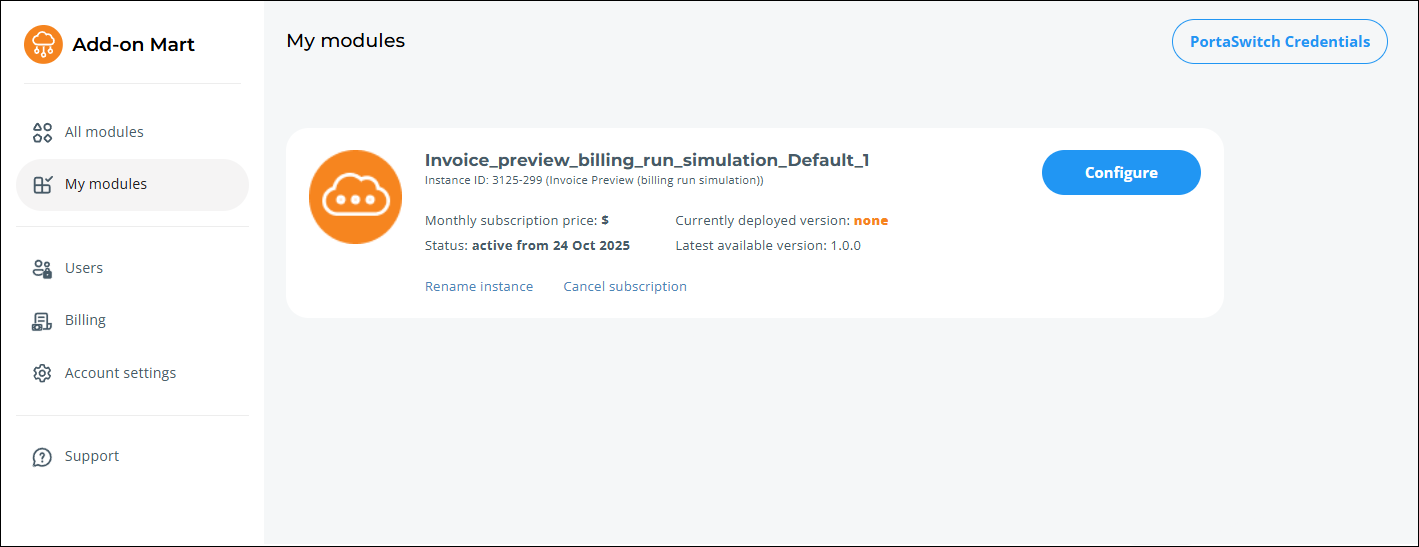
Log in to the Add-on Mart management portal, locate your Invoice Preview (billing run simulation) subscription, and click Configure.
On the Configuration page that opens, fill in the details:
Your PortaSwitch version – select your PortaSwitch version to get the latest compatible version of the module.
Instance location – select the closest cloud datacenter where the module will be deployed.
Version to deploy – choose a module version. The following options are available:
- Deploy the latest (recommended) – select if you want to deploy the latest version.
- Select from the full list – select if you want to deploy another version.
Choose domain configuration
Portal domain – specify the domain name from the preparation step 1.
Generate certificates – select the checkbox if you want us to generate a TLS certificate for you. Alternatively, upload your custom certificate and the private RSA key for your domain (see preparation step 2).
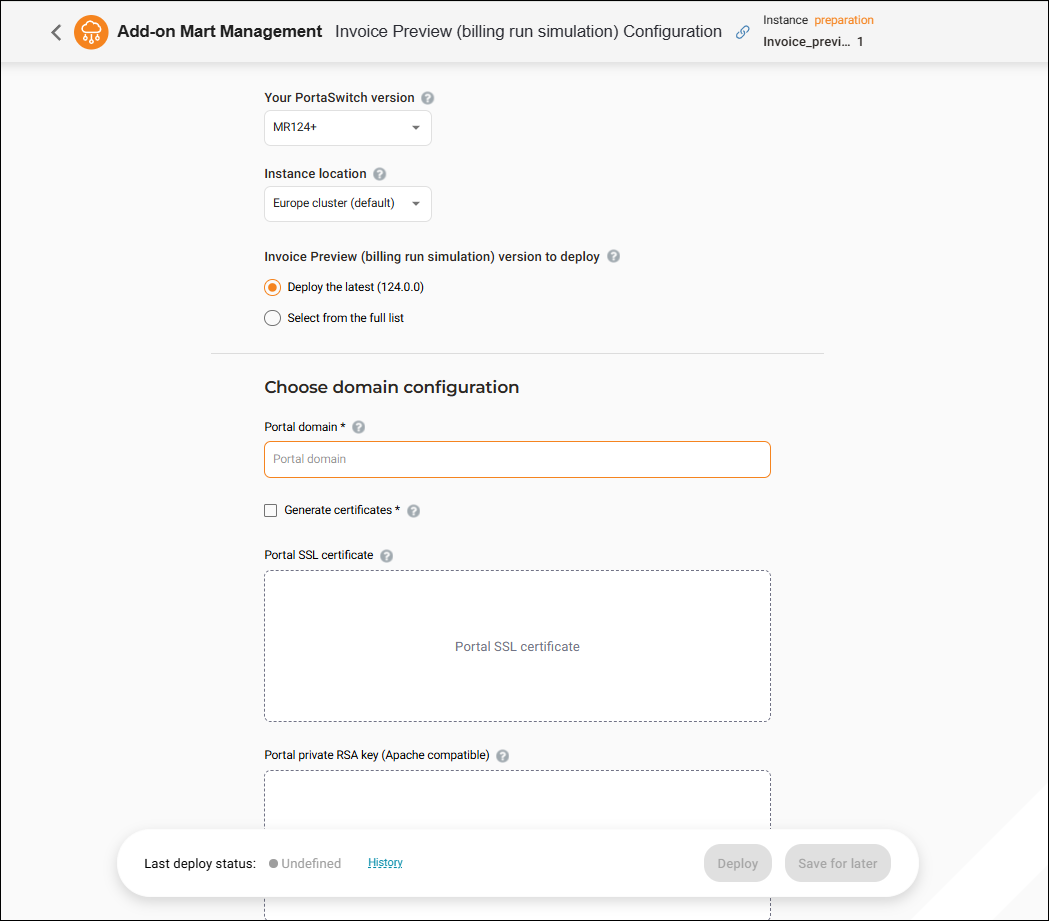
To deploy the Invoice Preview module, click Deploy (or Save for later to deploy it later).


