



Preparation
Obtain a service token for your ElevenLabs account.
Configuration overview
- Configure the module in the Add-on Mart management portal
- Grant your system access to the Add-on Mart services
- Enable Call Control API access for the customer
- Enable the User application option for the account
Step 1. Configure the module in the Add-on Mart management portal
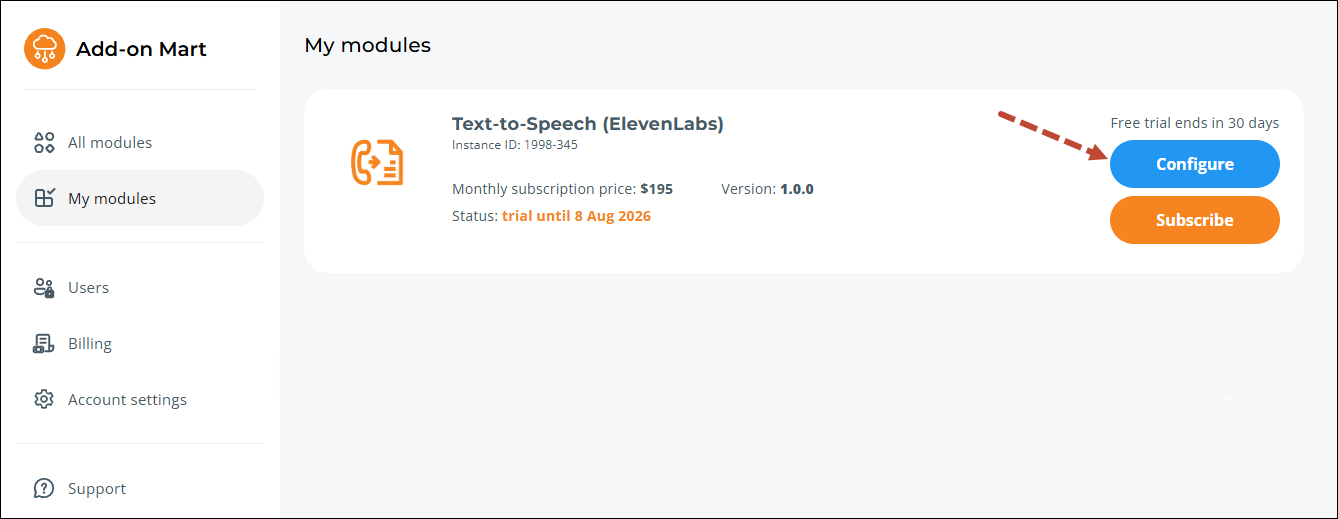
Log in to the Add-on Mart management portal, locate your Text-to-Speech (ElevenLabs) subscription, and click Configure.
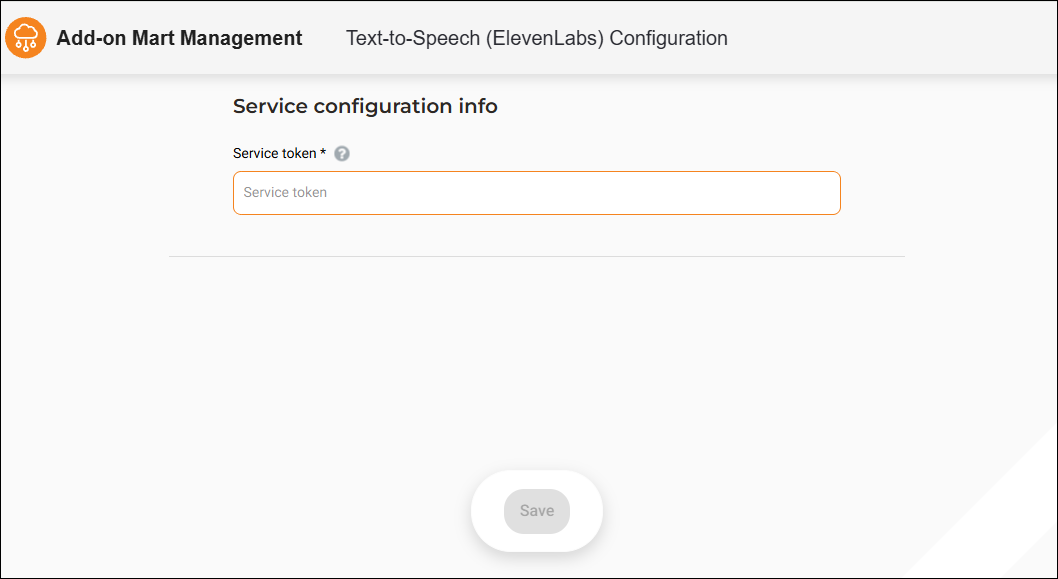
On the Text-to-Speech (ElevenLabs) Configuration page that opens, enter the ElevenLabs service token and click Save.
Step 2. Grant your system access to the Add-on Mart services
To grant your system access to the Add-on Mart services:
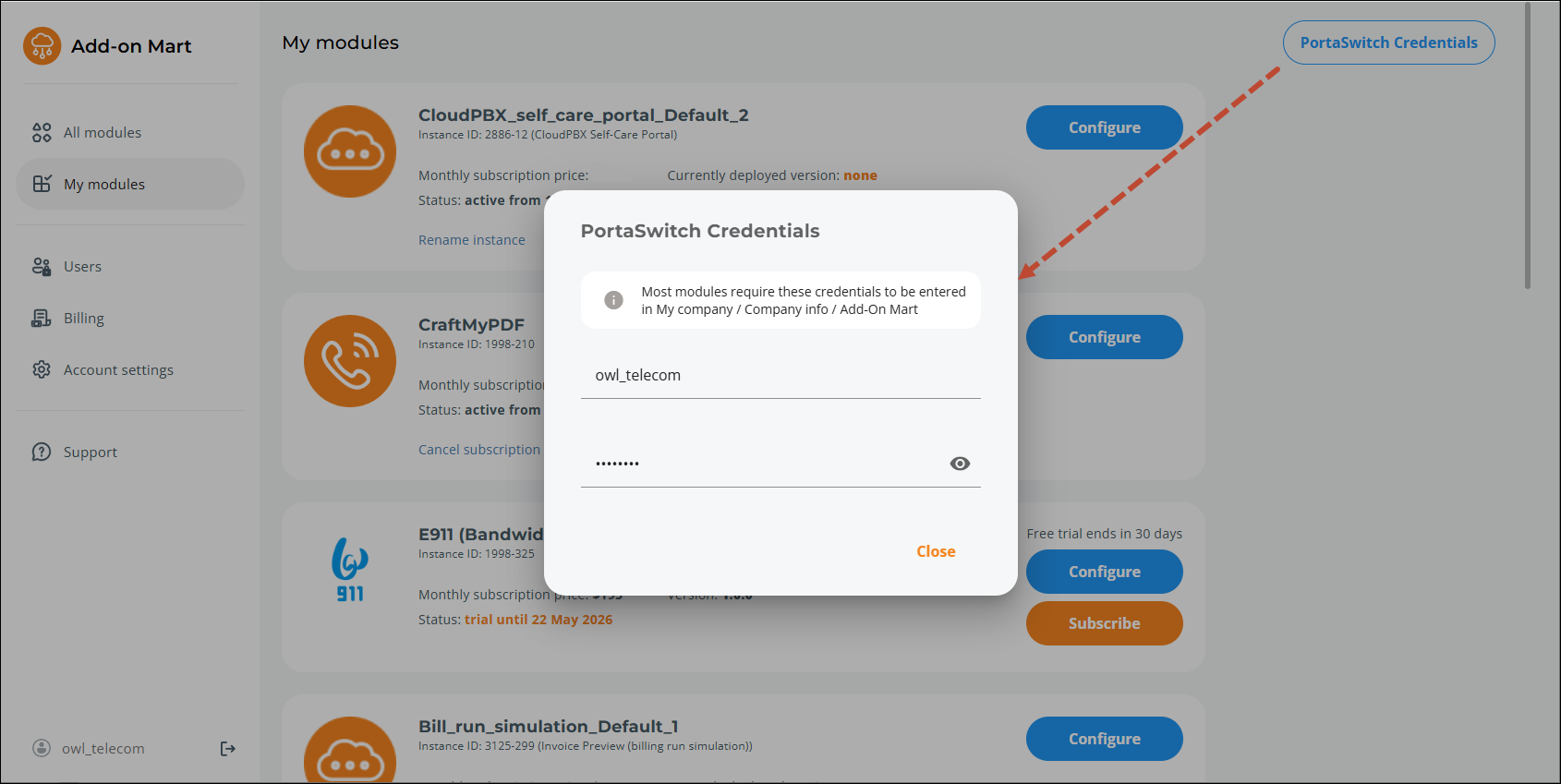
- In the Add-on Mart management portal, open the My modules page and copy the credentials.
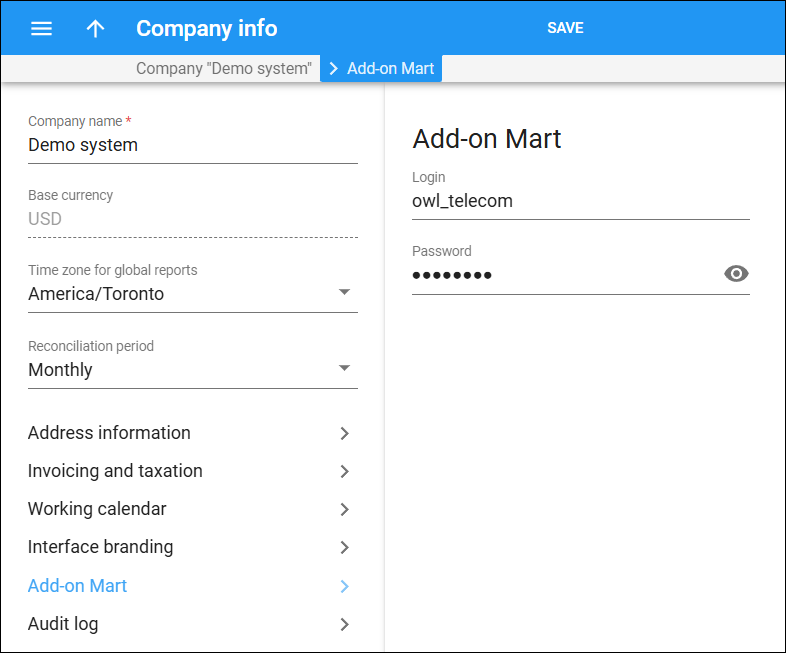
- In the PortaBilling web interface, navigate to My company > Company info > Add-on Mart, and enter these credentials.
Step 3. Enable Call Control API access for the customer
To enable Call Control API access for the customer that will use the text-to-speech feature, log in to PortaBilling and create a dedicated customer role with the corresponding permission:
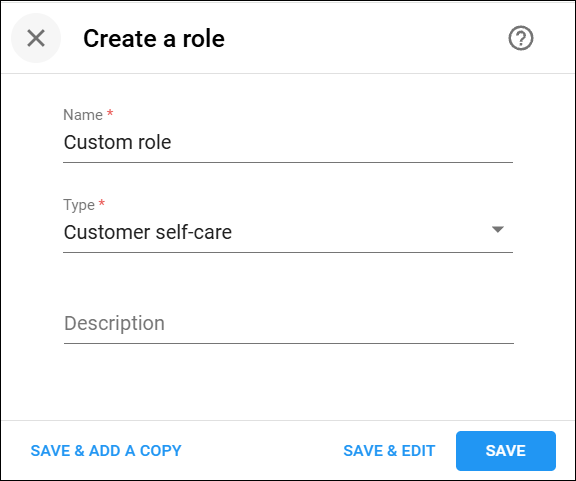
- Navigate to My company > Roles and click Add.
- Fill in the role details:
- Name – specify the role name
- Type – select Customer self-care
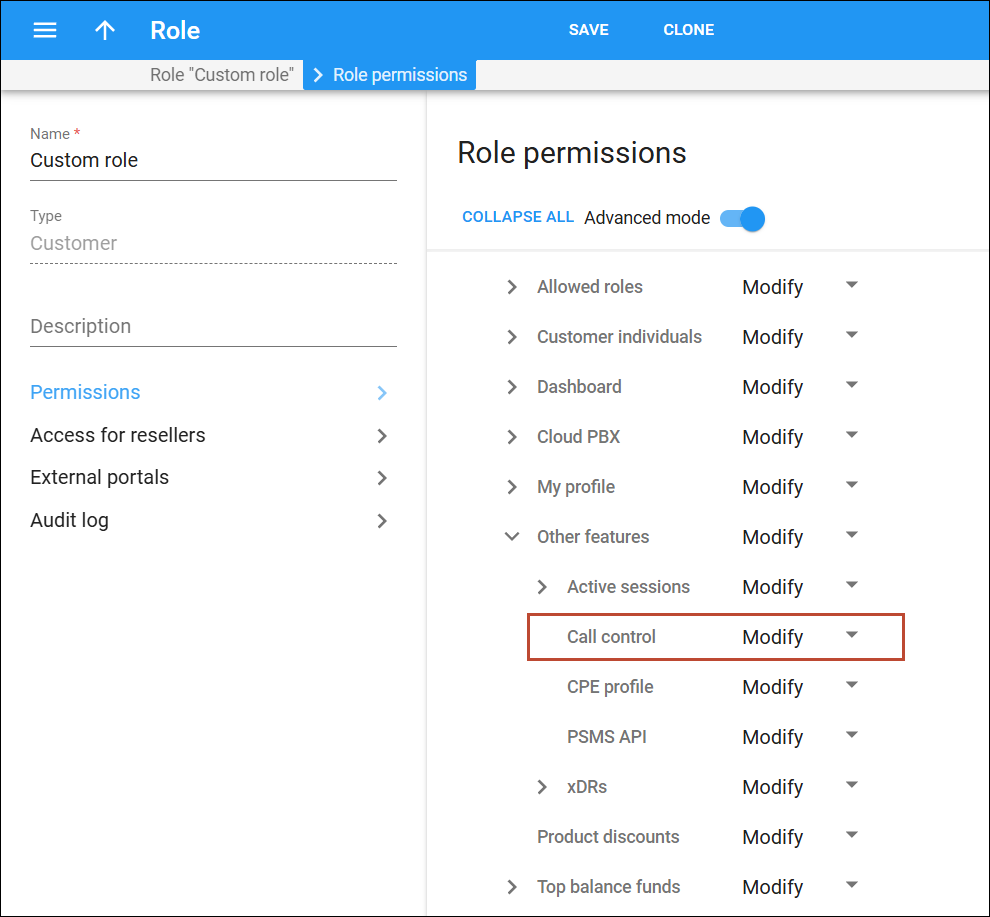
- Click Save & Edit, navigate to Permissions > Other features, and set the Call control permission to Modify.
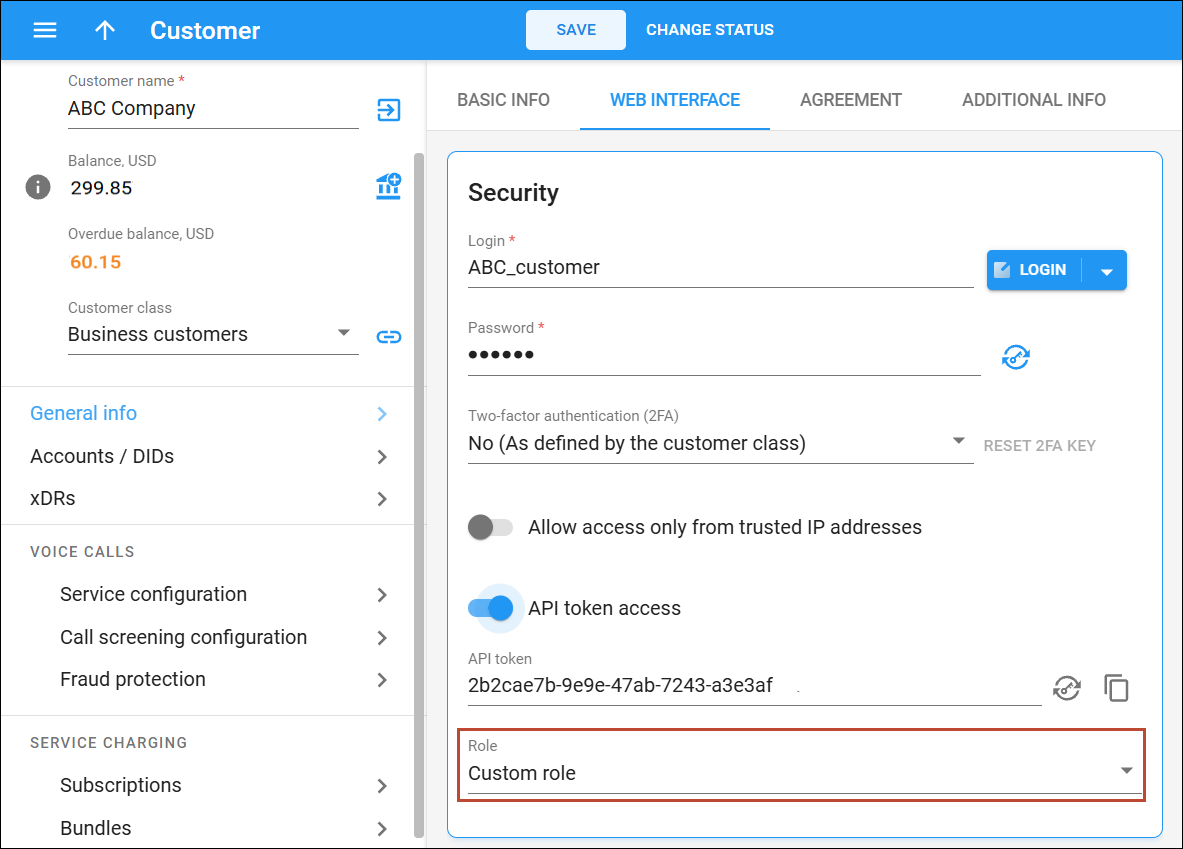
- Assign this role to the customer: open the customer’s record, navigate to General info > Web interface, and select the role you created in the Role field.
Step 4. Enable the User application option for the account
This setting is required to route incoming calls to a custom voice application instead of using the standard call handling logic:
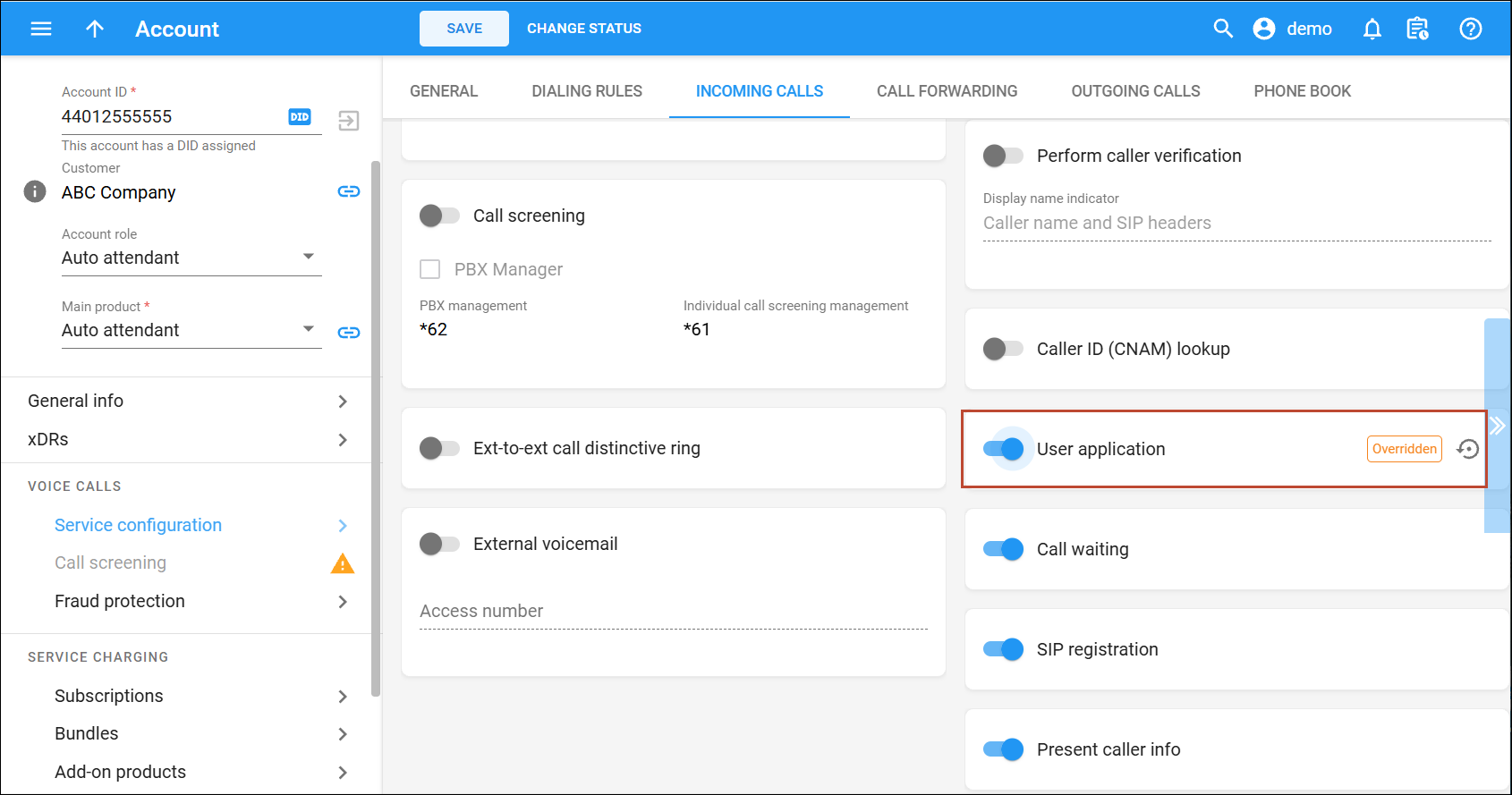
- Open the account with the phone number that will receive incoming calls.
- Navigate to Voice calls service configuration > Incoming calls tab.
- Enable the User application option.
Once these steps are complete, your custom voice application can use the CallControl/say API method to synthesize speech from text and play it during active calls.


