



You can connect Claude Desktop to your Google BigQuery project and get the needed reports or charts by typing plain-language prompts, such as “What is the total revenue generated in the last 7 days?”
The flow is the following:
- Claude transforms your prompt into an SQL query.
- The SQL query is sent to the Google Model Context Protocol (MCP) server for execution in Google BigQuery.
- Google BigQuery returns the query results to the MCP server, which then returns them to Claude.
- Claude Desktop displays the requested information.
Preparation steps
Link copied to clipboard
Before proceeding with the configuration, ensure the following:
- You have an active subscription to the AI Datalink module in the Add-on Mart.
- AI Datalink module is deployed.
- Your Google email address has Access to Google BigQuery.
Configuration
Link copied to clipboard
The configuration steps are described for Windows. If you use another operating system, refer to Google’s official documentation for setup instructions.
- Download Claude Desktop and install it on your computer.
Log in to Claude using the Google email address that has access to Google BigQuery.
- Install Google Cloud CLI to authenticate your Google account, specify the credentials token for the MCP server, and allow Claude Desktop to access your BigQuery project. Follow the installer steps to complete the installation.
- Authorize access to Google Cloud by running the following command in the terminal:
gcloud initYou will be prompted to select your Google BigQuery project and configure the default region and timezone. Once completed, you’ll see a browser notification confirming successful authorization.

- Download the latest version of the Google MCP toolbox to allow Claude to securely access Google BigQuery. Run the following command in the terminal:
curl -O https://storage.googleapis.com/genai-toolbox/v0.21.0/windows/amd64/toolbox.exe - Connect Claude Desktop to your Google BigQuery project:
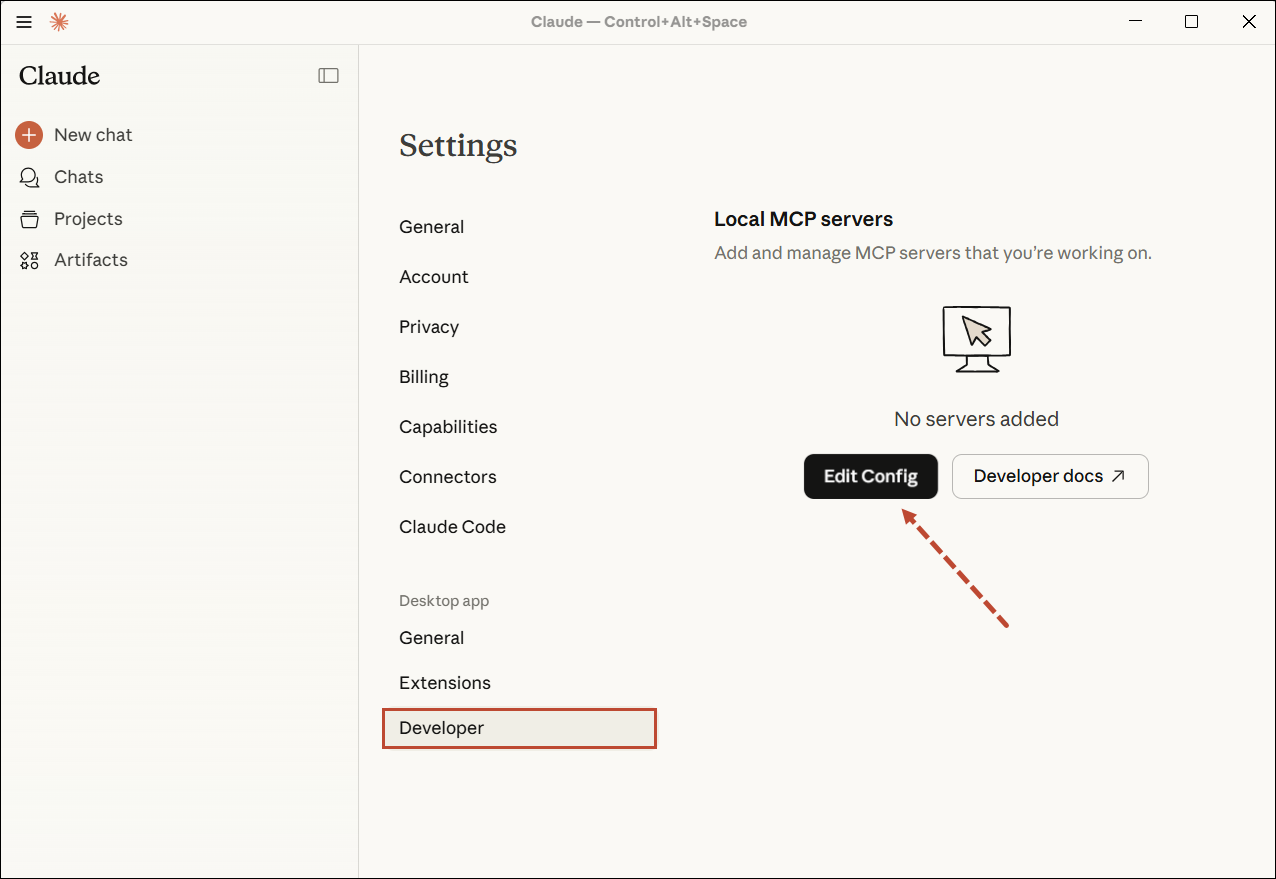
- Open Claude Desktop and navigate to Settings.
- In the Developer tab, click Edit Config to open the configuration file.
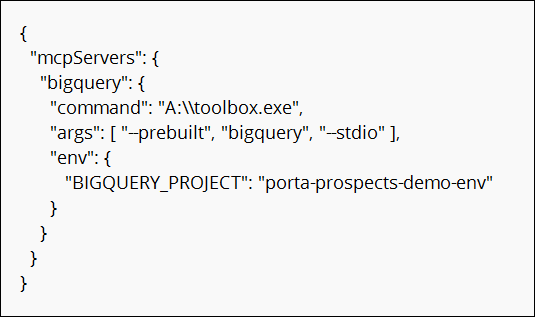
- In the claude_desktop_config file, add the MCP configuration with the path to the downloaded MCP toolbox and your Google BigQuery project name.
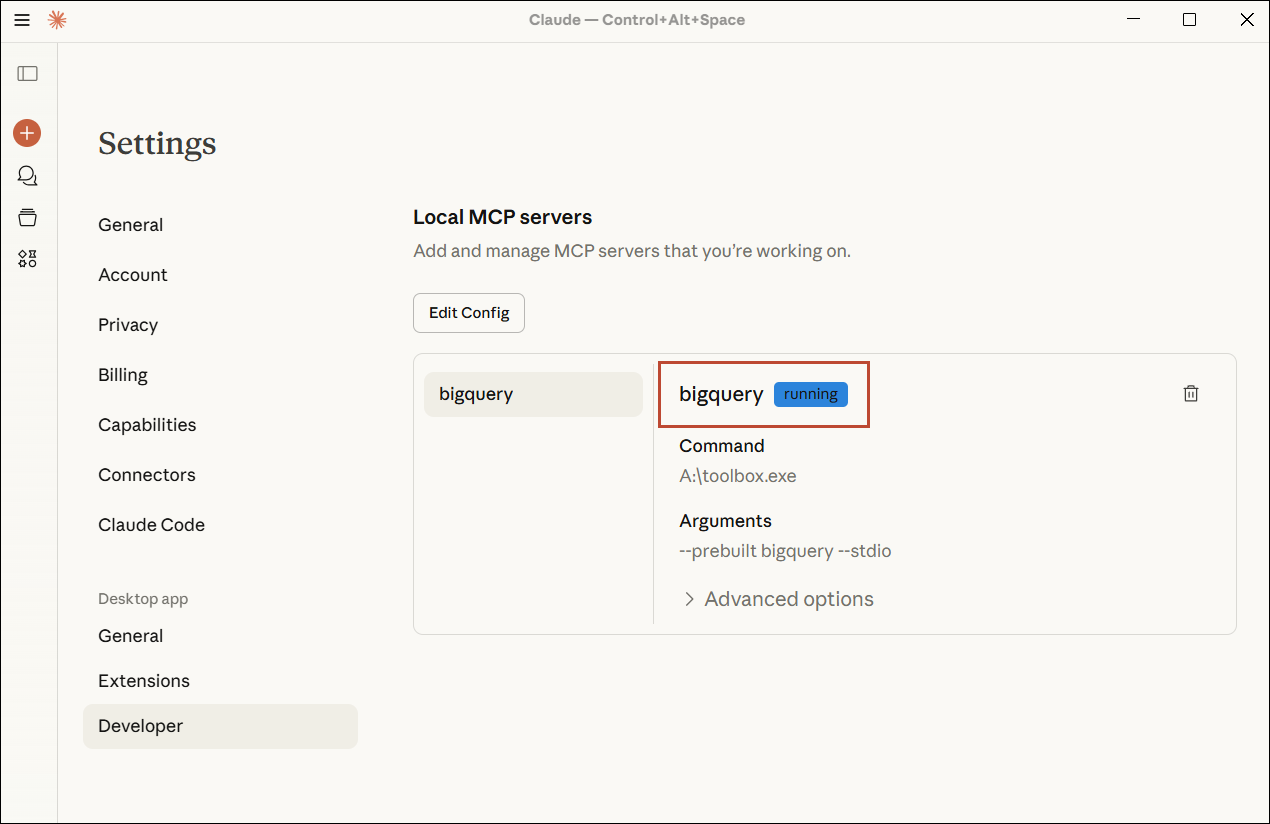
- Restart Claude Desktop. You can verify the connection in Settings > Developer.
Now, you can type a request in the Claude chat and retrieve the information from your Google BigQuery project.


