



Prerequisites
Link copied to clipboard
- PortaBilling/PortaSwitch version MR100 or later.
- An active subscription to the AI Datalink module in the Add-on Mart.
- Google Group email address (recommended) or individual Google accounts of employees who will need access to Google BigQuery.
Module configuration and deployment
Link copied to clipboard
Log in to the Add-on Mart management portal, locate your AI Datalink subscription, and click Configure.

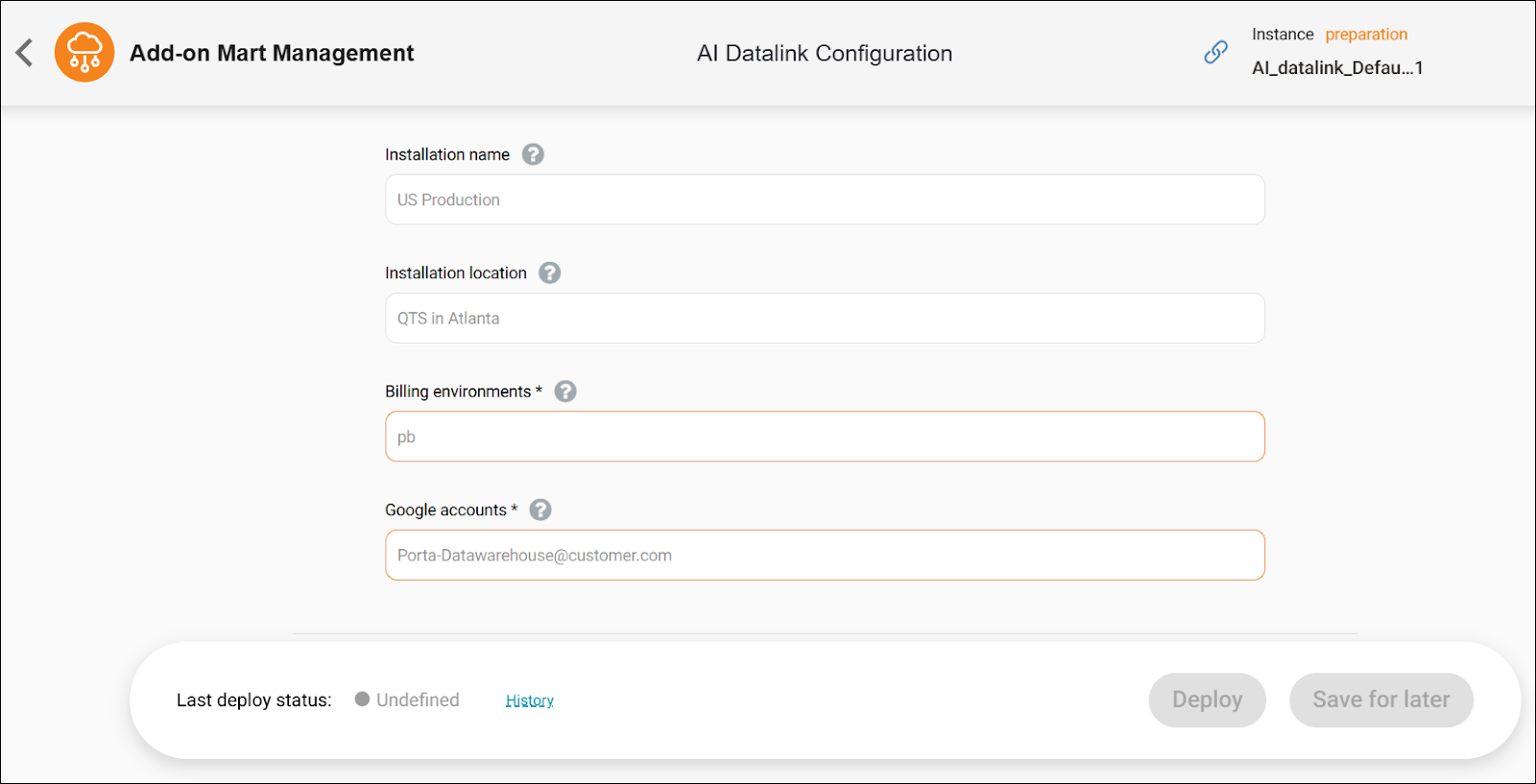
On the AI Datalink Configuration UI page that opens, fill in the configuration details:
- Installation name – if you have several PortaBilling/PortaSwitch installations (e.g., in different regions), specify the name of the installation that AI Datalink should connect to (e.g., US Production or SA Staging). Leave this field empty if you have a single installation.
- Installation location – if your PortaBilling/PortaSwitch installation is on-premise, specify its geographical location (e.g., QTS in Atlanta), so that AI Datalink can be deployed as close to it as possible. Leave this field empty if your installation is cloud-based.
- Billing environments – specify the name of your billing environment that AI Datalink should connect to. If there are multiple environments, separate them with commas, e.g., production, testing.
- Google accounts – specify the email address of your Google Group (e.g., team@owltelecom.com) or a list of individual Google accounts, separated by commas, that should be granted access to Google BigQuery.
The Google Group includes the list of Google accounts (email addresses) that require access to the Google BigQuery. You can manage user access yourself – adding new employees or removing former ones – without involving PortaOne staff. Alternatively, access to AI Datalink can be granted to specific individual Google accounts.
Deployment
Link copied to clipboard
Click Deploy (or Save for later to deploy it later). Your request will be sent to the PortaOne Support to start the deployment process.
The deployment process is manual and may take up to 5 business days. If any additional information is needed, PortaOne Support will contact you.


