



After you start a trial or paid subscription and define the module’s configuration options, the PortaOne team starts deploying a new project in Google BigQuery and copying your PortaBilling database. This process takes time to complete.
Once the setup is ready, PortaOne grants access to your Google Group email address, so every member of the group can log in to the Google BigQuery project and work with the datasets.
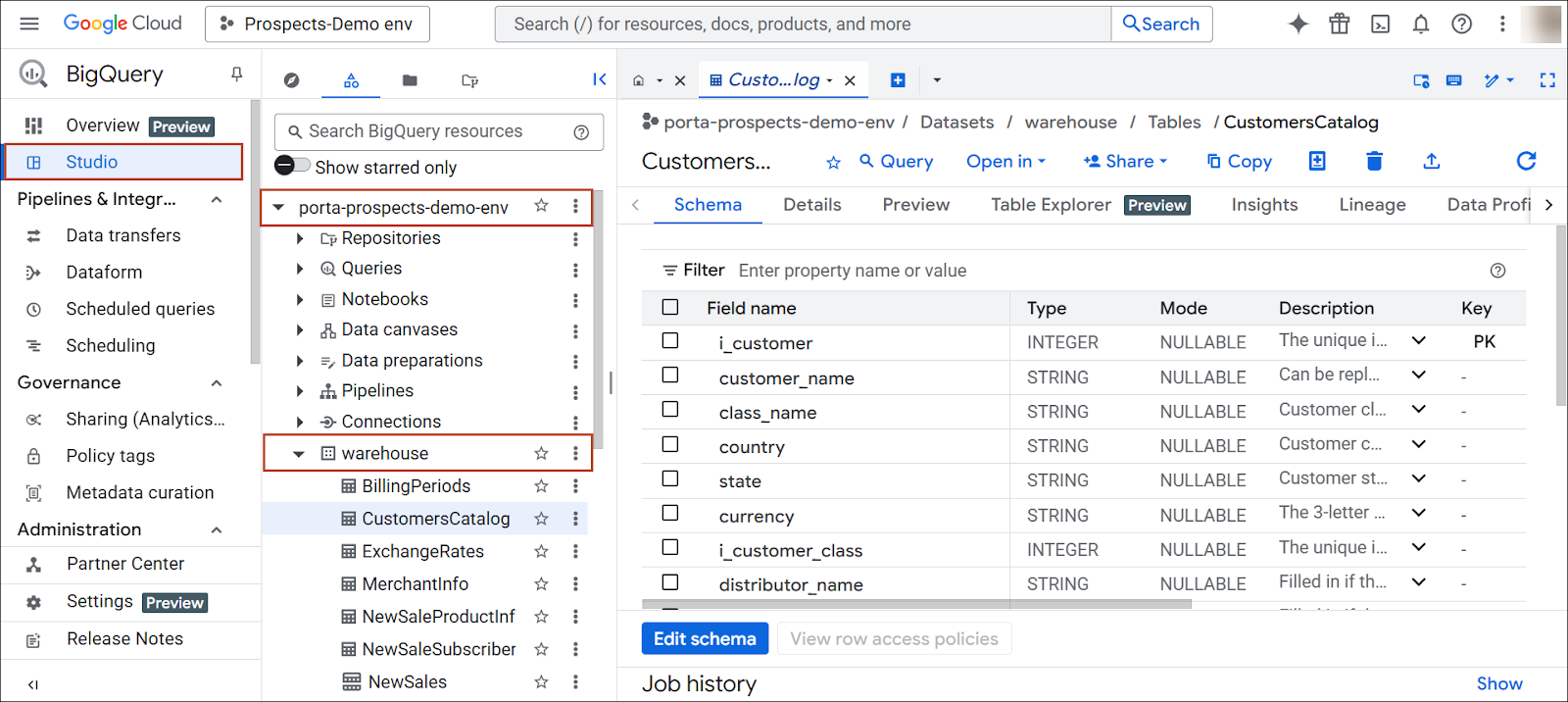
Upon logging in, navigate to the Studio section of Google BigQuery. In Studio, open the tree under your project name (for example, porta-prospects-demo-env) and select warehouse. This section contains all BigQuery tables with the data, copied and transformed from your PortaBilling database.
Generate a report using SQL in Google BigQuery
To generate a report with an SQL query in your Google BigQuery:
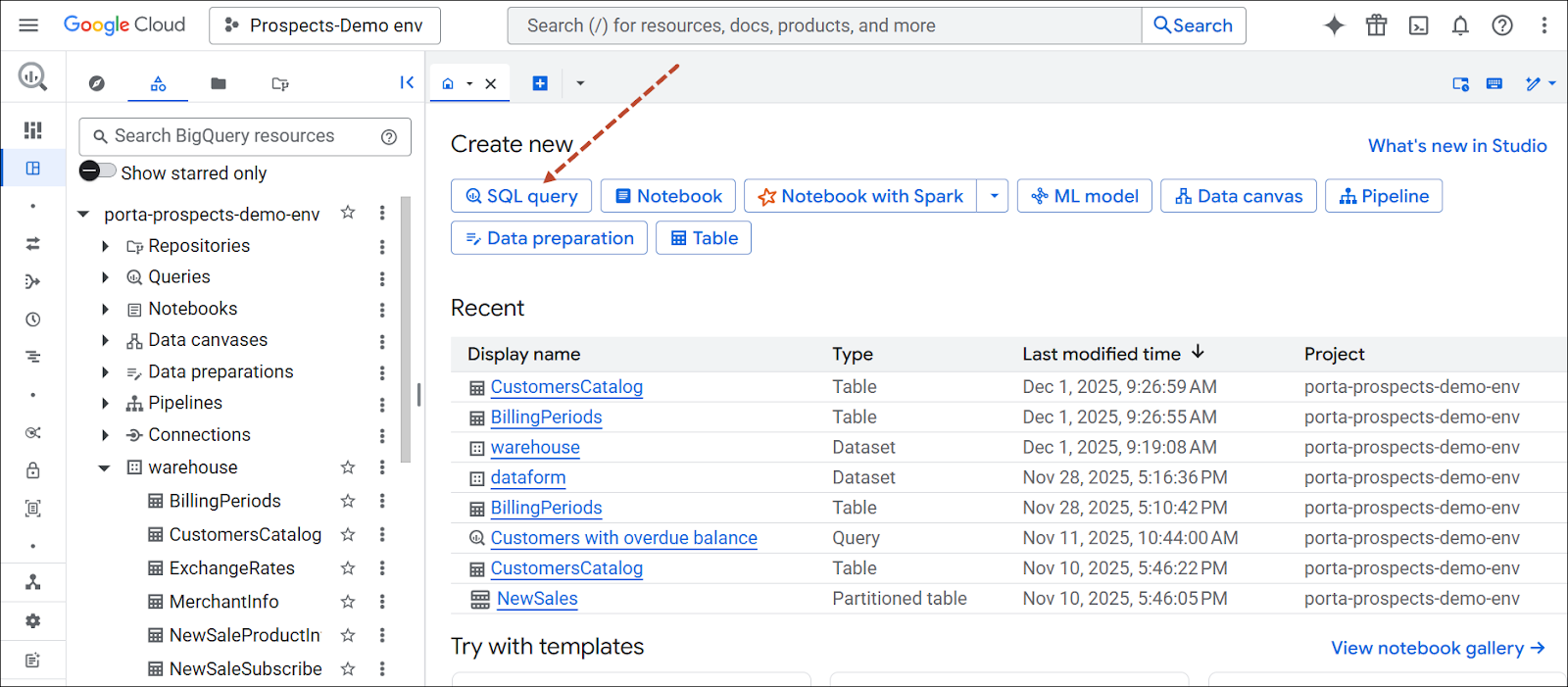
- Click SQL query on the Welcome tab.
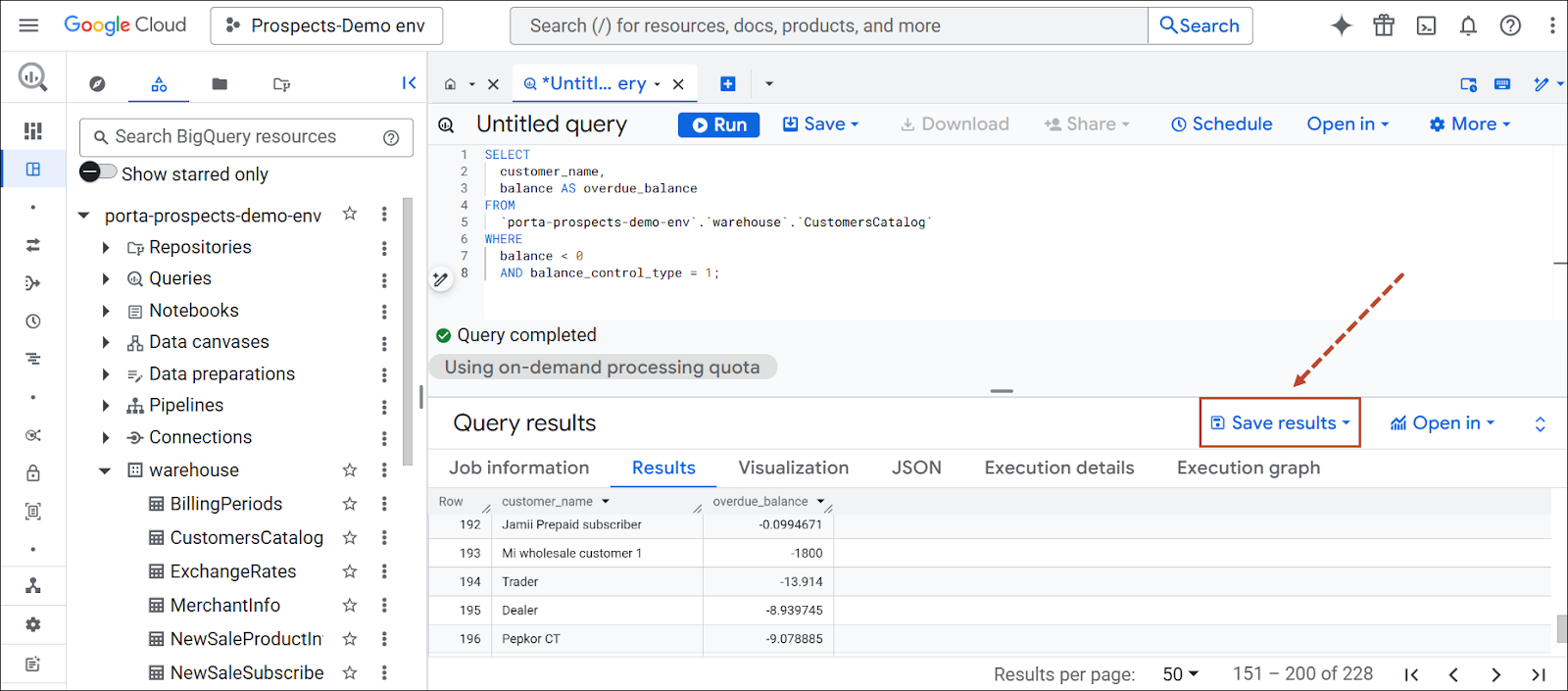
- In a newly opened tab, write your SQL query and click Run.

- Click Save results to save the generated data using your preferred method.

Generate a report using the built-in AI agent, Gemini
To generate a report using Gemini:
- Click SQL query on the Welcome tab.
- In a newly opened tab, click generate SQL with Gemini.

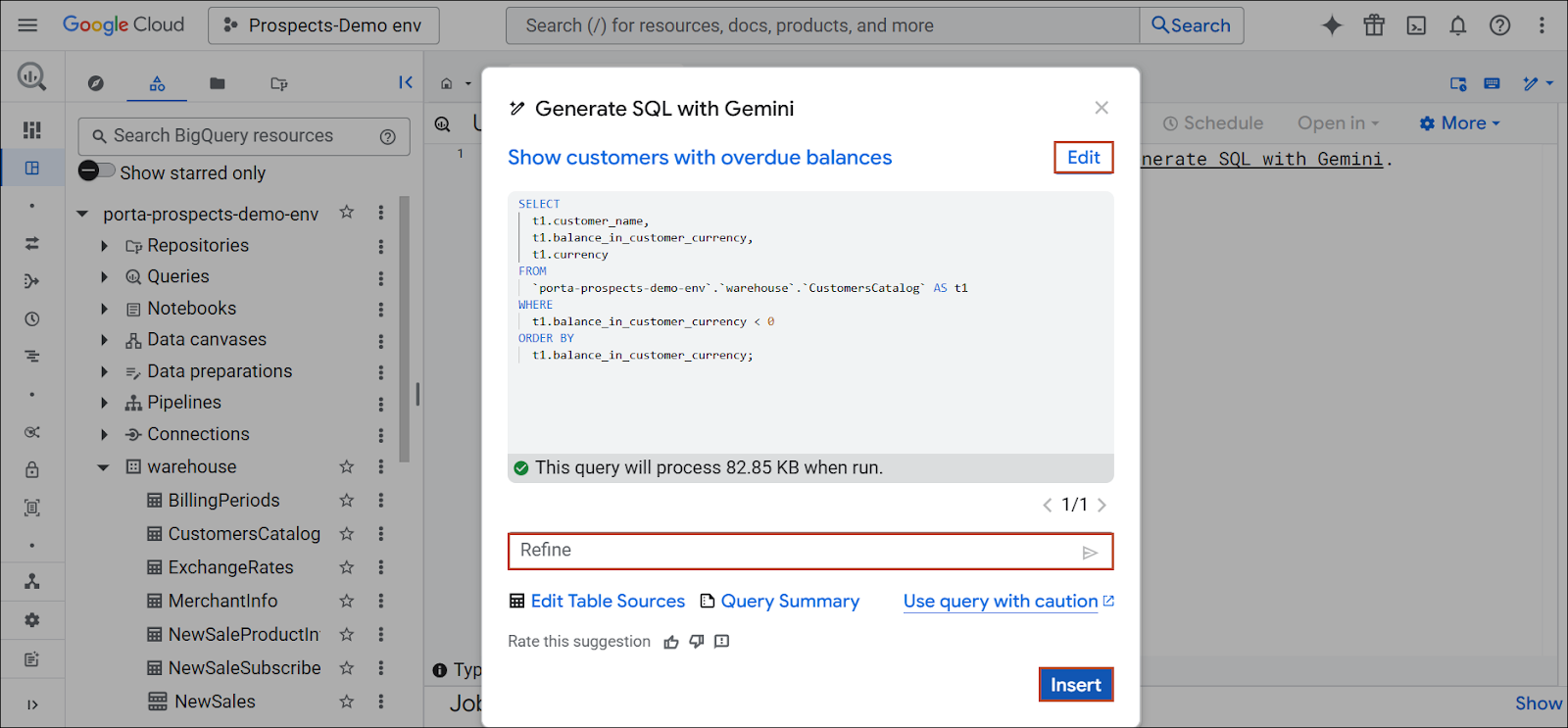
- Enter your request in plain language and click Generate.

- Click Edit to modify your request or Refine to adjust the generated SQL query. Click Insert to proceed.
- Click Run to generate the report.

- Click Save results to save the generated data using your preferred method, e.g., csv.


Connect to Google BigQuery using external AI or BI tools
To generate a report, you can connect your preferred external AI or BI tools (refer to their official documentation for setup instructions, or contact the PortaOne team for assistance).
For example, to integrate Claude, you need to install the Google CLI utility and deploy the BigQuery MCP server. Then add this MCP server to your Claude configuration. Detailed instructions are available here.
Some tools require assistance from the PortaOne team. For Google Looker and Power BI, you must first obtain a Service Account JSON key file from PortaOne, then follow the official Looker or Power BI setup guide.


