



The SMS Gateway module enables sending and receiving SMS directly in the Microsoft Teams app. These SMS messages are delivered from/to the mobile network by Twilio, with charging handled via the Web Charging Gateway (available as a REST API for Charging module in the Add-on Mart).
Once your free trial/paid subscription is activated, you can deploy the SMS Gateway to enable SMS messaging for Teams users via Twilio.
Preparation steps
Before proceeding with the module configuration and deployment, perform the following steps:
- Configure a domain
- Prepare TLS certificates for the SMS Gateway hostname
- Set up a Twilio account and obtain credentials
- Deploy and configure the REST API for Charging module
- Specify access codes for tariffs in PortaBilling
- Prepare TeamMate account
Step 1: Configure a domain
Prepare a domain (e.g., https://your-wcgw-host.example.com) that will be used to access the SMS Gateway module.
Step 2: Prepare TLS certificates
The SMS Gateway requires a valid TLS certificate to serve HTTPS traffic and to receive delivery receipt (DLR) from Twilio.
Choose one of the following options:
Generate certificates automatically (recommended)
TLS certificates can be generated automatically by PortaOne using Let’s Encrypt certification authority (CA). The system will generate a certificate via Let’s Encrypt for the hostname you specify.
If your domain has a Certification Authority Authorization (CAA) DNS record restricting certificate issuance, add the following record to generate certificates:
sms-gateway.example.com IN CAA 0 issue "letsencrypt.org"
Upload custom certificates
If you prefer to use a certificate from a trusted CA (e.g., Verisign), obtain the following files and upload them during module configuration:
- TLS certificate – the certificate file issued for your SMS Gateway hostname.
- Private RSA key (Apache compatible) – an unencrypted RSA private key file.
Step 3: Set up Twilio
Sign up at twilio.com or log in to the Twilio account. From your Twilio Console dashboard, collect:
- Account SID – a unique identifier for your Twilio account, format: ACxxxxxxxxxxxxxxxxxxxxxxxxxxxxxxxx.
- Auth Token – a token to authenticate API calls and verify incoming requests from Twilio (delivery receipt or DLR).
- At least one Twilio phone number – a DID number provisioned in Twilio that will be used as the sender for all outgoing messages and as the recipient number for inbound messages from mobile networks.
Step 4: Configure REST API for Charging
The SMS Gateway uses the REST API for Charging module to authorize and charge requests for SMS and MMS messages in PortaBilling.
Make sure the REST API for Charging module is deployed and accessible, then note down:
- Base URL that will be used to access the Web Charging Gateway (e.g., https://your-wcgw-host.example.com).
- User login and password that will be used to authenticate with the gateway.
Refer to the REST API for Charging configuration guide for setup instructions.
Step 5: Specify access codes for tariffs
Access codes define which tariff PortaBilling applies to each message type (SMS, MMS) and direction (outgoing/incoming). When adding a tariff to a product in PortaBilling, specify the access code for the corresponding message type and direction. Then, when configuring the module, enter the same access codes.
For example, the following are the default access codes you can specify in PortaBilling when adding the tariffs to a product:
| Message type | Direction | Suggested access code |
| SMS | Outgoing | SMS_OUTBOUND |
| SMS | Incoming | SMS_INBOUND |
| MMS | Outgoing | MMS_OUTBOUND |
| MMS | Incoming | MMS_INBOUND |
Step 6: Prepare TeamMate account
To allow your customers to send and receive SMS messages using the Teams app, you need to have an account as a Reseller on the TeamMate Connector Reseller portal. Register it or contact PortaOne Support for assistance.
Module configuration and deployment
Once the module is activated and the preparation steps are complete, you can configure and deploy the SMS Gateway.
On the My modules page, click Configure next to the SMS Gateway module.
On the Configuration UI page that opens, fill in the configuration details and click Save & deploy (or Save for later to deploy it at a later time).
The configuration form consists of the following sections:
General settings
Instance location – select the closest cloud data center where the module will be deployed (to minimize the latency).
If none of the locations are close enough, please contact PortaOne Sales. Additional data centers in other locations can be activated upon request.
SMS Gateway for Teams version to deploy – choose a module version. The following options are available:
- Deploy the latest (recommended) – select if you want to deploy the latest version.
- Select from the full list – select if you want to deploy another version.

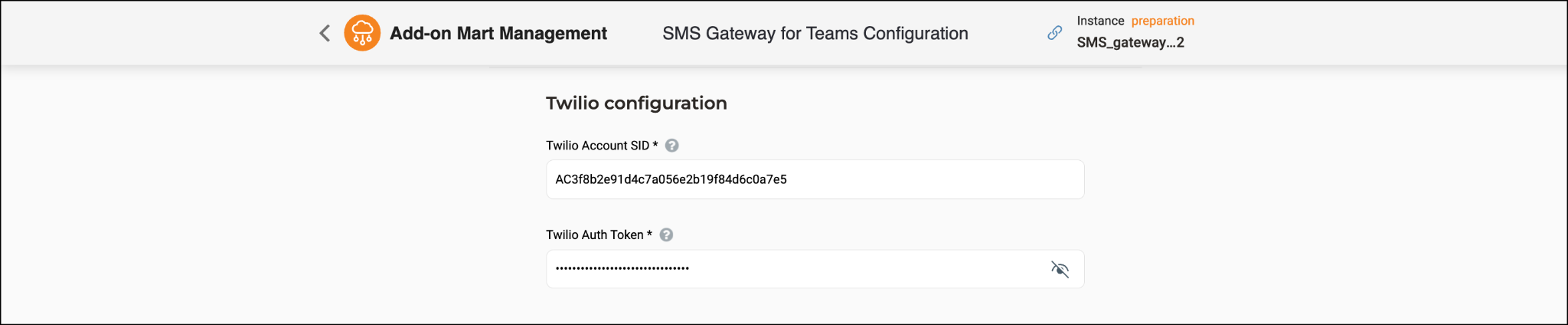
Twilio configuration
Enter the credentials obtained in preparation step 1.
- Twilio Account SID – the unique identifier for your Twilio account, found in the Twilio Console dashboard. Format: ACxxxxxxxxxxxxxxxxxxxxxxxxxxxxxxxx.
- Twilio Auth Token – the authentication token for your Twilio account.
REST API for Charging configuration
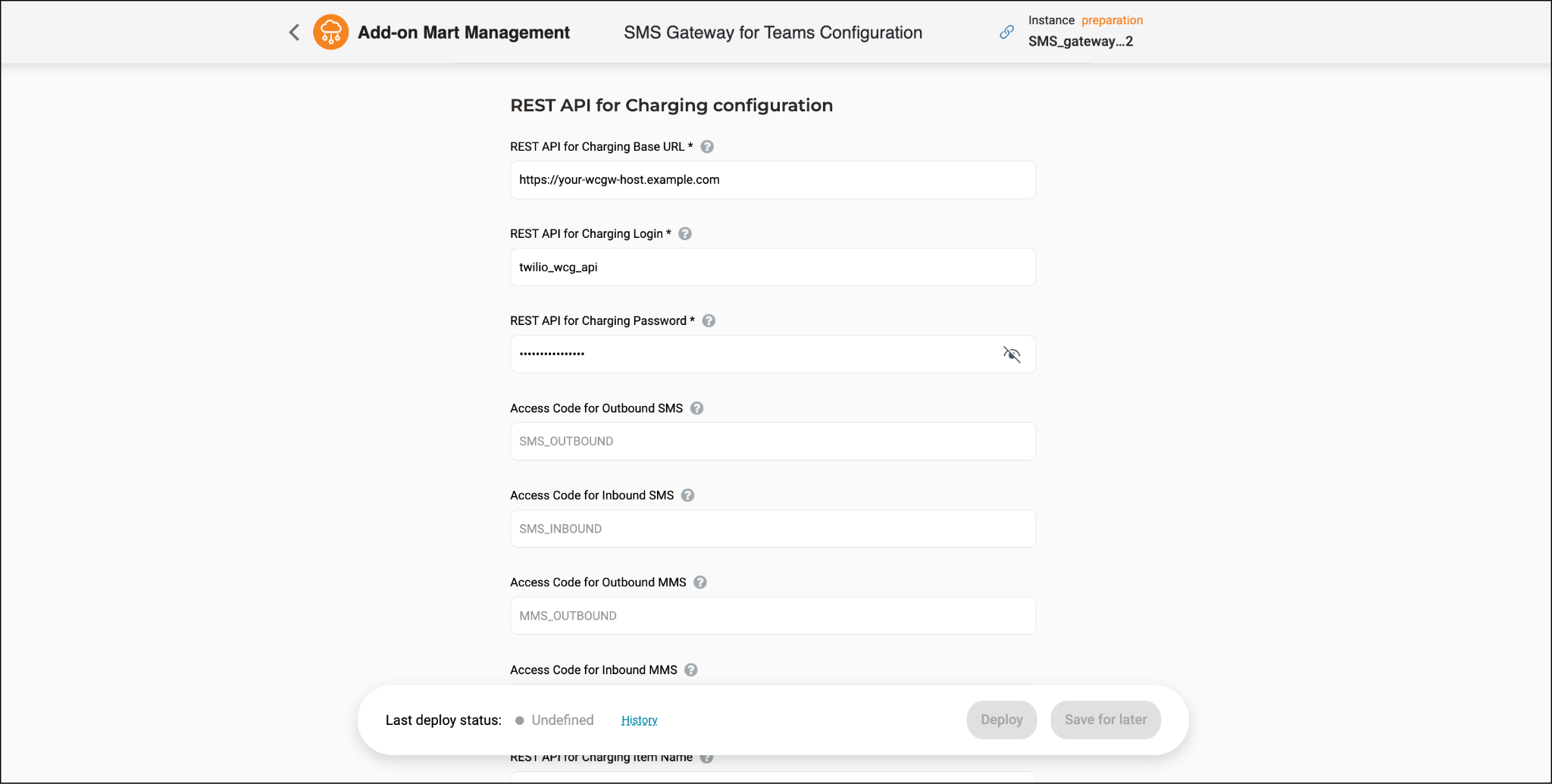
Enter the Web Charging Gateway credentials from Preparation step 2 and the access codes from Preparation step 3.
- REST API for Charging Base URL – the base URL (domain) of the Web Charging Gateway, e.g., https://your-wcgw-host.example.com.
- REST API for Charging Login – the username for the Web Charging Gateway.
- REST API for Charging Password – the password for the Web Charging Gateway.
The following access code options are automatically populated with the default values. If you used the default access codes (for example, SMS_INBOUND and SMS_OUTBOUND) when creating products in PortaBilling, leave the values unchanged. Otherwise, replace them with the custom access codes you used.
- Access Code for Outbound SMS – the access code that points to the outgoing SMS tariff in PortaBilling. Default: SMS_OUTBOUND.
- Access Code for Inbound SMS – the access code that points to the inbound SMS tariff in PortaBilling. Default: SMS_INBOUND.
- Access Code for Outbound MMS – the access code that points to the outgoing MMS tariff in PortaBilling. Default: MMS_OUTBOUND.
- Access Code for Inbound MMS – the access code that points to the inbound MMS tariff in PortaBilling. Default: MMS_INBOUND.
- REST API for Charging Item Name – the item or unit name for the messaging service as it appears in PortaBilling, e.g., SMS or message. Default: SMS.
- REST API for Charging Units per Message – the number of billing units charged per message. Default: 1.
SMS Gateway configuration
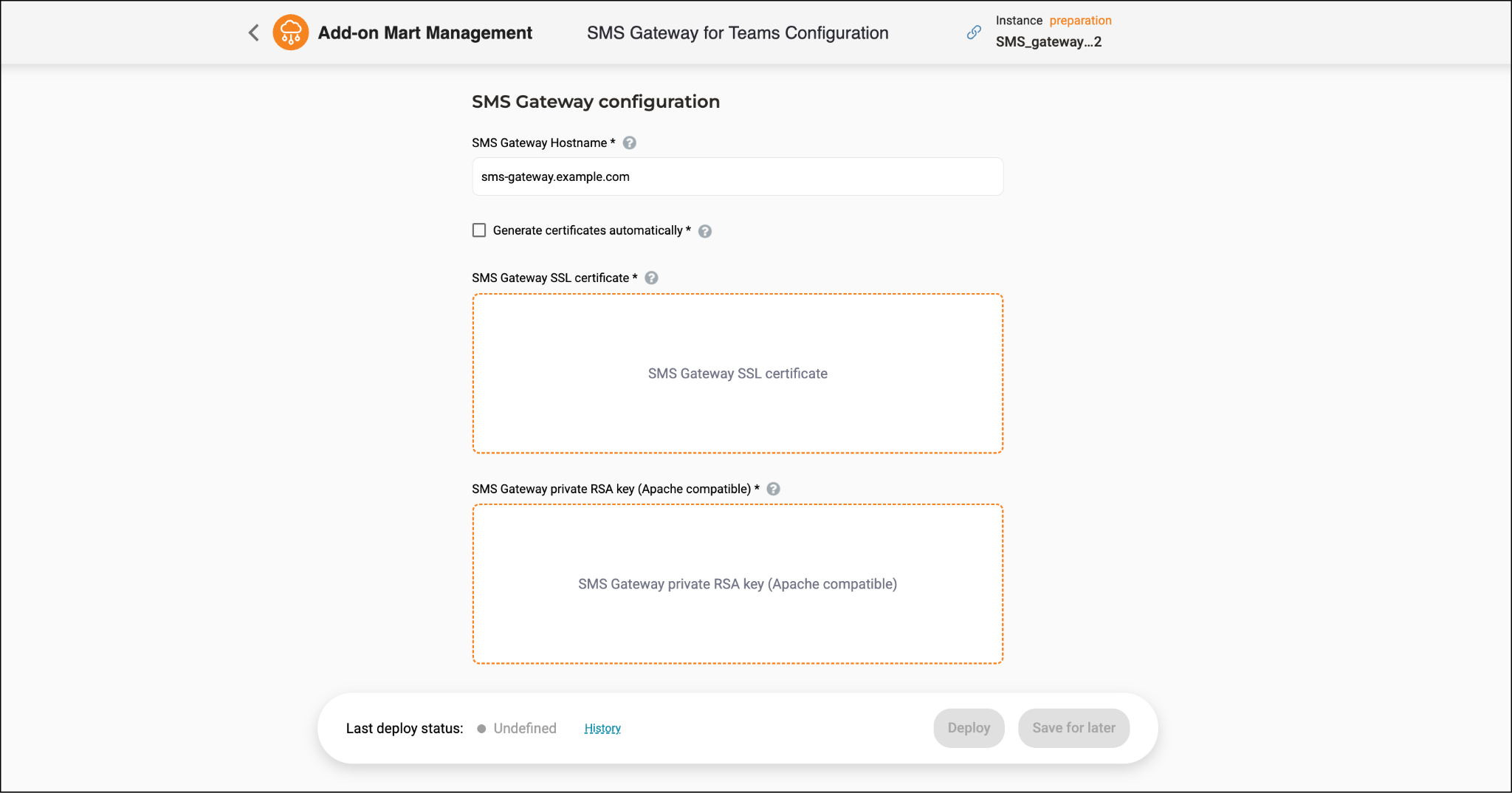
Specify the public hostname for the SMS Gateway service and provide TLS certificate details.
- SMS Gateway Hostname – the public hostname of this SMS Gateway service, e.g., sms-gateway.example.com. This hostname is used to construct the Twilio DLR (delivery receipt) URL for outgoing messages. The hostname must resolve in DNS (see Preparation step 4).
- Generate certificates automatically – select the checkboxes to have TLS certificates generated automatically via Let’s Encrypt for the hostname above (recommended). When enabled, the certificate and key upload fields below are not required.
- SMS Gateway SSL certificate – upload the TLS certificate file for the SMS Gateway hostname. Required only when Generate certificates automatically is turned off.
- SMS Gateway private RSA key (Apache compatible) – upload the unencrypted RSA private key file corresponding to the certificate above. Required only when Generate certificates automatically is turned off.
Deployment
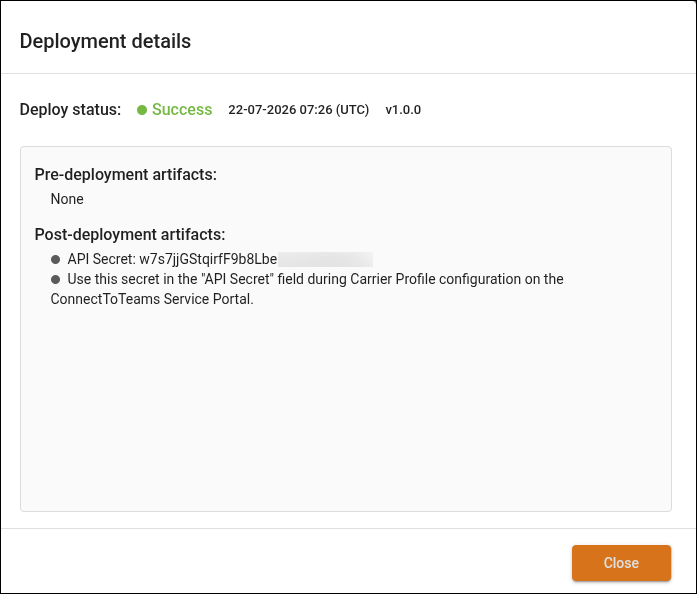
Click Deploy (or Save for later to deploy it later). Your request will be sent to PortaOne Support to start the deployment process.
Once you have finished configuring the module, copy the token from the API Secret field. You’ll need it to complete the remaining setup on the MS Teams Reseller portal: adding the token to the Carrier Profile configuration and setting up your Twilio account.
Twilio configuration
After deploying the SMS Gateway module, you need to configure an incoming SMS webhook for each phone number you provision. The webhook URL is based on the SMS Gateway Hostname you set during module configuration. Use that hostname to construct the URL, then enter it against each phone number in the Twilio Console, e.g., https://<sms-gw-hostname>/webhooks/twilio/inbound-sms
For outgoing messages, the delivery report (DLR) webhook is automatically generated and sent to Twilio by SMS-GW; no manual configuration is required.
TeamMate account configuration
Step 1. Receive information from your customer
1.1 Confirm that your customer has purchased Microsoft Office licenses.
1.2 Collect the email of the Microsoft Global Administrator who has full access to the customer’s Microsoft Office 365 account – you will use this email to register your customer as Enterprise on the TeamMate Connector portal (Reseller).
Step 2. Add your customers as Enterprises on the Reseller portal
For your convenience, the PortaSwitch naming is used alongside the corresponding TeamMate naming. You can check the mapping between the terms in PortaSwitch and TeamMate here.
Prerequisites
Before adding customers on the Reseller portal, make sure you have:
- Your customers’ names, e.g., “ABC company”.
- Email addresses of your customers’ Microsoft Global Admins.
How to add Enterprises
You will need to create a new Enterprise for each new customer. For this, perform the following steps:
2.1 Log in with your Reseller credentials to the Reseller portal.
2.2 Go to Enterprises and click Add Enterprise.
2.3 Specify the email and the SMS service type in the Service field. Consult the TeamMate documentation for a detailed description of the available fields.
Step 3. Specify the access token
3.1 Go to the Reseller node and click SMS Carriers.
3.2 Select the needed profile from the dropdown list.
3.3 Edit the profile to define the following details:
- API Secret – the access token copied from the Configuration UI page of the SMS Gateway module.
- API URL – the hostname of the SMS Gateway module defined in the SMS Gateway Hostname field in the SMS Gateway configuration.
3.4 Select the needed customers from the list to which to assign this profile.
After you finish these configurations, notify your customers to follow the instructions on the Enterprise portal, such as syncing users and uploading phone numbers.


